
Invoice OCR: Turn Scanned & Photographed Invoices into Data
Invoice OCR reads the printed text on a scanned or photographed vendor invoice and turns it into structured fields - vendor, invoice number, issue and due dates, the line-item table, subtotal, tax or VAT, and the total. With SendItSheets you upload a scanned PDF, snap a phone photo, or drop a multi-page invoice, and the OCR engine recognizes the text and maps it to those fields no matter how the vendor laid out the page. Uncertain values are flagged for a quick review, and a 14-day free trial gives you 30 pages, no credit card required.
- Reads scanned PDFs, phone photos, faxes, HEIC, and TIFF
- Handles multi-page invoices and every vendor’s layout
- Recognizes the line-item table, not just the totals
- Low-confidence fields are flagged, not silently guessed
What invoice OCR actually does
OCR stands for optical character recognition - software that looks at an image of text and works out what the characters are. An invoice is one of the harder documents to read. The most important information lives in a table whose columns shift from vendor to vendor, the totals are surrounded by a dozen other figures, and the same page can hold a logo, a remittance stub, payment terms, and a tax breakdown all competing for attention.
Plain OCR will hand you the recognized text and stop there. That is only half the job. SendItSheets is invoice-aware OCR: after it recognizes the characters it works out the structure - which block is the vendor, which date is the issue date versus the due date, which figure is the subtotal versus the tax versus the grand total, and which rows make up the line-item table. The output is a clean, structured record, not a transcript you still have to interpret.
Before any reading happens, the image is cleaned up. A scan that came through at a slight angle is deskewed so the table lines run straight. Faint print from an old fax or a worn toner cartridge has its contrast boosted. A multi-page invoice is treated as one document so the line items flow into a single table. Those steps are why a quick phone photo or a routine office scan - not a pristine original - is usually enough.
What the OCR reads off your invoice
Every scan is mapped to the same named fields, so invoices from two different suppliers come out in the same shape.
Vendor & Bill-To
The supplier name and address, plus the billing party, lifted from the header even when they sit beside a logo or a remittance block.
Invoice & PO Number
The invoice number and any referenced purchase order, told apart from account numbers and other identifiers on the page.
Issue & Due Dates
The invoice date and payment due date, normalized to a consistent format regardless of how the vendor printed them.
Line Items
Each table row with description, quantity, unit price, and line amount - the hard part most generic OCR tools never reach.
Subtotal, Tax & VAT
The subtotal and the tax line - whether it reads as VAT, GST, or sales tax - kept separate so neither is confused with the total.
Total & Currency
The amount due and its currency, resolved from the figure in the total’s usual position with the right relationship to the subtotal and tax.
Scan it however it reaches you
You do not need a clean original or a special capture app. The OCR is built around the messy reality of how invoices actually land - as scans in a shared drive, as photos in your camera roll, as PDFs attached to an email, or as faxes that have been through a machine or two.
Anything legible to your own eye is usually legible to the OCR. The lower the scan quality, the more fields get flagged for a quick confirmation.
How to scan an invoice and get structured data
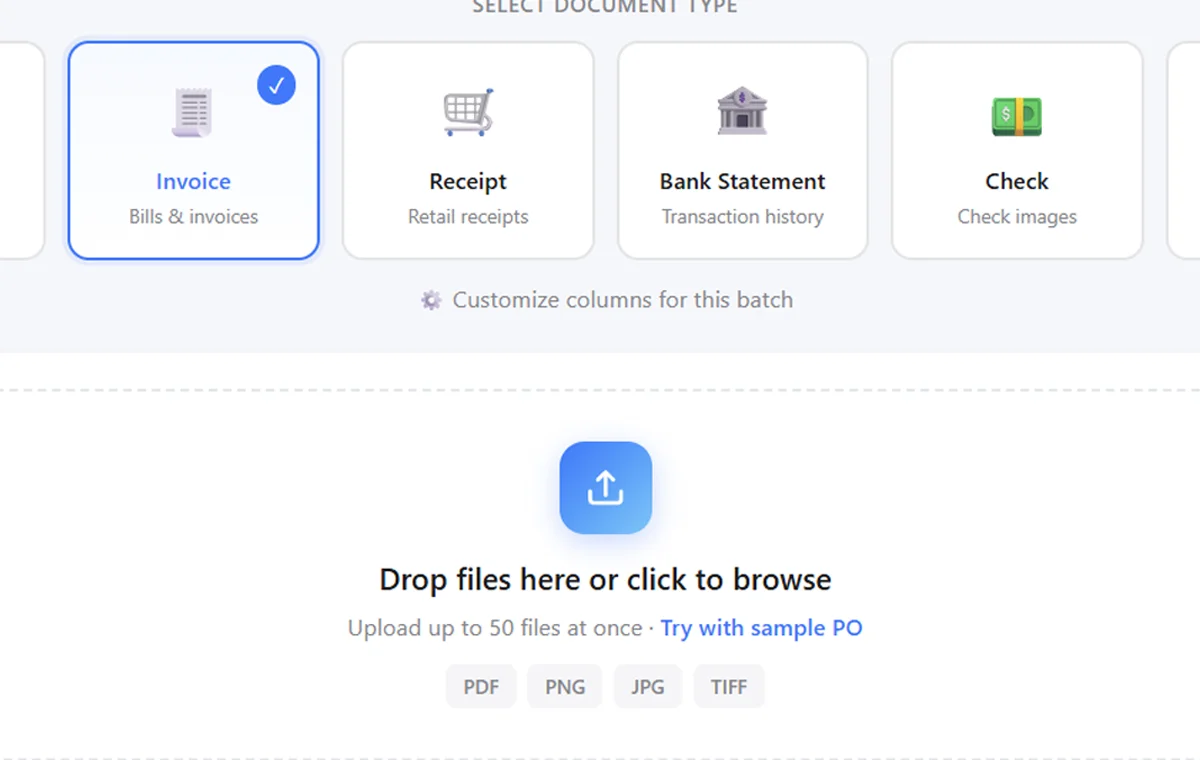
Scan or photograph it
Scan the invoice on a flatbed, snap a phone photo, or grab the PDF. Capture every page, keep the whole document in frame, and use even light across the line-item table for the cleanest read.
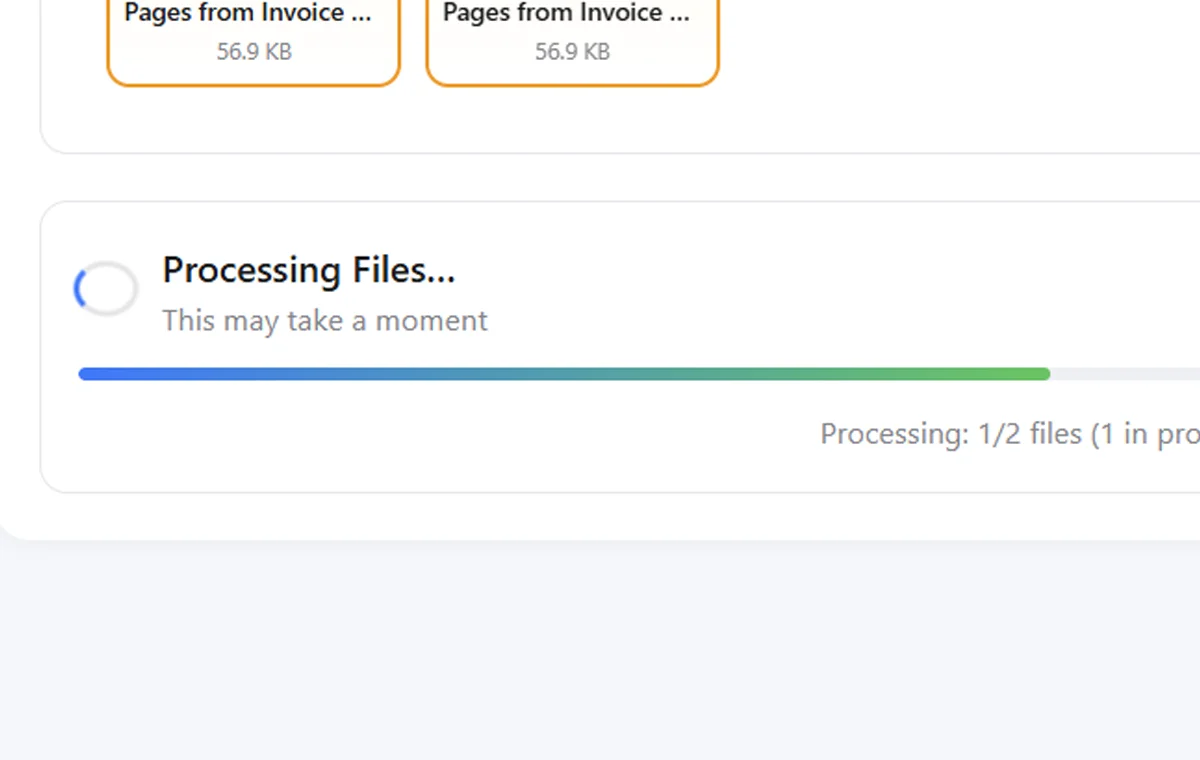
OCR reads the scan
The engine deskews the scan, boosts faint print, and recognizes the text - then maps it to vendor, invoice number, dates, the line-item table, tax, and total, whatever layout the vendor used.
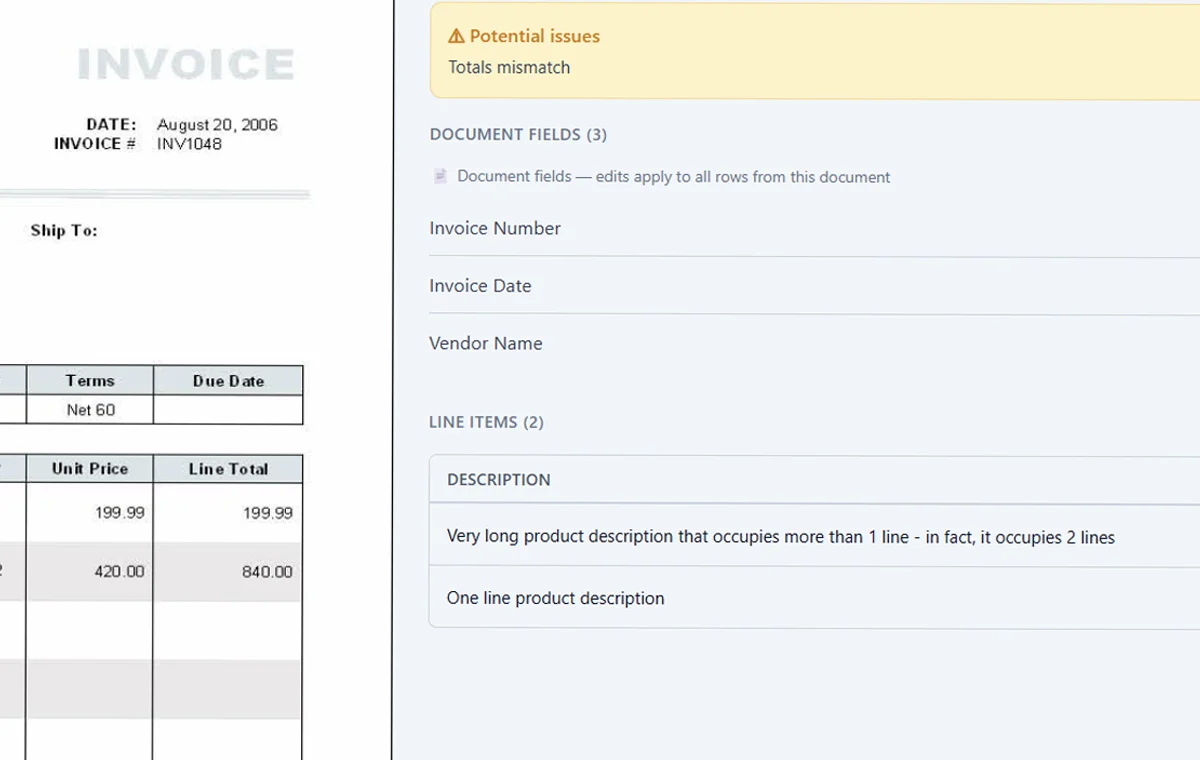
Confirm the flagged fields
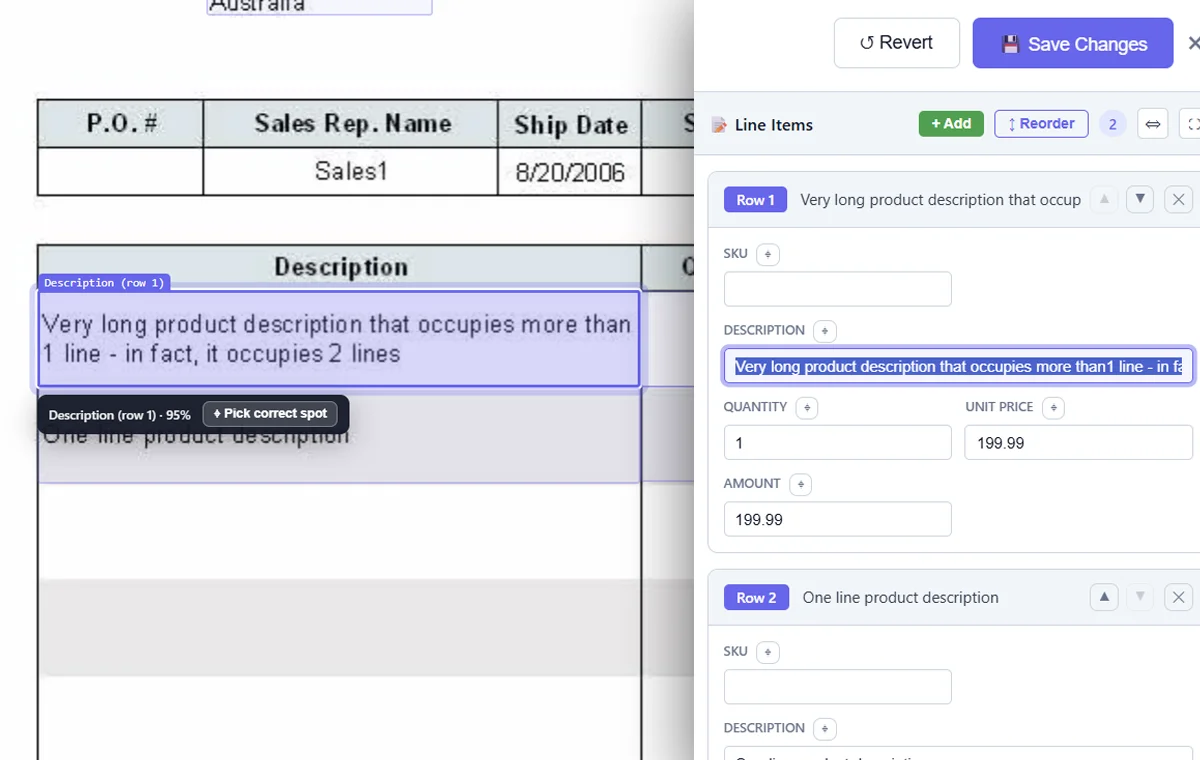
Uncertain reads are highlighted. The invoice scan sits next to the extracted fields, so you glance at the original and confirm or fix a value in a second - no hunting through a separate window.
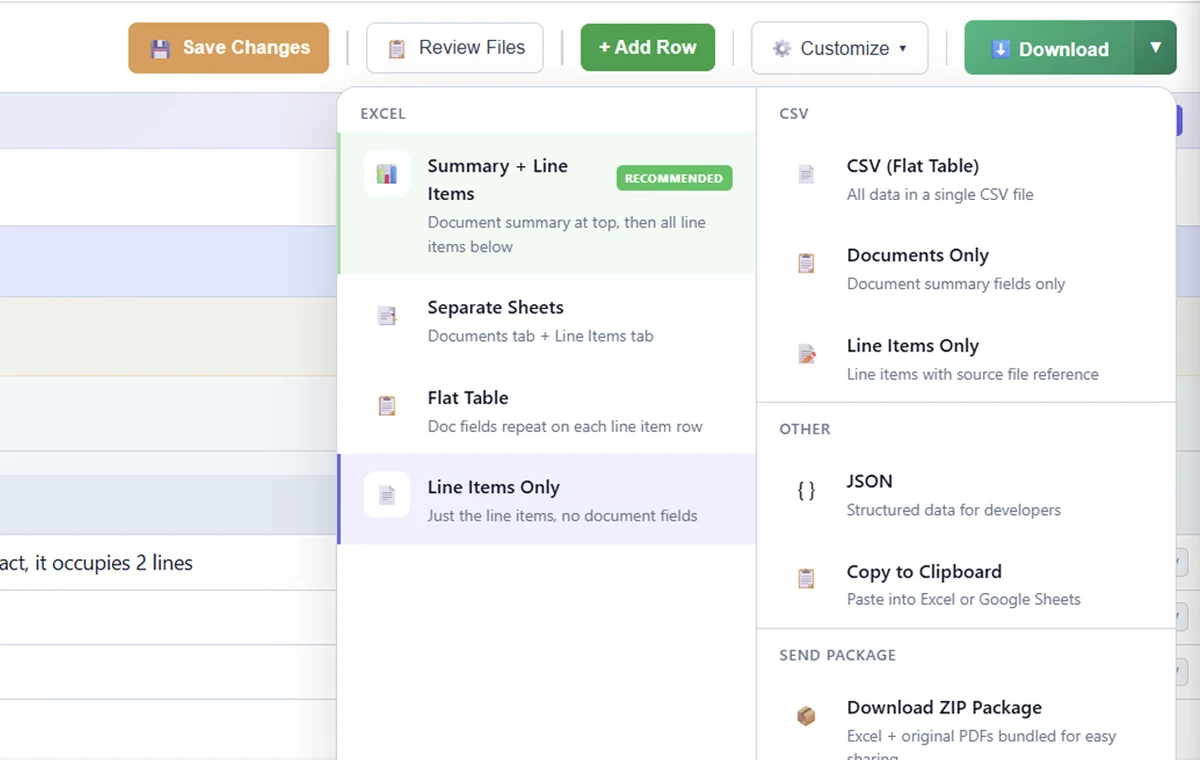
Export the structured data
Send the result wherever it needs to go. The downstream conversion is one click - convert it to Excel or push it on into your accounting system.
Why generic OCR fails on invoices
If you have ever run an invoice through a general document scanner, you have seen the result: a faithful but useless block of text. The app recognized every character and understood none of them. It cannot tell you that “SUBTOTAL 1,240.00” and “TOTAL 1,388.80” mean different things, or that the row reading “Net 30” is a payment term and not a line item.
The deeper problem is layout. A receipt is roughly the same shape everywhere; an invoice is not. Every vendor designs their own. The total can sit top-right, bottom-right, or in a summary box. The tax line might be labeled VAT, GST, or Sales Tax. The line-item columns appear in a different order on every template, and some vendors split a single charge across multiple rows. A tool that keys off fixed positions breaks the moment a new supplier’s invoice arrives.
This is not a hypothetical difficulty - it is why invoice scanning has historically been treated as a human-in-the-loop problem by the biggest names in the space. Intuit’s QuickBooks, for example, has long leaned on a managed receipt-and-invoice capture pipeline with human review rather than trusting raw OCR to read every vendor’s layout unaided. When a company with that much scale still puts people behind the scan, it tells you the layout problem is real, not marketing.
SendItSheets closes the gap by being invoice-aware. Instead of fixed coordinates, it locates fields by structure and context: the line-item table is found by its row pattern, the total by its position and arithmetic relationship to the subtotal and tax, the vendor by where supplier blocks usually live. That domain knowledge is what lets one engine read a stack of invoices from completely different suppliers and return them all in the same shape.
How the OCR handles its own uncertainty
No OCR is perfect on real-world scans. What matters is whether the tool tells you where it might be wrong. SendItSheets scores every field and surfaces the shaky ones instead of hiding them.
Read and trusted
Crisp scans, clear totals, a flat image. Vendor, invoice number, and total on a clean invoice are extracted and left alone - no second look needed.
Highlighted, not hidden
A smudged total, an ambiguous tax line, a quantity the engine read two ways. These get marked so you confirm them against the scan rather than trusting a guess.
Honest about limits
A faxed-then-rescanned invoice or a near-blank low-res image may lose a field or two. The tool tells you which - so you re-scan it or fill that one value in by hand.
🖨️ One tip that beats every setting
The single biggest accuracy boost is a flat, in-frame scan at a decent resolution - aim for 300 DPI or a sharp, well-lit photo. A clean capture of the line-item table makes the difference between a clean first read and a handful of flagged fields.
What scans well, and what fights back
✅ Reads reliably
- Office scans and phone photos taken at a slight angle - the image is straightened automatically
- Multi-page invoices where line items continue across several pages
- Invoices from many different vendors with completely different templates
- Long itemized statements with dozens of line-item rows
- Tax breakdowns labeled VAT, GST, or sales tax across regions
- Invoices with logos, remittance stubs, and terms cluttering the page
⚠️ Needs a better scan
- Faxed-then-rescanned invoices where the print has degraded badly
- Very low-resolution scans where the line-item text is mushy
- Photos with hard glare or a shadow falling across the totals
- Handwritten amounts or annotations - print reads far better than cursive
- Pages cut off in the scan, missing the totals or part of the table
- Extremely dense tables with merged or borderless columns
The line items - the part generic OCR misses
Any scanner can grab the total off an invoice. Reading the table - every description, quantity, unit price, and line amount, off an image, across a layout it has never seen - is the genuinely hard problem. It is also the data your AP team actually needs.
- Each table row is recognized and split into its proper columns
- Quantity, unit price, and line amount are tied back to the totals
- Rows that wrap or split across pages are stitched into one table
- Low-confidence cells are flagged so your eye goes straight to them
- The invoice scan sits beside the extracted rows for a fast check
Invoice OCR vs manual entry vs a generic scanner
| Key it in by hand | Generic OCR / scanner app | SendItSheets invoice OCR | |
|---|---|---|---|
| Speed per invoice | Minutes per document | Fast scan, slow cleanup | ~8 seconds |
| Output | Whatever you type | Raw text you must parse | Named fields, ready to use |
| Reads the line-item table | Row by row, by hand | No structure - just text | Yes, split into columns |
| Handles new vendor layouts | You re-read each one | Breaks on fixed positions | Layout-agnostic |
| Flags uncertain reads | No | No | Yes, per field |
| Batch of mixed vendors | Tedious | One at a time | Single upload |
Scanning invoices in bulk
One invoice is a convenience; a folder of them is the real job. Most AP backlogs are not a single document - they are a month of supplier invoices in a shared drive, a stack of scanned PDFs, or a pile that finally got fed through the office scanner all at once.
A few habits make a bulk scan read cleanly:
- Scan at a sensible resolution. 300 DPI black-and-white is plenty for text and keeps the files small. Going lower is the most common cause of mushy line-item reads.
- Keep each invoice whole. Make sure no page is cut off at the top or bottom of the scan - a missing totals row turns a clean read into a flagged one.
- Mix vendors freely. You do not need to sort by supplier first. Different layouts in the same batch are fine, because the engine reads by structure, not template.
- Review once, not fifty times. The whole batch comes back in a single table, so a folder of invoices becomes one review-and-export session instead of fifty separate ones.
Scan the stack, let the OCR read every page, skim the flagged fields, and export the lot in one pass.
Who relies on invoice OCR
Accounts payable teams
Scan the day’s supplier invoices and pull vendor, line items, tax, and totals out in one pass - then post them on into the ledger without re-keying every row.
Bookkeepers with backlogs
Scan a client’s months-old folder of mixed-vendor invoices in a single batch instead of typing each one - even the faxed and faded ones.
Operations & procurement
Photograph supplier invoices as they arrive in the field and turn the line items into structured data for cost tracking and PO matching.
Want the full picture on the spreadsheet side - VAT handling, combining many invoices into one workbook, and importing into accounting tools? See the complete Invoice to Excel conversion guide on the main invoice page.
What happens after the scan
Reading the invoice is the hard part. Once the data is structured, getting it where it needs to go is trivial. SendItSheets exports to whatever format your workflow runs on, and the scanning page is just the front door to the rest of the invoice cluster:
- Invoice to Excel converter - the full conversion and export workflow: VAT handling, line-item columns, and combining many invoices into one workbook.
- Invoice data extraction - a deeper look at the fields SendItSheets pulls and how the extraction is mapped, the sibling to this scanning page.
The takeaway is the same as with any scan: spend your effort on a clean capture, and the export takes care of itself. The OCR does the reading; the conversion is one click.
Are my scanned invoices private?
Invoices carry vendor relationships, pricing, and account numbers, so privacy matters. Uploads are encrypted in transit and at rest and stay private to your account, and you can delete any file whenever you want. Only you can see what you upload.
Related invoice tools
- Invoice to Excel converter - the hub: convert scanned and digital invoices into clean spreadsheets with line items, tax, and totals.
- Invoice data extraction - the sibling page on the specific fields SendItSheets extracts and how the mapping works.
Invoice OCR: Frequently Asked Questions
Scan an Invoice and See the OCR Work
Upload a scan or snap a photo and watch the vendor, line items, tax, and total come out as clean fields. Batch mixed vendors at once. Start with 30 free pages over 14 days. No credit card required.
Scan My Invoices Free