
Fix Messy Bank Transaction CSV Files for QuickBooks and Excel
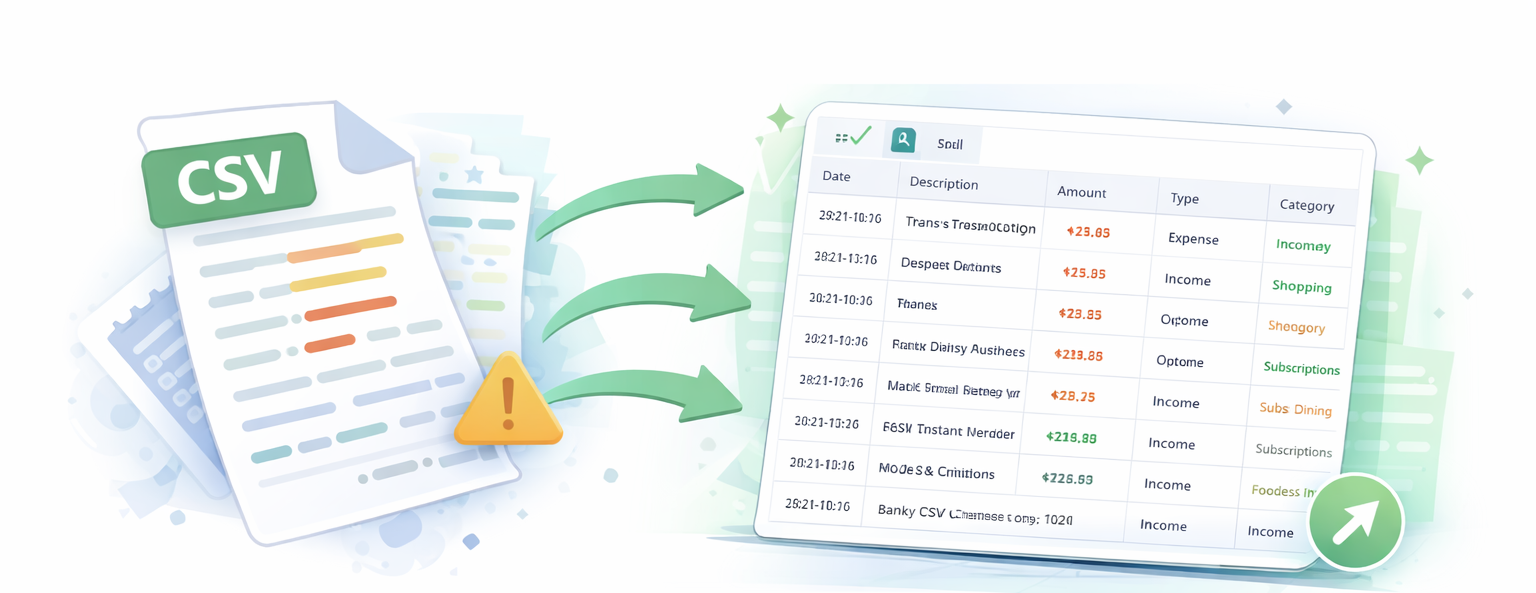
Upload a messy bank transaction CSV and automatically format it for Excel, QuickBooks, and bookkeeping workflows. Merge debit and credit columns, normalize dates, and simplify merchant descriptions in seconds.
- Fix inconsistent bank CSV format issues instantly
- Merge debit and credit columns automatically
- Clean merchant names and normalize dates
- Prepare bank CSV for QuickBooks, Xero, or Excel
by

Runs in browser
Files never leave your device
Instant results
Upload Your Bank Transaction CSV
Drop your bank CSV file below for instant transaction export cleanup. The tool will fix bank CSV format issues, merge columns, and prepare your data for QuickBooks, Excel, or other bookkeeping software.
Drop your bank transaction CSV here
or click to browse
Works with Chase, Bank of America, Wells Fargo, Citi, PayPal, Stripe, and other platforms
Example: bank_export.csv
Why Bank Transaction CSV Exports Need Cleanup
Bank transaction CSV exports frequently contain formatting issues that make them difficult to use in spreadsheets and accounting software. Many banks split debit and credit values into separate columns, use inconsistent date formats, or include long merchant descriptions cluttered with codes like "POS PURCHASE DEBIT CARD" that are hard to read. Before this data can be analyzed in Excel or imported into QuickBooks, it typically needs to be cleaned and reformatted. This tool automates that entire process.
Prepare Bank CSV Files for QuickBooks Imports
QuickBooks and other accounting software expect transaction data in a specific format. Exported bank transaction CSV files often have separate debit and credit columns, irregular date formats, and noisy merchant descriptions that don't match the expected structure. This tool helps you prepare bank CSV for QuickBooks by merging amount columns, normalizing dates to a consistent format, and cleaning up transaction descriptions so they import cleanly into your accounting workflow.
Common Uses for Formatted Bank Transaction Data
Clean bank CSV files are useful across many bookkeeping and financial workflows:
- Bank CSV for Excel analysis – Import clean, consistent data into Excel for pivot tables, charts, and expense tracking
- Prepare bank CSV for QuickBooks – Format transactions to match QuickBooks import requirements
- Xero and FreshBooks imports – Standardized data that works with other accounting platforms
- Bookkeeping CSV formatting – Simplified merchant names make transaction categorization faster
- Bank reconciliation – Normalized dates and amounts for easier matching
- Transaction export cleanup – Works with Chase, Bank of America, Wells Fargo, Citi, PayPal, Stripe, and other platforms
Frequently Asked Questions
Can I clean a bank CSV for QuickBooks?
Yes. This tool helps you prepare bank CSV files for QuickBooks by merging debit and credit columns into a single amount field, normalizing date formats, and cleaning up merchant descriptions. The resulting file matches the format QuickBooks expects for bank transaction imports.
How do I merge debit and credit columns in a bank CSV?
Simply upload your bank CSV and make sure the "Merge Debit/Credit Columns" option is checked. The tool will automatically combine separate debit and credit columns into a single amount column, with debits shown as negative values and credits as positive values.
Can I use this tool for Excel analysis?
Absolutely. This tool formats bank transaction CSV data specifically for Excel use. You can download the cleaned file as either CSV or Excel format, then use it for pivot tables, expense tracking, spending analysis, or any other spreadsheet workflow.
Can I clean PayPal or Stripe transaction exports too?
Yes. This tool works with transaction export cleanup for PayPal, Stripe, Square, and other payment processors in addition to traditional banks like Chase, Bank of America, and Wells Fargo. As long as your export is in CSV format, the tool can normalize the data.