
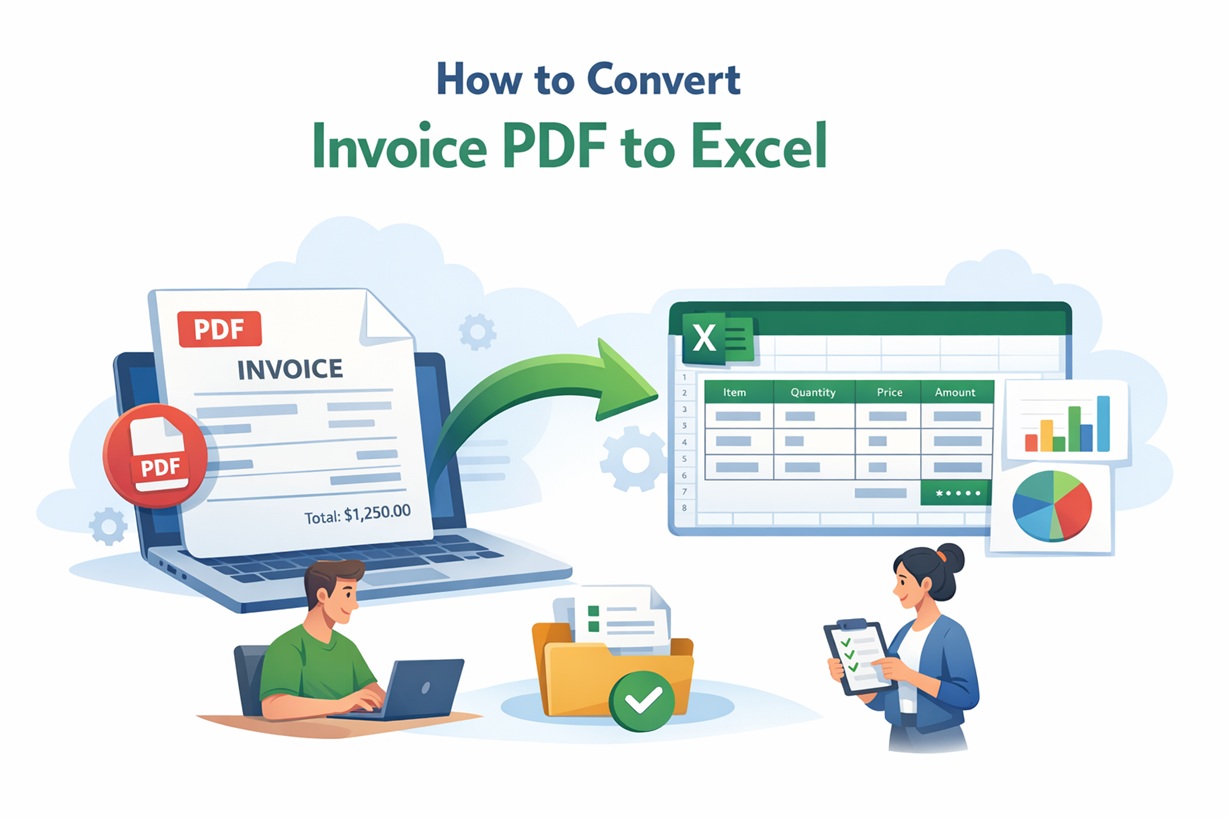
How to Convert Invoice PDF to Excel (The Fast Way)
If your workflow still involves
opening a PDF invoice, squinting at the numbers, and retyping everything into a
spreadsheet — you're losing time you don't have. It's one of the most common
pain points for accountants, bookkeepers, and accounts payable teams, and yet
most people still do it manually because they don't know a better option
exists.
The good news: converting an
invoice PDF to Excel is now genuinely fast. Whether you process five invoices a
month or five hundred, there's an approach that fits your volume — from Excel's
built-in PDF import feature to AI-powered tools like SendItSheets that handle
scanned documents, complex layouts, and batch processing without any setup.
This guide covers the five main
methods, ranked by how well they scale, with honest notes on where each one
breaks down. By the end, you'll know exactly which approach to use for your
situation.
Why Converting Invoice PDFs to Excel Is Harder Than It Sounds
PDF was designed to look the
same on every screen — not to be edited or re-processed. The data inside isn't
stored as structured rows and columns; it's a series of positioned text
elements that happen to look like a table. That's why simply opening a PDF in
Excel doesn't work.
Invoice PDFs make this worse.
Vendor formats vary wildly. One supplier sends a cleanly structured digital
PDF; another sends a scanned image of a paper invoice. Some invoices have line
items in one table, some spread across multiple pages, some mixed with other
document types. Traditional converters that work fine on simple PDFs often fall
apart on the messy real-world documents that hit your inbox every day.
The most reliable methods are
those that understand invoice structure — not just raw text layout — and can
handle both text-based and scanned (image) PDFs.
Method 1: Excel's Built-In "Get Data from PDF" Feature
Excel (Microsoft 365 and Office
2019+) has a built-in PDF import feature under Data → Get Data → From File →
From PDF. It's free and surprisingly capable for clean, digital PDFs.
How it works
•
Open Excel and go to Data → Get Data → From File → From
PDF
•
Select your invoice PDF
•
Excel opens a Navigator pane showing detected tables —
pick the one you want
•
Click Load or Transform Data to clean it up in Power
Query
•
Export to your spreadsheet
When to use it
Best for freelancers and small
businesses processing 5–20 simple, digital invoices per month from a consistent
vendor. If the PDF was created directly from software (not scanned), this
method often works well.
Where it breaks down
It struggles with scanned PDFs,
complex multi-column layouts, and documents where line items span multiple
pages. It also requires manual steps for every file — there's no batch
processing.
Method 2: Adobe Acrobat Pro
Adobe Acrobat Pro's
export-to-Excel feature uses OCR to handle both digital and scanned PDFs. It's
more accurate than Excel's built-in tool on complex documents.
When to use it
Good for businesses already
paying for Adobe Acrobat Pro that handle complex or scanned invoices in
moderate volumes. Not ideal for batch processing — each file still requires
manual steps.
Where it breaks down
At $20+/month just for the PDF
capability, it's expensive for invoice data extraction specifically. It doesn't
understand invoice semantics — it extracts text, not structured fields like
"line item", "unit price", or "total due".
Method 3: Generic Online PDF to Excel Converters
Tools like Smallpdf and ILovePDF
convert PDFs to Excel in your browser for free. They're fast and require no
installation.
When to use it
One-off conversions of simple,
text-based PDFs where you don't need the extracted data to be perfectly
structured. Quick and zero-friction.
Where it breaks down
These tools convert layout, not
meaning. A generic converter doesn't know that a number in one column is a unit
price and another is a quantity — it just maps visual position to cells. You'll
often spend more time cleaning up the output than you saved on data entry.
Scanned PDFs return poor results, and there's typically a file size cap and no
batch processing.
Method 4: AI-Powered Invoice Data Extraction (Recommended for Most Teams)
Purpose-built invoice extraction
tools use AI trained specifically on financial documents. They don't just
convert layout — they understand that an invoice has a vendor, a date, an
invoice number, and line items with descriptions, quantities, and prices. That
semantic understanding is what produces clean, structured output without manual
cleanup.
SendItSheets is built
specifically for this use case. Upload a PDF invoice — digital or scanned — and
the AI identifies every field automatically. You get a structured Excel file
with your data in the right columns, ready to import into QuickBooks, Xero, or
your accounting software of choice.
How it works on SendItSheets
•
Go to senditsheets.com and upload your invoice PDF (no
signup required for the first test)
•
The AI extracts vendor info, invoice number, date, line
items, quantities, unit prices, subtotals, taxes, and totals
•
Review the extracted data in-browser and correct any
fields if needed
•
Download as Excel (.xlsx), CSV, or JSON — compatible
with QuickBooks, Xero, Sage, and NetSuite
Batch processing
For teams processing more than
20 invoices per month, SendItSheets' batch upload handles up to 50 documents
simultaneously. What used to take a half-day of manual data entry takes
minutes.
When to use it
Any team processing more than a
handful of invoices per month. Especially valuable when vendors use different
formats, when invoices are scanned, or when data needs to flow into accounting
software without manual cleanup.
Method 5: API Integration for High-Volume Teams
If you're processing hundreds or
thousands of invoices and want the extraction to happen automatically as
documents arrive — without anyone manually uploading files — an API integration
is the right approach.
SendItSheets' Pro plan includes
API access. You can connect it to your document management system, email inbox,
or accounts payable workflow so that invoices are extracted and structured
automatically, then pushed directly into your accounting software or ERP via
webhook.
Which Method Is Right for You?
|
Method |
Best for |
Handles
scans? |
Batch
support? |
|
Excel Get Data |
Simple digital PDFs |
Limited |
No |
|
Adobe Acrobat |
Complex single files |
Yes |
No |
|
Online converters |
One-off conversions |
Poor |
No |
|
SendItSheets (AI) |
Most teams, all formats |
Yes |
Yes (50 files) |
|
SendItSheets API |
High-volume automation |
Yes |
Unlimited |
Start Extracting Invoice Data for Free
SendItSheets includes 10 free
pages per month — no credit card required. Try uploading an invoice and see the
extracted data in under 10 seconds. If you're processing larger volumes, plans
start at $20/month for 250 pages.
•
Try the invoice converter free →
senditsheets.com/invoicetoexcel
•
Process bank statements →
senditsheets.com/bankstatementtoexcel
• Extract purchase order data → senditsheets.com/purchaseordertoexcel
Stop Retyping Invoice Data. Let AI Do It.
Whether you're managing accounts
payable for a small business or processing hundreds of vendor invoices a month
at an accounting firm, manually entering invoice data into Excel is one of the
biggest time drains in finance operations. It's slow, prone to errors, and
completely unnecessary in 2025.
SendItSheets' invoice to Excel
converter uses AI trained specifically on financial documents — not generic OCR
software — to extract every key field from your vendor invoices: vendor name,
invoice number, issue date, due date, line item descriptions, quantities, unit
prices, subtotals, tax amounts, and totals. You get a clean, structured
spreadsheet ready to import into QuickBooks, Xero, Sage, NetSuite, or any
accounting software that accepts CSV or Excel.
It works on any invoice format —
digital PDFs created in billing software, scanned paper invoices, photos taken
on a phone, and multi-page documents with complex layouts. You don't need to
set up templates or configure rules for each vendor. The AI adapts
automatically.
Upload a single invoice or
batch-process up to 50 files at once. Review the extracted data in your browser
before downloading — you can edit any field inline if needed. When you're
happy, export as .xlsx, .csv, or JSON.
Teams using SendItSheets
typically reduce invoice data entry time by 80% or more. For a team processing
100 invoices per month at 5 minutes each, that's over 8 hours saved — every
month.
Start free: your first 10 pages
are included with no credit card required. If you're an accountant or
bookkeeper, see our dedicated plan for accounting firms with batch processing
and priority support.
Turn Any Bank Statement PDF Into a Spreadsheet — Automatically
Bank statements are one of the
most time-consuming documents to work with manually. Whether you're a
bookkeeper reconciling a client's accounts, a business owner preparing for tax
season, or an accountant cleaning up records for an audit, copying transaction
data row by row from a PDF is exactly the kind of work that shouldn't exist
anymore.
SendItSheets converts bank
statement PDFs to Excel or CSV in seconds. Upload your statement — from any
bank, in any format — and the AI extracts every transaction: date, description,
debit amount, credit amount, and running balance. You get a clean, properly
structured spreadsheet with one row per transaction, ready for analysis,
reconciliation, or import into your accounting software.
This is a true invoice data
extraction tool, not a generic PDF converter. The difference matters: a generic
converter maps the visual layout of your statement to cells, which means you
often end up with merged cells, misaligned columns, and garbled descriptions.
SendItSheets understands the structure of a bank statement and outputs data in
a standardized format regardless of which bank or statement style you upload.
It handles both digital PDF
statements (downloaded from your bank's portal) and scanned paper statements.
Multi-page statements — even ones spanning dozens of pages — are processed in a
single upload.
For accountants and bookkeepers
processing multiple clients, batch processing lets you upload up to 50
statements at once. The resulting files are compatible with QuickBooks, Xero,
Sage, and any tool that accepts CSV input.
Your first 10 pages are free —
no credit card required. For higher volumes, see our pricing page for plans
starting at $20/month.
Extract Purchase Order Data Without the Manual Work
Procurement teams spend a
surprising amount of time manually re-entering data from purchase orders —
copying PO numbers, vendor details, SKUs, quantities, and unit prices into
spreadsheets or inventory systems. It's repetitive, error-prone, and completely
automatable with the right tool.
SendItSheets' purchase order to
Excel converter extracts every key field from your PDF purchase orders: PO
number, issue date, vendor information, ship-to address, line item
descriptions, SKU codes, quantities ordered, unit prices, and order totals. The
output is a structured Excel or CSV file with each line item on its own row —
ready to import into your inventory system, ERP, or procurement software.
Unlike generic PDF converters
that just remap the visual layout, SendItSheets understands the structure of a
purchase order. That means consistent, clean output whether your PO comes from
a small supplier using a simple Word template or a large vendor with a complex
multi-page document.
Upload a single PO for a quick
one-off extraction, or batch-process up to 50 files at once to clear a backlog
of orders. For teams with high document volumes, the API lets you connect
SendItSheets directly to your procurement workflow so POs are extracted
automatically as they arrive.
Works with PDF purchase orders,
scanned paper POs, and image files (JPG, PNG, TIFF). The extracted data is
compatible with all major ERP and inventory platforms including NetSuite, SAP,
QuickBooks, and Fishbowl.
Start with 10 free pages — no
credit card required. See how much time your team saves before committing to a
plan.
From Receipt Pile to Expense Report — Without the Typing
Whether you're a freelancer
preparing for tax season, a small business owner tracking deductible expenses,
or an accountant processing receipts for client reimbursements, manually
entering receipt data is one of the least productive ways to spend your time. A
receipt takes 30 seconds to photograph but 3–5 minutes to type up correctly —
and errors in expense reports have a way of surfacing at the worst possible
moments.
SendItSheets extracts itemized
data from any receipt — restaurant bills, retail purchases, travel expenses,
supplier receipts — and outputs a structured Excel or CSV file. Each receipt
becomes a row (or multiple rows for itemized line items) with the merchant
name, date, item descriptions, individual amounts, subtotal, tax, and total
automatically populated.
Upload a clean digital PDF, a
scanned paper receipt, or a photo taken on your phone. The AI handles variable
receipt formats without any template setup — from a simple coffee shop receipt
to a multi-page equipment purchase. Batch processing lets you clear an entire
month's worth of receipts in a single upload.
The output integrates directly
with popular expense management workflows. Export to Excel (.xlsx) or CSV and
import into QuickBooks, Xero, Expensify, or any spreadsheet-based expense
tracker. For accountants processing receipt batches on behalf of clients, our
accounting firm plan includes priority processing and dedicated support.
Your first 10 pages are free. No credit card required, no software to install. Upload a receipt now and see the extracted data in under 10 seconds.
Convert Any PDF to a Clean, Structured Spreadsheet
Not all PDF to Excel converters
are the same. Most tools take a PDF, map its visual layout onto cells, and hand
you a spreadsheet that needs an hour of cleanup before it's usable. Merged
cells, split descriptions, misaligned columns, missing data — the output looks
right but doesn't behave like structured data.
SendItSheets works differently.
It uses AI trained on financial and business documents to extract data by
meaning, not just position. Upload an invoice and you get vendor info, line
items, and totals in the right columns. Upload a bank statement and you get one
transaction per row, with dates, descriptions, and amounts properly separated.
Upload a purchase order and you get SKUs, quantities, and pricing in a format
your inventory system can actually read.
The converter handles the
documents that trip up generic tools: scanned PDFs where the content is an
image rather than text, multi-page documents with tables that span pages, and
files with complex layouts from vendors who've never heard of a consistent template.
There's no setup, no template
configuration, and no vendor-specific training required. Upload your PDF,
review the extracted data in your browser, edit any field inline if needed, and
export as Excel (.xlsx), CSV, or JSON. The whole process takes under 30 seconds
for a typical document.
SendItSheets supports all common
financial document types: invoices, purchase orders, bank statements, receipts,
and checks. Batch processing handles up to 50 files at once, and the API lets
high-volume teams integrate extraction directly into their document workflows.
Start free with 10 pages — no credit card required. See the difference AI-powered extraction makes on your actual documents.