
Multi-Account Bank Statement Extraction: Methods Compared
When a single PDF contains checking, savings, and a credit card account, generic PDF-to-Excel methods merge the data into one block, leaving you to manually identify and split account sections. This guide walks through five methods, the exact steps to use each one, and what goes wrong specifically with multi-account statements.
To extract transactions from a multi-account bank statement, the five methods are: Excel Power Query (Get Data from PDF), Adobe Acrobat Pro Export PDF, manual copy-paste, free online PDF-to-Excel converters, and dedicated bank statement extraction tools. Generic methods (Power Query, Adobe, copy-paste) work on single-account PDFs but typically fail to detect account boundaries, requiring manual cleanup. Dedicated tools split accounts automatically with per-account balance verification.
Why multi-account extraction is harder than single-account
When a PDF contains one account, the structure is straightforward: a header section with account info, a transaction table, a balance summary. Generic PDF-to-Excel methods can usually handle this. Excel's Power Query reads the table, Adobe Acrobat exports it, even copy-paste from the PDF works for simple cases.
Multi-account statements break these methods because the document structure is different. A single PDF might contain a checking account section followed by a savings account section followed by a credit card section, each with its own header, transaction table, and balance summary. Generic tools either treat the whole document as one giant table (merging accounts together) or pick up only the first account section (missing the rest entirely).
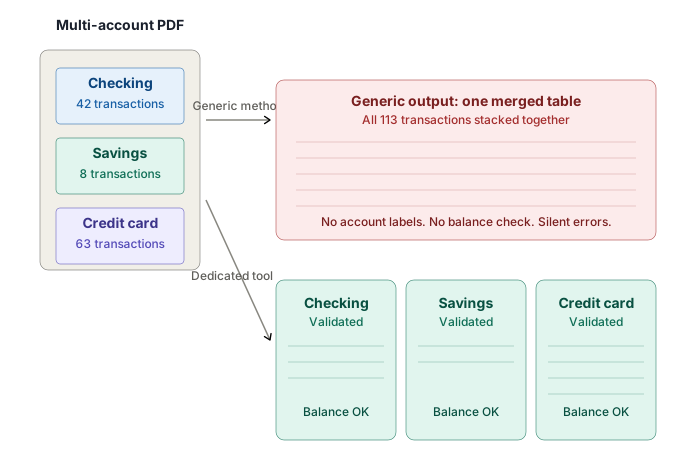
The silent failure mode: Either approach produces output that looks plausible at first glance. The error doesn't show up until you try to reconcile in QuickBooks and the numbers don't match. Worse, in a multi-account statement, you might import 200 transactions and only realize later that 80 of them were from the wrong account.
The methods that handle multi-account statements correctly do three things: detect account boundaries automatically, split transactions into separate sections by account, and validate each account's balance independently. The methods below vary in how well they accomplish those three things.
Excel Power Query (Get Data from PDF)
Power Query is Excel's built-in data import feature. It can read PDFs directly and detect tables within them. This method is free if you already have a recent version of Excel.
- Excel 365 or Excel 2021+ (the "Get Data from PDF" feature is not in Excel 2019 or earlier)
- Windows OS (this feature is not available on Mac)
- A digital-native PDF (selectable text, not a scanned image). For scanned statements, this method does not work without OCR preprocessing.
Step-by-step: Import a PDF bank statement with Power Query
- Open a blank Excel workbook.
- Click the Data tab on the ribbon.
- Click Get Data → From File → From PDF.
- Browse to your bank statement PDF, select it, and click Import.
- The Navigator window opens, showing a list of detected tables and pages from the PDF. Each table will be named something like
Table001 (Page 1),Table002 (Page 2), etc. - Click each table name to preview its contents on the right side.
- For multi-account statements, identify which tables contain transaction data (you will likely see multiple separate tables, one per page or one per account section).
- Check the box Select multiple items at the top, then check each transaction table you want to import.
- Click Transform Data to open Power Query Editor for cleanup, or Load to import directly without cleanup.
What goes wrong with multi-account statements specifically
Here is where multi-account statements break Power Query:
Account boundaries are not preserved. Power Query detects tables by structure, so a multi-account statement will produce 4-12 separate tables (one per page section, often) without any indication of which account each one belongs to. You'll see Table001, Table002, Table003 with no labels telling you which is checking and which is savings.
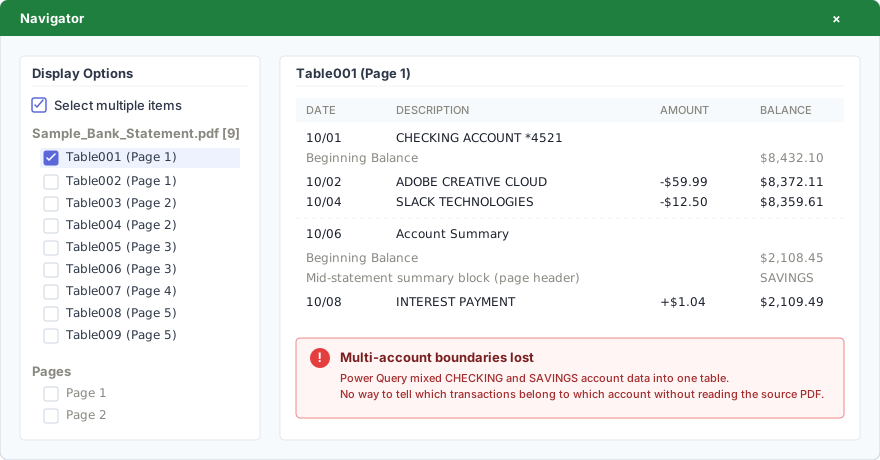
Header and footer rows pollute the data. Each detected table will likely include rows like "Account Summary," "Beginning Balance," and "Ending Balance" mixed in with actual transactions. You'll need to filter these out manually in Power Query Editor.
Multi-page tables split mid-transaction. If a single account's transaction list spans pages, Power Query may split it across multiple table imports, sometimes mid-transaction. You'll need to use Append Queries to combine them back together.
Balance verification is impossible without manual work. Power Query has no built-in balance reconciliation. After cleaning up the data, you'll need to manually verify that each account's beginning balance + transactions = ending balance.
Cleanup steps required after import
- In Power Query Editor, identify which imported tables belong to each account by manually inspecting the data and cross-referencing with the original PDF.
- Rename each query with the account name (e.g.,
Checking_Page1,Checking_Page2). - Use Use First Row as Headers on each query.
- For each account, append its multi-page tables together using Append Queries.
- Filter out rows that contain "Beginning Balance," "Ending Balance," "Total," etc.
- Use Detect Data Type on date and amount columns (Press Ctrl+A, then Transform → Detect Data Type).
- For each account separately, calculate sum of transactions and compare against the ending balance to verify reconciliation.
- Click Close & Load to bring the cleaned data into worksheets.
Realistic time estimate for a 3-account statement: 25-45 minutes per statement, depending on how comfortable you are with Power Query. The biggest time sink is identifying which tables belong to which account, since Power Query doesn't help with this.
When to use Power Query for multi-account
- You already use Power Query daily and the steps above are familiar
- The statements you process consistently have clean digital-native PDFs
- You're processing 1-3 multi-account statements per month
- You're comfortable with the per-statement cleanup time
When to skip Power Query and try another method
- You don't have Excel 365 / Excel 2021+ (the feature isn't available)
- Your statements are scanned (Power Query can't read them)
- You're processing more than 5 multi-account statements per month (cleanup time becomes prohibitive)
- You need balance validation as part of the workflow
Adobe Acrobat Pro Export PDF to Excel
Adobe Acrobat Pro has a built-in Export PDF feature that converts PDFs to Excel format. Since Adobe created the PDF format, their conversion is generally reliable for simple PDFs. Multi-account statements expose the limits of this approach.
- Adobe Acrobat Pro (paid subscription, currently $14.99/month or $19.99/month for Pro)
- Adobe Acrobat Reader is NOT enough - the Export feature is Pro-only
- The PDF should be digital-native or have OCR applied (Acrobat Pro can run OCR if needed)
- If the PDF is password-protected, you'll need the password before exporting
Step-by-step: Export a multi-account bank statement to Excel via Acrobat Pro
- Open the bank statement PDF in Adobe Acrobat Pro.
- If the PDF is a scanned image (you can't select text), run OCR first: navigate to Tools → Enhance Scans → Recognize Text → In This File and let Acrobat process the document.
- Once the text is selectable, navigate to All Tools → Export a PDF (in newer versions) or File → Export To → Spreadsheet → Microsoft Excel Workbook (older versions).
- Select Excel Workbook (.xlsx) as the export format.
- Click Convert to XLSX (or Export) and choose where to save the file.
- Open the resulting .xlsx file in Excel to review the output.
What goes wrong with multi-account statements specifically
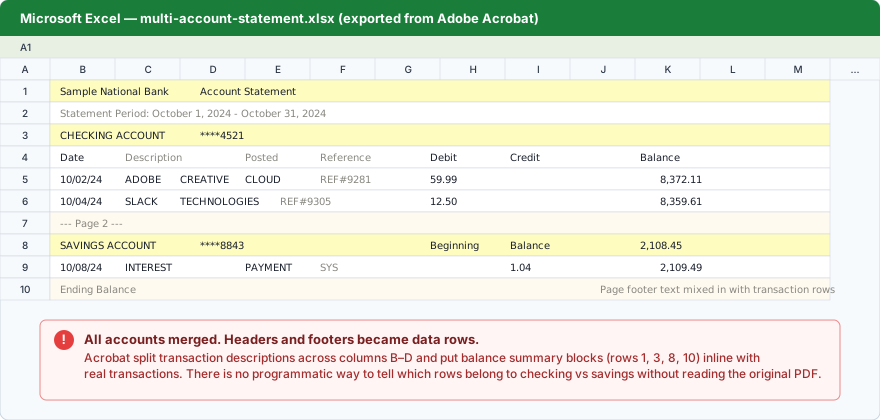
All accounts get stacked into one continuous spreadsheet. Acrobat treats the entire PDF as one document and produces a single Excel file with all transactions stacked vertically. There's no indication of where one account ends and another begins, beyond whatever section headers Acrobat managed to preserve.
Multi-column layouts produce mangled output. A common Adobe Community complaint: bank statements with sidebars, summary boxes, or multi-column transaction tables produce Excel files with 20+ columns when only 3-4 are needed (date, description, amount). The data gets scattered across columns based on the PDF's visual layout rather than its semantic structure.
Page headers and footers are imported as data rows. Statement period markers, account holder info, page numbers, and disclaimers all show up as rows in the Excel output, mixed in with actual transactions.
Balance summary blocks merge with transaction data. The "Account Summary" section that shows beginning/ending balance often gets pulled into the same column as transactions, requiring manual identification and removal.
Cleanup steps required after export
- Open the exported .xlsx file in Excel.
- Identify where each account section starts and ends by cross-referencing with the original PDF. Look for account number changes, statement period markers, or "Account Summary" rows.
- Cut each account's transactions and paste them into separate sheets within the workbook (or separate files).
- Delete header/footer rows, summary boxes, and disclaimer text that got imported as transactions.
- For each account separately: identify the date column, description column, debit/credit columns, and balance column.
- If columns got split (e.g., transaction descriptions across 3 columns), use Concatenate or TEXTJOIN formulas to merge them back.
- Verify that each account's beginning balance + transactions = ending balance manually.
Adobe Community workaround for messy exports: A frequently-cited fix is to crop the PDF pages before exporting, removing summary boxes and bank/balance info from each page so only the transaction tables remain. This produces cleaner Excel output but adds 5-10 minutes of manual work per statement.
Realistic time estimate for a 3-account statement: 20-40 minutes per statement, including PDF cropping if used. Faster than Power Query for some statement formats, slower for others. Cost: $14.99-$19.99/month for the Acrobat Pro subscription if you don't already have it.
When to use Adobe Acrobat for multi-account
- You already have Acrobat Pro for other reasons
- Your statements have clean, single-column transaction tables
- You're processing 1-3 multi-account statements per month
- You're comfortable with cropping PDFs to clean up the export
When to skip Adobe Acrobat and try another method
- You don't already have Acrobat Pro and don't want to subscribe
- Your statements have multi-column layouts or sidebars
- You're processing more than 5 statements per month (cleanup time stacks up)
- You need automatic balance validation
Manual copy-paste from PDF
The simplest method, and the one most people try first. Open the PDF, select transactions, paste into Excel. For multi-account statements, this method is slow but it always works because you have full control.
- Adobe Reader (free) or any PDF viewer that supports text selection
- Excel or Google Sheets
- The PDF must be digital-native (selectable text). Scanned statements require OCR first.
- Patience
Step-by-step: Manual copy-paste with table selection
- Open the bank statement PDF.
- Identify the first account's transaction table.
- In Adobe Reader: switch to the Selection Tool (cursor icon). Hold Alt (Windows) or Option (Mac) while drag-selecting to make a rectangular selection of just the table area.
- In Acrobat Pro: right-click on a table and choose Copy with Formatting for cleaner output.
- Switch to Excel. Paste into a new sheet (Ctrl+V or Cmd+V).
- The data will paste with whatever column structure Excel can infer. Often columns are merged or split incorrectly.
- Use Text to Columns (Data tab) to separate columns that should be split, choosing space, tab, or fixed-width as the delimiter.
- Repeat for each account section in the PDF, pasting into separate sheets.
What goes wrong with multi-account statements specifically
Account boundaries are easy to miss. When you're scrolling through a 12-page statement to find each account section, it's easy to skip past one or duplicate transactions. There's no automated check.
Date columns lose formatting. Excel often interprets "01/15/2025" as January 15th in some cells and 1st of an unknown month in others, depending on regional settings. Dates may need manual reformatting.
Amount columns merge with descriptions. Long merchant names ("AMAZON.COM*PG7H8 12345") followed by amounts get pasted into one cell, requiring manual splitting.
Multi-line descriptions break. When a single transaction has wrapping text in the PDF, copy-paste either merges it incorrectly or splits it into multiple Excel rows.
Running balance values get treated as transaction amounts. Easy to copy the balance column and forget which one is the actual transaction amount.
Realistic time estimates
| Statement complexity | Time required | Error risk |
|---|---|---|
| 1 account, 30 transactions | 10-15 minutes | Low |
| 2 accounts, 100 transactions | 30-45 minutes | Medium |
| 3 accounts, 200 transactions | 60-90 minutes | High |
| 5+ accounts, 400+ transactions | 2-4 hours | Very high |
Why error risk increases with size: Manual transcription errors compound exponentially with statement size. Studies of manual data entry consistently find a 1-3% error rate per transaction. For a 400-transaction statement, that means 4-12 errors will land in your books unless you cross-check every row, which doubles the time.
When to use manual copy-paste
- One-off statement processing (you do this rarely)
- The statement has 1-2 accounts and under 50 transactions total
- You don't have Excel 365 or Adobe Acrobat Pro
- You need full control over what gets transcribed
When to skip manual copy-paste and try another method
- You're doing this for client work where errors have cost
- Statements have 3+ accounts or 100+ transactions
- You need to process multiple statements (each one is fresh manual work)
- You need balance verification
Free online PDF-to-Excel converters
Multiple free websites accept PDF uploads and return Excel files. Examples include Adobe's online tool, Smallpdf, ILovePDF, PDFTables, FormulaBot, and others. The user experience is similar across most: upload PDF, wait, download Excel.
- An internet connection
- A PDF file under whatever size limit the service imposes (usually 50MB or less)
- Awareness of what happens to your data after upload (varies by service)
Privacy warning before you continue: Bank statements contain sensitive data: account numbers, balances, merchant names, and transaction patterns. Most free online converters retain uploaded files for some period (24 hours to indefinitely, depending on the service). Many use uploaded data to train extraction models or for advertising. For client work, this is generally not acceptable. For your own personal statements, it's a judgment call.
Step-by-step: Convert with a typical free online tool
- Choose a service. Adobe's tool, PDFTables, FormulaBot, and ConvertBankStatement are common starting points.
- Upload your PDF, usually by drag-and-drop or a file picker.
- Wait while the service processes the PDF (typically 10-30 seconds for a small statement).
- Download the resulting Excel or CSV file.
- Review the output for accuracy.
What goes wrong with multi-account statements specifically
Most free converters treat the PDF as one document. Just like Adobe's Export PDF, free online converters typically stack all account sections into one Excel file with no indication of where each account starts and ends.
Quality varies wildly between services. Some preserve column structure reasonably well. Others produce output with everything in one cell. There's no consistent quality, and you don't know what you'll get until you try.
No balance validation. No free online converter validates that your transactions reconcile against the statement's stated balances. Errors are silent.
Page limits and watermarks. Some "free" services limit you to 1-3 free conversions, then require payment. Others add watermarks or "trial" markings to the output.
Privacy implications scale with use. Uploading one personal statement once is different from uploading 50 client statements weekly. The privacy concerns become more serious with volume.
What to look for in a free online converter
If you decide a free online converter is acceptable for your use case, evaluate the service against these criteria:
- Does the service publish a clear privacy policy explaining what happens to uploaded files?
- Are uploaded files deleted within 24-48 hours?
- Does the service explicitly state it does NOT use uploaded data for training or advertising?
- Does the service support OCR for scanned PDFs, or only digital-native?
- Does the service preview the output before requiring download/payment?
Recommendation for client work: If you're a bookkeeper or accountant processing client bank statements, free online converters are generally not appropriate due to privacy concerns. Most professional engagement letters include data-handling clauses that conflict with uploading client data to free third-party services.
When to use a free online converter
- One-off conversion of your own personal statement
- You don't have Excel 365 or Adobe Acrobat Pro
- Privacy of the data is not a serious concern
- You're willing to verify the output against the original PDF
When to skip free online converters
- Client bank statements (privacy and engagement letter conflicts)
- Statements with sensitive merchant data, account numbers, or recognizable spending patterns you don't want stored elsewhere
- Multi-account statements where you need account-level splitting
- Workflow that requires balance validation
Dedicated bank statement extraction tools
Purpose-built tools for converting bank statements specifically. They handle multi-account splitting automatically, validate balances, and process batches of statements at once. The category includes self-serve tools (DocuClipper, Lido, SendItSheets) and enterprise platforms (Heron Data, Klippa, Docsumo, Nanonets).
- An account with one of the services (most have free trials or free tiers)
- Internet connection
- The PDF can be digital-native or scanned (most tools have OCR built in)
How dedicated tools differ from generic methods
Account boundary detection. Dedicated tools identify account boundaries using statement structure: account headers, balance summary blocks, statement period markers, and account number changes. Each detected account becomes its own section in the output.
Per-account balance validation. The tool calculates beginning balance + transactions and compares against the stated ending balance for each account independently. Mismatches are flagged before export.
Batch processing. Upload multiple multi-account statements at once. Each one is processed independently, and the results are organized by statement and account.
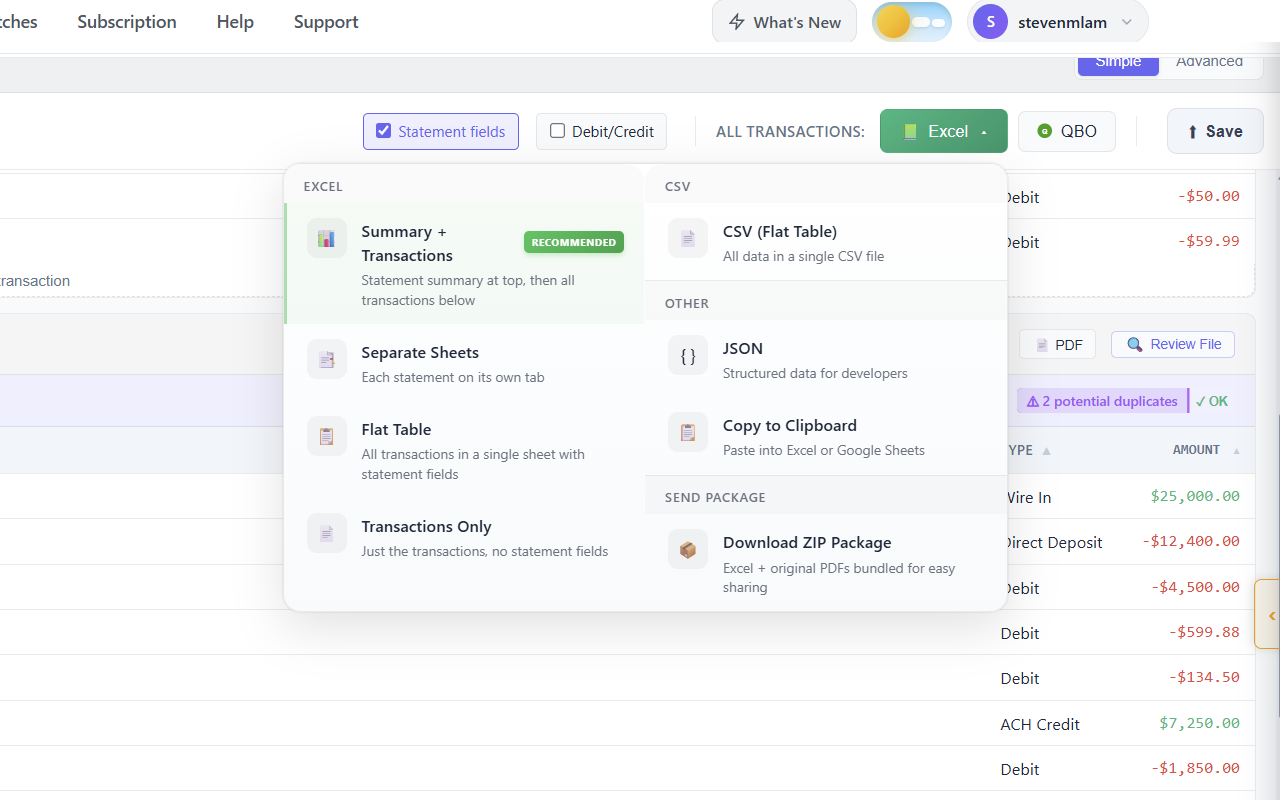
Native export formats. Most dedicated tools export Excel (with separate sheets per account), CSV (with account identifier column), QBO (for QuickBooks Online), and JSON (for developers). No manual reformatting required.
Step-by-step: SendItSheets walkthrough
SendItSheets is one option in the self-serve category. Free 14-day trial includes 30 pages, no credit card required. Paid plans start at $20/month for 250 pages. The walkthrough below shows the full workflow.
- Sign up at senditsheets.com/signup with email (no credit card required).
- Click Upload Bank Statements and drop your multi-account PDF (or batch of multiple statements).
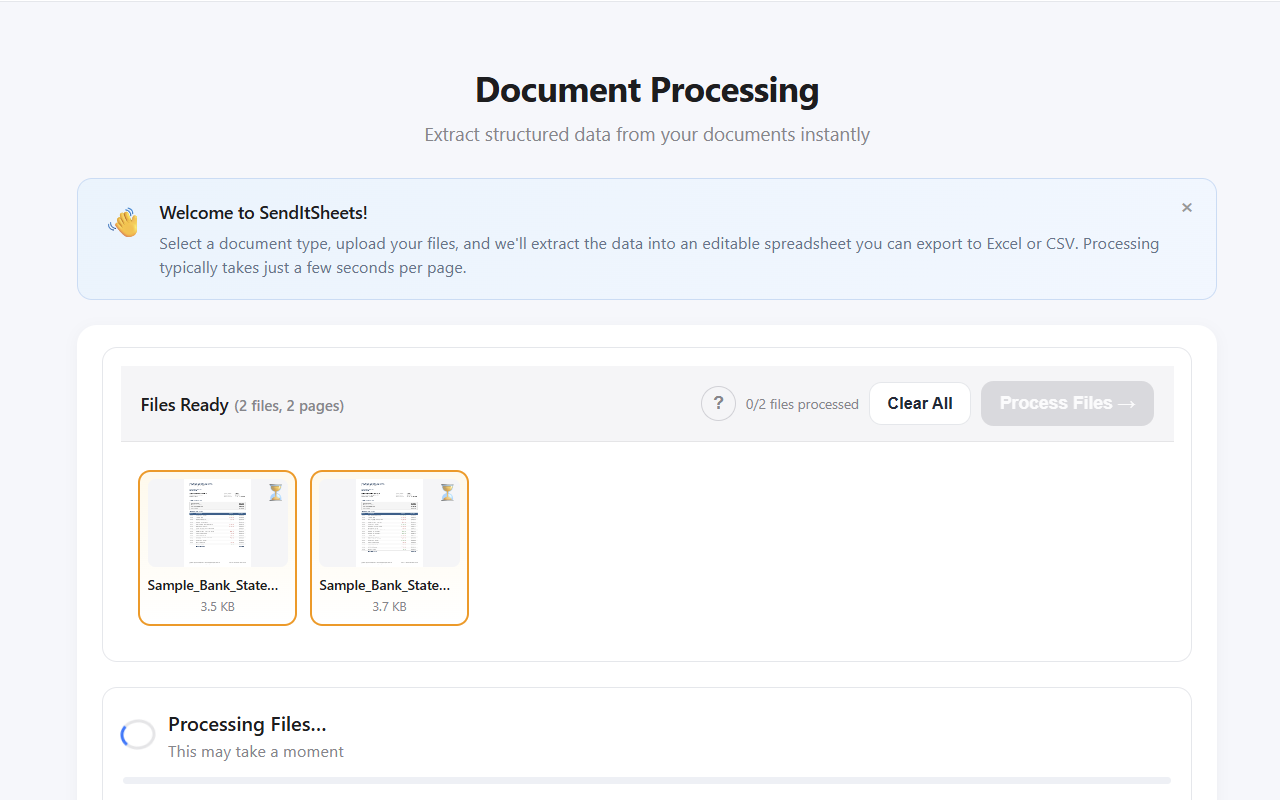
- Wait 10-30 seconds while extraction runs. Each account boundary is detected and split automatically.
- The review view shows each account in its own section with: account name/number, statement period, beginning balance, ending balance, full transaction list, and a balance verification badge.
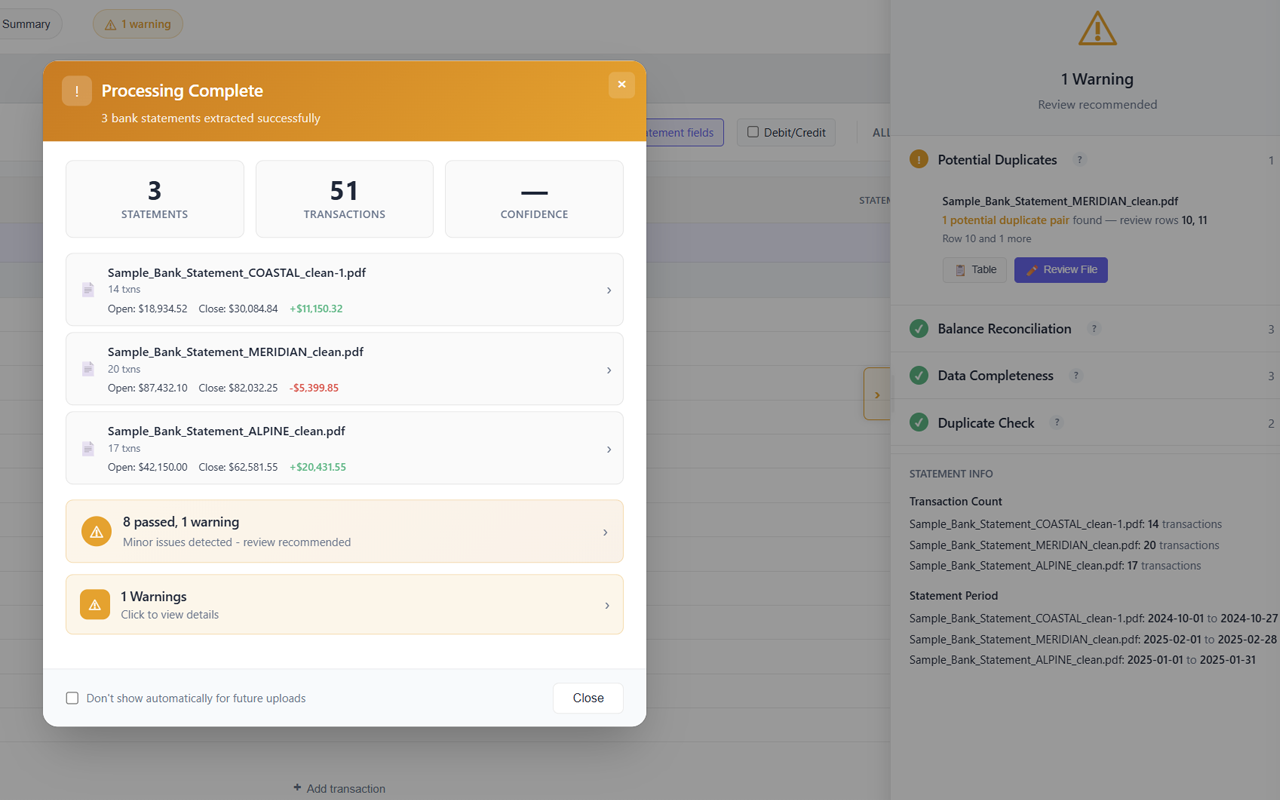
- If any account fails balance verification, the affected rows are highlighted. Click any cell to edit and re-validate.
- Click Export and choose Excel (separate sheets per account), CSV (flat with account column), QBO, or JSON.
- Download the file and import into QuickBooks, Xero, or your accounting software.
Realistic time estimate for a 3-account statement: 2-3 minutes total. Upload (10s), processing (15-30s), review (1-2 min), export (10s). Compare to 25-90 minutes for the generic methods above.
Other dedicated tools in the same category
SendItSheets isn't the only option. Other self-serve tools targeting bookkeepers and small accounting firms include DocuClipper (more mature feature set, $39+/month), Lido (similar workflow, slightly different pricing), and Dext (broader accounting suite with statement extraction included).
Enterprise platforms like Heron Data, Klippa, Docsumo, and Nanonets target a different audience: lending firms, fintech underwriters, and large accounting departments. These tools are demo-only with no public pricing and are oversized for individual bookkeepers or small accounting firms.
When to use a dedicated extraction tool
- You process multi-account statements regularly (more than a few per month)
- You handle client work where errors have downstream cost
- You need per-account balance validation
- You handle mixed account types (checking + savings + credit card on one PDF)
- You need batch processing for catch-up or cleanup engagements
When dedicated tools may be overkill
- You process one or two statements per year (subscription cost not justified)
- The statements are simple single-account PDFs (Power Query is fine)
- You only need a one-off conversion (free online converters may suffice)
Which method should I use?
The right method depends on volume, accuracy requirements, and privacy concerns. Use this decision matrix as a starting point.
| Your situation | Recommended method | Why |
|---|---|---|
| One personal statement, 1-2 accounts, low privacy concern | Manual copy-paste OR free online converter | Subscription cost not justified for one-off; output verifiable manually |
| Personal monthly statements, single account each, you have Excel 365 | Power Query | Free, repeatable, works for clean single-account PDFs |
| Bookkeeper handling 1-3 client multi-account statements per month | Power Query OR dedicated tool | Power Query if you have time for cleanup; dedicated tool if your time is worth more |
| Bookkeeper handling 5+ client multi-account statements per month | Dedicated extraction tool | Cleanup time on generic methods exceeds tool cost; balance validation reduces errors |
| Year-end catch-up project with 12-24 months of multi-account statements | Dedicated extraction tool with batch processing | Volume makes generic methods impractical; per-account validation prevents reconciliation errors |
| You have Acrobat Pro and statements have clean tables | Adobe Acrobat Export PDF | Already paid for; works on clean PDFs; same caveats as Power Query |
| Scanned bank statements (image-based PDFs) | Acrobat Pro (with OCR) OR dedicated tool | Power Query and copy-paste don't work; Acrobat OCR is reliable; dedicated tools have built-in OCR |
| Enterprise lending or fintech underwriting | Enterprise platform (Heron, Klippa, Docsumo) | Self-serve tools may not fit compliance/audit requirements at enterprise scale |
Most bookkeepers and accountants will fall into the "1-3 statements per month" or "5+ statements per month" rows. The crossover point where a dedicated tool subscription becomes worthwhile is roughly 5 multi-account statements per month, assuming generic methods take 30-60 minutes each.
Frequently asked questions
Related guides
- Bank statement to Excel converter - the comprehensive bank statement extraction tool with validation and batch processing
- Bookkeeping cleanup for bank statements - methods and workflow for processing multi-account statements during catch-up engagements
- Bookkeeping cleanup for receipts - the receipt processing equivalent for the same cleanup project
Try a dedicated extraction tool free
SendItSheets is one option in the self-serve category. Free 14-day trial with 30 pages, paid plans from $20/mo. No demo or sales call required.
See the SendItSheets bank statement tool →