
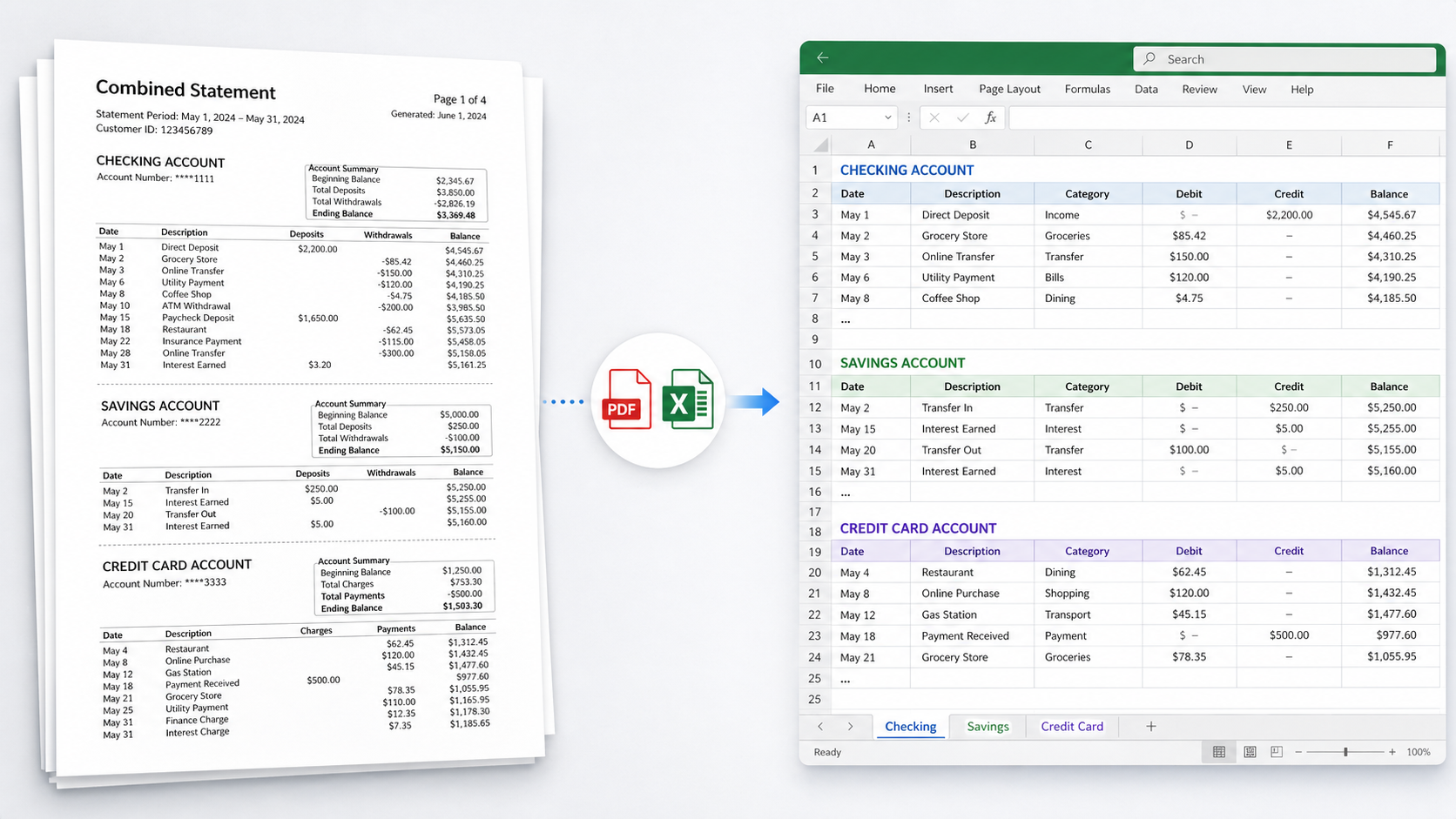
If you've ever opened a Chase business statement and found checking, savings, and a credit card all stuffed into a single PDF — sharing page numbers, table headers, and column layouts — you already know why generic PDF-to-Excel converters mangle the output. The data isn't really one statement. It's three statements glued together, and most tools treat the seams as continuations instead of boundaries.
This guide walks through what's actually happening in a Chase combined statement, why standard tools fail on them, the manual fixes that work for one-off cases, and what to do if you handle these regularly. By the end, you'll know how to get clean per-account transaction data into Excel without inheriting Chase's PDF formatting choices as your problem.
What a Chase Combined Statement Actually Is
Chase issues "combined statements" for customers who have multiple linked accounts under one customer relationship — most often businesses with a Business Complete Banking checking account, a Business Total Savings account, and sometimes a Chase Ink credit card. Instead of mailing or generating three separate PDFs, Chase produces one document with all accounts inside.
Each account section inside the combined statement has:
- Its own opening balance and closing balance
- Its own transaction table
- Its own account number printed at the top of the section
- Its own page range (sometimes a section starts mid-page)
But they share:
- The same statement period header
- The same customer name and address block
- The same overall page numbering
- Often, similar column layouts for transactions
That last point is what trips up most tools. A naive PDF parser sees a transaction table on page 2, another on page 6, another on page 10, and assumes they're one continuous list. The opening balance for the second account gets read as a transaction. The closing balance for the first account gets misclassified. By the time you're staring at the Excel output, the data is unusable without manual cleanup.
How to Tell If Your Chase Statement Is Combined
Before you start any conversion, confirm you're actually dealing with a combined statement. The fastest checks:
- Search the PDF for "Account Number" (Ctrl+F or Cmd+F). If multiple unique account numbers come up, it's combined.
- Look for multiple "Beginning Balance" or "Opening Balance" entries. A single-account statement has one. A combined statement has one per account.
- Check the table of contents or summary page at the front. Combined statements typically list each account separately with a page reference.
- Look at the page footers. Chase often labels the bottom of each page with the account name. If the footer label changes partway through the document, it's combined.
If only one of those signals is present, it might be a single-account statement with an unusual layout. If two or more match, you have a combined statement and you need to handle each account separately.
Why Generic PDF-to-Excel Converters Fail on These
When you drop a Chase combined PDF into a generic converter (Adobe Acrobat's export, SmallPDF, ILovePDF, or even Excel's built-in PDF import), here's what typically goes wrong:
1. Account boundaries get ignored. The converter treats every transaction-shaped row as part of one big table. You end up with checking and savings transactions intermixed in a single Excel sheet, often with the savings account's opening balance row sitting where a transaction should be.
2. Repeated table headers create phantom rows. Chase repeats the column headers ("Date | Description | Amount | Balance") on every page that contains transactions. Most parsers either duplicate these as data rows or strip them inconsistently, leaving some pages clean and others with header text mid-table.
3. Multi-line descriptions get split across rows. When a transaction description wraps to a second line — common for ACH payments and wire transfers — generic tools usually treat the second line as a new transaction row with a missing date and amount. Your reconciliation now has phantom entries.
4. Debits and credits get the wrong sign. Chase displays debits and credits in separate columns on some account types. Many converters extract the amounts but lose the column context, so a $1,500 deposit shows up as a $1,500 withdrawal. You don't notice until your account doesn't reconcile.
5. Reward and fee summaries leak into transactions. If the combined statement includes a Chase credit card section, the rewards summary and promotional APR notices appear as text blocks inside the transaction area. Generic parsers extract these as transaction rows.
The result: an Excel file that looks like it might be right, but isn't. The dangerous part is that the totals are often close enough that you don't catch the errors until reconciliation breaks days or weeks later.
The Manual Approach: Power Query in Excel
For a one-off combined statement, you can extract the data manually using Excel's Power Query feature. This works, but it takes 20-40 minutes per statement and breaks on edge cases.
Step 1: Open Excel and import the PDF.
- Data tab → Get Data → From File → From PDF
- Select your Chase combined statement
- Excel will show a Navigator pane with detected tables, usually labeled "Table001," "Table002," etc.
Step 2: Identify which tables belong to which account.
- Click each table preview. The first few rows usually contain enough context (account number, date range header) to identify which account it represents
- Note which tables are "Checking," "Savings," "Credit Card," etc.
Step 3: Load each account's tables separately.
- Hold Ctrl and select all tables for one account (a single account often has 2-4 tables because Chase splits long transaction lists across multiple pages)
- Click Transform Data
- In Power Query, use Append Queries to combine the tables for that one account into a single query
- Repeat for each account
Step 4: Clean up each query.
- Remove header rows that got captured as data (filter out rows where the Date column equals "Date")
- Promote the first row to headers if needed
- Set proper data types: Date for the date column, Decimal Number for amounts
- Handle the debit/credit columns: if Chase shows them as separate columns, create a calculated column that signs amounts correctly (debits negative, credits positive)
Step 5: Verify each account's reconciliation.
- For each account, sum the cleaned transactions
- Compare the sum to (Closing Balance − Opening Balance) from the original PDF
- If they don't match, you missed transactions, captured duplicates, or got the signs wrong somewhere
This works. It's also slow, error-prone, and Power Query breaks unpredictably when Chase changes their PDF formatting (which they do every 12-24 months). For occasional one-off statements, it's fine. For anything recurring, the failure modes will eat more of your time than the manual work itself.
The Tool Approach: How SendItSheets Handles Combined Statements
SendItSheets was built with multi-account splitting as a core requirement, not a feature added later. Here's what happens when you upload a Chase combined statement:
Step 1: Account detection. SendItSheets scans the document for account boundary markers — account number changes, separate opening balance entries, account name labels in page footers. Each account section is identified before any transaction extraction starts.
Step 2: Per-account extraction. Transactions are pulled from each account section into its own data set. Headers, footers, and reward summaries are filtered out using positional and contextual signals rather than just text matching.
Step 3: Sign correction. For accounts that use separate debit and credit columns, SendItSheets reads the column context and signs amounts correctly — debits negative, credits positive — so the data imports cleanly into accounting software without manual fixes.
Step 4: Reconciliation check. Before you export anything, SendItSheets calculates the running balance from extracted transactions and compares it to the opening and closing balances on the original statement. If the numbers don't match, you see a flag with which account failed to reconcile, so you catch problems before they get into QuickBooks or Xero.
Step 5: Export. You can download each account as a separate Excel or CSV file, or as a single ZIP archive with all accounts. The output is QuickBooks-import ready — proper date formatting, signed amounts, no header rows, no embedded summary text.
The whole process takes about 30-60 seconds for a typical 3-account business statement, vs 20-40 minutes for the manual Power Query approach.
Common Gotchas and Edge Cases
A few situations that even good tools handle inconsistently — worth knowing about regardless of which approach you take:
Chase Sapphire reward summaries inserted in transaction tables. If your combined statement includes a Chase Ink or Sapphire credit card account, the reward point summary and promotional APR sections often appear as text blocks inside the transaction listing. Verify these don't show up as transaction rows in your output.
Check images embedded in the PDF. Some Chase business statements include scanned check images on a final page. These should be ignored entirely during extraction. If your tool tries to parse them, you'll get garbage rows.
Multi-month combined statements. Most combined statements are single-month, but some Chase customers receive quarterly or annual combined statements. The same logic applies but the date validation gets harder — make sure transaction dates fall within the period claimed in each account's header.
Password-protected PDFs. Chase sometimes delivers statements as password-protected PDFs (the password is usually a portion of your account number or tax ID). You'll need to either remove the password before processing or use a tool that accepts the password during upload.
Mixed account types with different statement formats. A combined statement that includes both a checking account and a credit card will have two different table layouts — checking uses date/description/amount/balance, credit card uses date/description/category/amount with no running balance. The parser needs to handle both correctly.
Pages where one account ends and the next begins mid-page. Most combined statements give each account its own page break, but not always. If account 1 ends three-quarters of the way down a page and account 2 begins immediately below, simple page-based splitting will fail.
How These Approaches Compare
| Approach | Time per statement | Handles scanned PDFs | Reconciliation built-in | Maintenance burden |
|---|---|---|---|---|
| Generic PDF→Excel converters | 5-10 min + cleanup | Sometimes | No | None |
| Manual Power Query | 20-40 min | No | No (you do it) | Breaks on format changes |
| SendItSheets | 5-10 sec | Yes | Yes | None |
For a one-off statement, the manual approaches are fine. For 3+ statements per month or any recurring workflow, the time math swings hard toward a dedicated tool.
Frequently Asked Questions
Why does Chase send multiple accounts in one PDF?
Chase issues combined statements for customers with linked business accounts under a single customer relationship. It's intended as a convenience — fewer PDFs to manage — but it creates real problems when you need to import the data into accounting software that expects one account per file.
Can I download separate statements for each Chase account?
Sometimes, depending on your account setup and online banking permissions. In Chase Business Online, go to Statements & Documents and check whether each linked account has individual statement PDFs available. Many business customers find that only the combined statement is offered for some statement periods, which is why the splitting workflow matters.
Does Chase combined statement format change over time?
Yes. Chase has updated their statement layouts roughly every 12-24 months over the past several years. Tools that rely on hard-coded templates break when this happens. AI-based extraction tools generally adapt automatically.
Will QuickBooks accept a combined statement directly?
No. QuickBooks expects each bank import to correspond to a single account. You need to split the combined statement into separate files (one per account) before importing each one to its corresponding QuickBooks bank feed.
Are scanned Chase statements harder to handle than digital PDFs?
Yes, significantly. Digital PDFs from Chase Online Banking have a clean text layer that any tool can parse. Scanned statements (printed and re-scanned, or photographed) require OCR, which adds another layer of potential errors — particularly with similar-looking characters like 0/O and 1/I in account numbers or amounts.
What if my combined statement only has two accounts and one of them is empty for the month?
Some tools will fail to detect the second account if it has no transactions during the period. Check that the closing balance for both accounts matches the original statement, even if one account section appears empty.
When This Becomes Worth Automating
If you're processing combined statements occasionally — say, for your own business or for one client — the manual approaches are workable. You'll lose 20-40 minutes per statement, but you don't need infrastructure.
If you're a bookkeeper or accountant handling combined statements for multiple business clients, or processing them monthly, the math changes. Ten statements per month at 30 minutes each is 5 hours of work that's almost entirely mechanical and error-prone. A dedicated tool that handles multi-account splitting, sign correction, and reconciliation in one step pays for itself within the first month.
SendItSheets handles Chase combined statements specifically — multi-account detection, per-account export, balance reconciliation built in. The first 10 pages are free, no credit card needed. If you process Chase combined statements more than occasionally, upload one and see what comes out.