
How to Convert a Wells Fargo Bank Statement to CSV
Wells Fargo gives you a recent-activity export in CSV and Excel, but the official monthly statement, and anything older than the recent window, arrives only as a PDF. Wells Fargo statements also carry a few layout habits that trip up generic converters: a denser two-column transaction grid introduced in late 2024 (older statements use a single column), a separate check-number column, deposits and withdrawals split across adjacent columns with no minus signs, and a monthly fee summary printed as a footer block. This guide compares the practical ways to get a clean CSV, and explains what to verify in each one.
Four practical methods convert a Wells Fargo statement to CSV: (1) Wells Fargo's own activity export (free, recent transactions only, CSV/Excel/QuickBooks formats), (2) Excel Power Query (free, Windows only, struggles with the two-column grid and check-number column), (3) Adobe Acrobat Pro export (paid, heavy cleanup), and (4) dedicated bank statement converters (free tier, handle both layouts, the check-number column, column-based signs, and the fee-summary block automatically). For older statements, mixed-layout history, or batch work, a dedicated converter is the most reliable choice.
Drop a Wells Fargo PDF and see the extracted transactions on screen. No account required.
What is specific about Wells Fargo statements
Wells Fargo PDFs read cleanly on screen, but they were laid out for human eyes, not for data extraction. Four specifics, in particular, decide whether a converted CSV is usable or quietly wrong:
Two layouts, depending on the statement date. In late 2024 Wells Fargo moved to a denser two-column transaction grid. Statements generated before that change use a single-column layout, with one transaction stacked above the next. The newer grid packs two transaction streams side by side to fit more on a page. The two formats put dates, descriptions, and amounts at different coordinates, so a converter tuned to one layout reads the other incorrectly. Any tool you use has to recognize which layout it is looking at, statement by statement.
The check number is in its own column. Wells Fargo prints check numbers in a dedicated column, set apart from the description. It is easy to miss, because the description column sits right next to it. Tools that flatten everything between the date and the amount into a single description field either lose the check number or bury it inside the merchant text, which breaks reconciliation for anyone matching cleared checks.
The sign lives in the column, not in the number. Wells Fargo does not write negative amounts. A withdrawal of forty dollars and a deposit of forty dollars both print as 40.00; the only difference is which of the two adjacent columns the number sits in. Read the number without reading its column and you cannot tell money in from money out, which is exactly how a naive export ends up with every amount signed the same way.
The monthly fee is a footer, not a transaction. Wells Fargo summarizes the monthly service fee (and whether it was waived) in its own block at the foot of the statement, outside the transaction table. A converter that simply hunts the page for dollar amounts scoops this summary up as if it were a transaction, leaving you with a duplicate fee row that throws your totals off.
The rest of this guide walks through the four practical methods, then returns to each of these quirks so you know exactly what to check in your output.
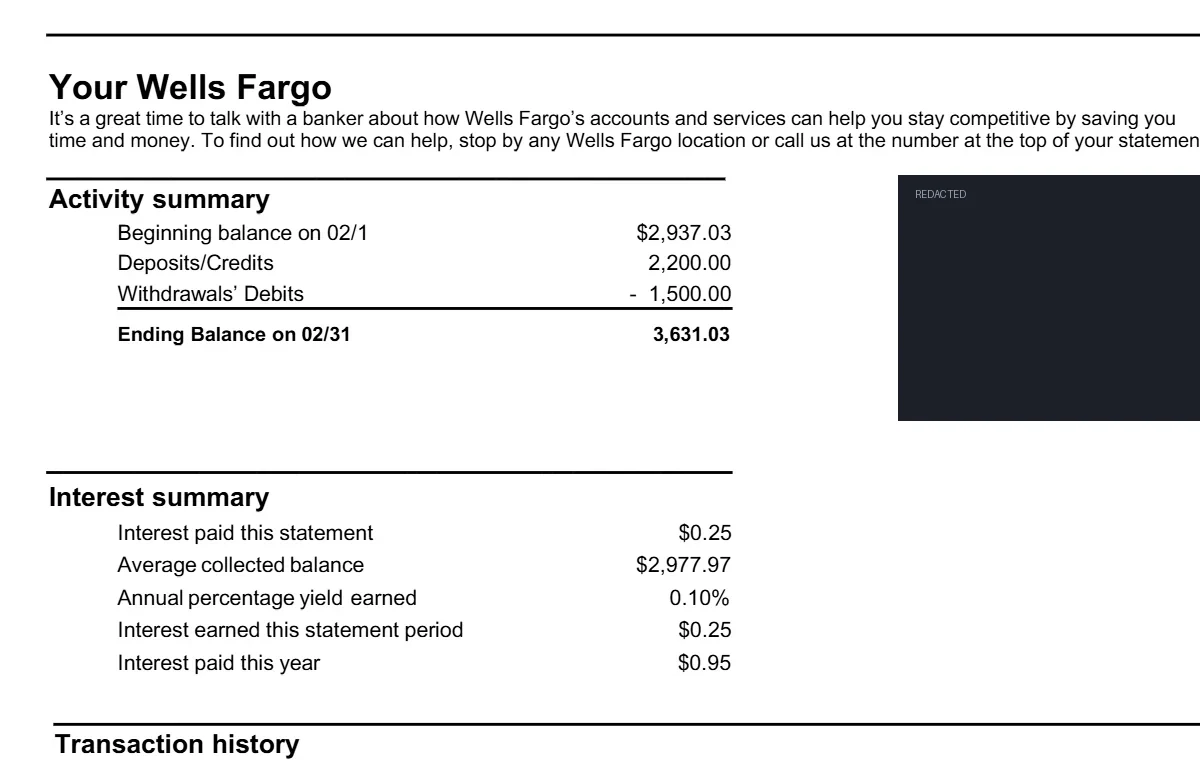
The source. A Wells Fargo statement is built for human eyes — activity summary, interest block, and a transaction history with deposits and withdrawals in adjacent columns. Account details redacted.
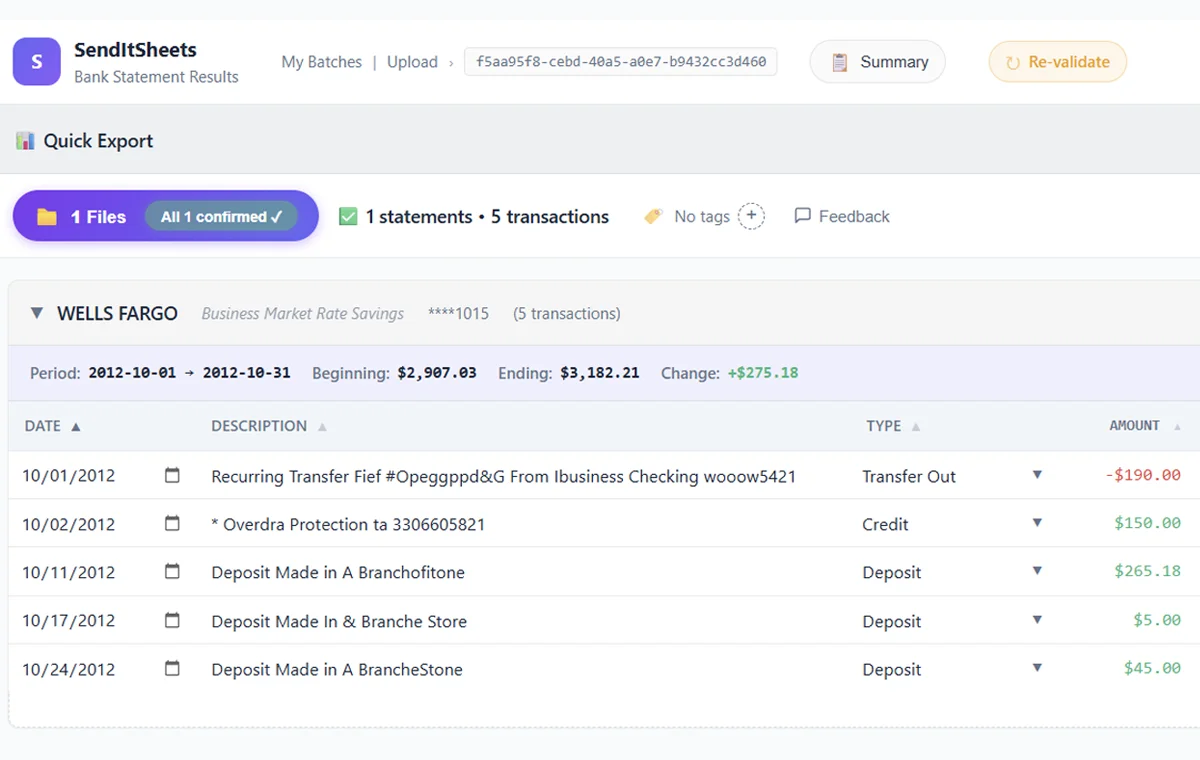
The result. SendItSheets reads the layout, splits each row into Date, Description, Type, and a single correctly-signed Amount, and reconciles beginning-to-ending balance so you can trust the totals.
Illustrative examples — different statements shown for the input and the output.
Wells Fargo's own activity export
Wells Fargo Online includes a Download Account Activity option that exports recent transactions directly. This is the fastest path when the data you need is still inside the recent activity window, and it sidesteps the PDF layout entirely because Wells Fargo hands you structured data.
- Wells Fargo Online banking login
- Transactions within the available activity window (varies by account)
- A spreadsheet tool to open the CSV if you want to review it
- Log into wellsfargo.com on a desktop browser.
- Open the account you want to export from your accounts list.
- On the account activity page, find the Download Account Activity link (usually near the top right of the transaction list).
- Choose your date range. Only the recent activity window is available here; older periods will not appear.
- Under file format, select
Comma Delimited (.csv)for spreadsheets,Spreadsheet (.csv/.xls), orQuicken/QuickBooksif you need those. - Click Download. The file saves to your computer.
- Open the CSV in Excel, Google Sheets, or your accounting software and confirm deposits and withdrawals carry the signs you expect.
- Free and fast, no third-party tools
- Data is structured by Wells Fargo, so the layout quirks do not apply
- Direct CSV option, plus Quicken and QuickBooks formats
- Only the recent activity window; older months are unavailable
- It is the live activity feed, not the official monthly statement, so categorization and detail may differ
- One account at a time
- Bookkeepers who receive PDF statements from clients cannot use this at all
Use this when your transactions are recent and you only need one account. For older statements or any PDF-only data, continue to methods 2 to 4.
Excel Power Query (Get Data from PDF)
Microsoft Excel can import a PDF directly through Power Query (the "Get Data from PDF" feature). It is free if you already own Excel on Windows, but Wells Fargo's layout gives it several places to stumble, especially on newer two-column statements.
- Excel 2019 or later, or Microsoft 365, on Windows
- The Wells Fargo statement saved as a PDF
- A digital (text-based) PDF, not a scanned image
- Comfort working in the Power Query Editor
- Open a blank Excel workbook.
- Go to the
Datatab in the ribbon. - Click
Get Data > From File > From PDF. - Browse to your Wells Fargo PDF and click
Import. - In the Navigator, preview the tables Power Query detected. On newer two-column statements you may see the left and right transaction streams as separate tables; on older single-column statements, one table per page.
- Select the transaction table(s). On two-column statements, you will likely need to load both halves and stack them in the right date order.
- Click
Transform Datato open the Power Query Editor. - Wells Fargo-specific cleanup: keep the check-number column as its own column instead of merging it into the description; build a single signed Amount column from the separate deposit and withdrawal columns using
Add Column > Custom Column(deposits positive, withdrawals negative); and filter out the monthly fee summary row if it was pulled in. - Set column data types (Date, Currency, Text).
- Click
Close & Loadto push the result into a sheet, thenFile > Save AsCSV if you need CSV.
- Free if you already have Excel
- Refreshable: the same query can re-run on the next statement of the same layout
- Full control over how columns are mapped
- The late-2024 two-column grid often imports as two tables you have to re-interleave by date
- The check-number column is frequently merged into the description
- No awareness that the sign comes from the column position, so amounts need a manual signed-amount formula
- The monthly fee summary block can be pulled in as a transaction row
- A query built for one layout breaks when you feed it the other layout
- No balance reconciliation, so errors pass through silently
- Not available on Mac
Best for: Windows Excel users with a single-layout batch of straightforward Wells Fargo checking statements. Skip it if your history spans the late-2024 redesign or you do not want to rebuild the signed-amount and check-number logic by hand.
Adobe Acrobat Pro export to Excel
Adobe Acrobat Pro can export a PDF to Excel. It is convenient if Adobe is already in your toolkit, but Wells Fargo's dense grid and footer blocks mean the raw output usually needs real cleanup before it is import-ready.
- Adobe Acrobat Pro subscription (around $23/month standalone, included in Creative Cloud)
- The Wells Fargo statement PDF
- Excel or Google Sheets for cleanup
- Open the Wells Fargo PDF in Adobe Acrobat Pro.
- Click
All Toolsin the left sidebar. - Select
Export a PDF. - Choose
Microsoft Excelas the export format. - From the dropdown, select
Excel Workbook (.xlsx). - Click
Convert to XLSX, then choose a save location. - Open the result. On two-column statements, expect the left and right halves to interleave awkwardly; on all statements, expect the check-number column and deposit/withdrawal columns to need realigning, and the fee summary to land somewhere in the grid.
- Manually: split the check number back into its own column, combine the deposit and withdrawal columns into one signed Amount column, and delete the monthly fee summary row.
- Save the cleaned file as CSV via
File > Save Asif you need CSV.
- Works on both Mac and Windows
- Can OCR scanned Wells Fargo statements first via
Enhance Scans > Recognize Text - Familiar if you already use Adobe
- The two-column grid produces interleaved or misaligned rows
- No understanding of the column-position sign rule; amounts come out unsigned
- The check-number column gets merged or scattered
- The monthly fee summary is treated as ordinary content
- No balance reconciliation or duplicate detection
- Cleanup time often equals or exceeds the conversion itself
- Requires a paid Adobe subscription
Best for: occasional one-off conversions when you already pay for Adobe and have time to clean up. Avoid for recurring bookkeeping or any volume.
Dedicated bank statement converters
Some tools are built specifically for bank statement extraction. They understand statement structure (transactions versus summaries, debit/credit columns, balance reconciliation) and handle the Wells Fargo quirks without manual work. The category includes SendItSheets, DocuClipper, CapyParse, Bankstatemently, LedgerBox, and others. Most have free tiers so you can test first.
- Your Wells Fargo PDF statement (or several, for batch processing)
- A free account on whichever converter you choose
- Choose a converter. Most offer free tiers (often 5 to 10 pages a month) so you can trial before committing.
- Upload your Wells Fargo PDF by drag-and-drop or file picker. You can use the upload box at the top of this page to run a Wells Fargo statement right now, or start on the hub page. Multiple statements can be uploaded together for batch processing.
- Wait for processing (typically 6 to 30 seconds per statement).
- Review the extracted data on screen, usually side by side with the original PDF.
- Verify the Wells Fargo specifics: the layout (old single-column or new two-column) was detected, the check-number column is preserved as its own field, deposits and withdrawals are signed from their column position, and the monthly fee summary is excluded from the transaction list.
- If the tool offers it, check the balance validation: beginning balance + transactions = ending balance.
- Export to CSV, Excel (XLSX), or QBO for QuickBooks.
- Import into Excel, Google Sheets, QuickBooks, Xero, or your accounting software.
- Detects and handles both the late-2024 two-column grid and the older single-column layout
- Keeps the check-number column as a distinct field
- Signs deposits and withdrawals from their column position automatically
- Excludes the monthly fee summary block from transactions
- Balance reconciliation built in
- Batch upload for multiple statements
- Works on Mac and Windows (browser-based), with OCR for scanned PDFs
- Requires creating an account (most are free for low volume)
- Higher volume usually needs a paid plan
- Cloud-based, so uploads leave your computer (most encrypt in transit)
- Accuracy on Wells Fargo quirks varies by tool; test on the free tier first
Best for: bookkeepers handling many client statements, anyone whose Wells Fargo history straddles the late-2024 redesign, and anyone who wants the check-number column and column-based signs handled for them. SendItSheets sits in this category and is built for bulk bookkeeper workflows.
Which method should I use?
The right method depends on your situation. Use this table to match your case to a method.
| If you... | Use this method | Why |
|---|---|---|
| Need recent transactions for one account, within Wells Fargo's activity window | Method 1: Wells Fargo export | Fastest path, and the data is already structured so the layout quirks do not apply. |
| Have a single-layout batch of simple Wells Fargo checking statement PDFs and use Windows Excel | Method 2: Power Query | Free and workable once you build the signed-amount and check-number steps. Skip for mixed layouts. |
| Convert one or two statements occasionally and already pay for Adobe | Method 3: Adobe Acrobat | Convenient if Adobe is in your stack, but plan for real cleanup on the grid and fee block. |
| Need older Wells Fargo statements (beyond the activity window) | Method 4: Dedicated converter | The only practical route for older PDFs, which are not in the structured export. |
| Have a history that spans the late-2024 redesign (mixed single- and two-column statements) | Method 4: Dedicated converter | Per-file layout detection lets you batch both formats together instead of cleaning each by hand. |
| Need the check number kept as its own field for reconciliation | Method 4: Dedicated converter | The check-number column is preserved automatically rather than merged into the description. |
| Keep ending up with wrongly signed amounts or a duplicate fee row | Method 4: Dedicated converter | Signs come from the column position and the fee summary block is excluded from transactions. |
| Are a bookkeeper processing many client Wells Fargo statements monthly | Method 4: Dedicated converter | Batch uploads and validation save hours per client. |
| Need to import into QuickBooks | Method 1 (recent) or Method 4 (older) | Both can produce QBO. The export is direct from Wells Fargo; converters work on PDFs. |
| Have scanned or photographed paper Wells Fargo statements | Method 4 (with OCR) or Method 3 | Dedicated converters OCR and then apply the column and check-number logic; Adobe can OCR first via Enhance Scans. |
Wells Fargo-specific quirks every method has to handle
Whichever method you pick, these four Wells Fargo behaviors decide whether your CSV is clean. Knowing them upfront tells you exactly what to verify after conversion, and how SendItSheets handles each one.
Two layouts: late-2024 grid vs. older single column
Wells Fargo switched to a denser two-column transaction grid in late 2024. Statements from before that change use a single-column layout, so a history that crosses the redesign mixes both. A tool tuned to one format misreads the other.
How SendItSheets handles it: it detects the layout per file and applies the matching parser, so single-column and two-column statements can be batched together and come out consistent.
Check number in a separate column
Wells Fargo prints check numbers in their own column, not inside the description. Generic tools that flatten everything between the date and amount into one description field lose the check number, which breaks check reconciliation.
How SendItSheets handles it: the check-number column is read as a distinct field and mapped to its own CSV column, so cleared-check numbers stay matchable.
Sign carried by column position, not a minus sign
Wells Fargo never writes negative amounts. Deposits and withdrawals sit in two adjacent columns, and the column an amount lands in is what makes it money in or money out. Read the number alone and you can mis-sign every row.
How SendItSheets handles it: it derives the sign from which column the amount came from, deposits positive and withdrawals negative, so the single Amount column in your CSV is correctly signed.
Monthly fee summary as a footer block
The monthly service fee (and whether it was waived) is summarized in its own block at the foot of the statement, outside the transaction table. Tools that scan the page for amounts pull it in as a duplicate transaction and throw off your totals.
How SendItSheets handles it: it recognizes the fee summary as a footer block and excludes it from the transaction list, so it never appears as an extra row.
Want the longer Excel-focused walkthrough?
For a deeper, Excel-oriented guide, read our blog article How to Convert Wells Fargo Statements to Excel: 3 Practical Methods. This page covers the CSV converter path and the Wells Fargo layout quirks; the blog article is the companion further-reading piece.
Frequently asked questions
Enhance Scans > Recognize Text.Related guides and tools
Converting statements from another bank, or want the full picture? These guides cover the rest of the bank-statement cluster.
Convert your Wells Fargo statements with SendItSheets
If Method 4 fits, SendItSheets handles both Wells Fargo layouts, the check-number column, column-based signs, and the fee-summary block automatically. Free 14-day trial, 30 pages, no credit card required.
Try SendItSheets Free