
Scanned Bank Statement to Excel: Methods Compared
Scanned bank statements (paper statements scanned to PDF, faxed copies, or smartphone photos) require OCR before any data can be extracted. Generic methods like Excel's Power Query don't work on image-based PDFs. This guide walks through five methods that do, with step-by-step instructions and what goes wrong specifically with scanned statements.
To convert a scanned bank statement to Excel, you need OCR (Optical Character Recognition) to read the image-based text. The five methods are: manual transcription, free online OCR converters, Adobe Acrobat Pro's built-in OCR plus Export to Excel, dedicated extraction tools with OCR built in, and Excel Power Query (which does NOT work on scanned PDFs without OCR preprocessing). For volume work or client statements, dedicated tools with OCR plus balance validation produce the most reliable output.
Why scanned bank statements need OCR before extraction
Bank statements come in two fundamentally different forms, and the difference matters for extraction.
A digital-native PDF is generated electronically by the bank's system. Each character in the document is stored as machine-readable text. You can select, copy, and paste text from the PDF. Excel's Power Query, Adobe Acrobat's Export PDF, and most PDF-to-Excel tools work on digital-native PDFs because the text is already text.
A scanned PDF is essentially a photograph of paper. The bank statement was printed, then scanned, then saved as a PDF. The "text" you see is actually pixels in an image. You cannot select or copy any text from a scanned PDF until OCR (Optical Character Recognition) processes it. Photos taken with a smartphone, faxed copies, and statements from older paper-only banks all fall into this category.
This is why Excel Power Query and Adobe's basic Export fail on scanned statements. Power Query reads tables by structure, but a scanned statement has zero detected tables because the entire page is one image. Adobe's basic Export PDF feature works similarly. You need a tool that runs OCR first to convert the image to text, then extracts the table structure from the OCR output.
The methods below cover both pure OCR tools (which give you text you then have to clean up) and combined OCR+extraction tools (which give you structured transaction data directly). Each method handles scanned statements differently, and the right choice depends on volume and accuracy needs.
Manual transcription from scanned statement
The simplest method, and the only one that works without any software. Open the scanned statement, type each transaction into Excel by hand. For a small number of statements, this is the lowest-friction option even if it's slow.
- A way to view the scanned statement (PDF reader, image viewer, or printed copy)
- Excel or Google Sheets
- Patience
Step-by-step: Manual transcription
- Open the scanned bank statement in a PDF viewer or image viewer.
- In Excel, set up column headers: Date, Description, Debit, Credit, Balance.
- For each transaction in the statement, type the values into the corresponding columns.
- Verify the dates parsed correctly (especially if your bank uses an unusual format).
- Verify the amounts are formatted as numbers, not text.
- Sum the debits and credits and compare against the statement summary to catch transcription errors.
- Save the file.
What goes wrong with manual transcription
Error rate. Manual data entry consistently produces a 1-3% error rate per transaction in industry studies. For a 50-transaction statement, that means 1-2 errors. For a 200-transaction statement, 4-6 errors. The errors are silent until reconciliation fails.
Time cost scales linearly. A 30-transaction statement takes 15-25 minutes. A 200-transaction statement takes 90-150 minutes. There's no way to speed this up without changing methods.
Multi-page statements multiply effort. Each page requires scrolling, finding your place, and continuing transcription. Easy to skip rows or duplicate entries.
Difficult to read scans cause secondary errors. Faded ink, faxed statements, or photos taken at angles produce hard-to-read characters. Misreading 1234 as 7234 happens regularly.
When to use manual transcription
- One or two statements with under 30 transactions each
- Statements where accuracy is critical and you'll verify every row anyway
- You don't have any of the other methods available
When to skip manual transcription
- More than 50 transactions in a single statement
- Multi-statement projects (cleanup work, audit prep)
- Client work where errors have cost
- You have access to even a basic OCR tool
Free online OCR converters
Multiple websites accept scanned PDFs and return Excel or text output using OCR. Examples include OnlineOCR, FreeOCR, OCRSpace, ILovePDF, Smallpdf, and many others. Quality and privacy practices vary widely between services.
- Internet connection
- Scanned PDF or image of the bank statement
- Awareness of the privacy implications (varies by service)
Privacy warning before you continue: Bank statements contain sensitive data: account numbers, balances, merchant names, transaction patterns. Most free OCR services retain uploaded files for some period (24 hours to indefinitely). Many use uploaded data to train OCR models or for advertising. For client work or sensitive personal data, free tools are generally not appropriate. The same warning applies even more strongly to scanned statements because the OCR processing creates a text version that is easier to mine than the original image.
Step-by-step: Convert with a free online OCR tool
- Choose a service. Common starting points: OnlineOCR, OCRSpace, Adobe's free online OCR.
- Upload your scanned PDF or image. Most services have a 5-10MB file size limit and a 1-3 page free limit.
- Select the output format. Excel, text, or Word are common options.
- Wait while the service processes the document. Free tools typically take 30-60 seconds per page.
- Download the resulting file.
- Review the output. Quality varies wildly. Some services produce clean tables; others produce text with no structure.
What goes wrong with free online OCR
Output structure is hit-or-miss. Free OCR services often produce text with the words extracted correctly but no table structure. You get a wall of text that has to be manually structured into rows and columns.
Numerical accuracy issues. OCR commonly misreads similar characters: 0 vs O, 1 vs l vs I, 5 vs S, 6 vs G. In bank statements where every digit matters, these errors are silent and hard to catch without manual verification.
Page limits force splitting. Most free services limit input to 1-3 pages. Multi-page statements have to be split, processed separately, and then re-stitched together.
No balance validation. Free OCR tools extract text. They don't verify that beginning balance + transactions = ending balance. Errors compound silently.
When to use free online OCR
- One-off conversion of your own personal statement
- Privacy of the data is not a serious concern
- You're willing to do significant manual cleanup of the output
- You have time to verify the output against the original
When to skip free online OCR
- Client bank statements (privacy and engagement letter conflicts)
- Multi-page statements (the page limits make this impractical)
- Volume work where verification time exceeds the cost of a paid tool
- You need balance validation as part of the workflow
Adobe Acrobat Pro OCR + Export to Excel
Adobe Acrobat Pro has industry-leading OCR built in. The two-step workflow is: run OCR on the scanned PDF to make the text recognizable, then use Acrobat's Export PDF feature to generate an Excel file. This is the most reliable paid option for individual scanned statements.
- Adobe Acrobat Pro subscription ($14.99-$19.99/month)
- Adobe Acrobat Reader is NOT enough; OCR and Export are Pro-only features
- Scanned PDF (Acrobat Pro can also OCR JPG and PNG by importing them as PDFs first)
Step-by-step: OCR a scanned bank statement in Acrobat Pro, then export to Excel
- Open the scanned bank statement PDF in Adobe Acrobat Pro.
- Test whether text is selectable. Click and drag to try selecting a transaction line. If you can highlight text, the PDF already has OCR applied or is digital-native; skip to step 5.
- If text is not selectable, run OCR. Navigate to Tools → Enhance Scans.
- Click Recognize Text → In This File. Acrobat processes each page and adds a hidden text layer. This typically takes 30-60 seconds for a 5-page statement.
- Once OCR is complete, navigate to All Tools → Export a PDF (newer Acrobat versions) or File → Export To → Spreadsheet → Microsoft Excel Workbook (older versions).
- Choose Excel Workbook (.xlsx) as the export format.
- Click Convert to XLSX and choose where to save.
- Open the resulting .xlsx file in Excel to review the output.
What goes wrong with Acrobat Pro OCR + Export
OCR errors carry through to the Excel output. Acrobat's OCR is good but not perfect. Misread digits in transaction amounts, dates, or balances pass through to the Excel file unchanged. There's no validation step.
Export structure problems persist. Once OCR is done, the Export-to-Excel step has the same issues as on digital PDFs: data scattered across 20+ columns when only 4-5 are needed, header rows imported as data, balance summary blocks mixed with transactions. Multi-account statements get merged.
Cropping helps but adds work. A common workaround for messy Excel exports is to first crop the PDF pages to remove sidebars, summary boxes, and bank branding before exporting. Acrobat has a built-in crop tool, but cropping every page of a multi-page statement adds 5-10 minutes per statement.
OCR quality depends on scan quality. Faded statements, photographs taken at angles, or low-resolution scans produce more OCR errors. Acrobat has an "Editable Text and Images" mode that re-renders the PDF with cleaner text after OCR, which helps but isn't perfect.
When to use Acrobat Pro OCR + Export
- You already have Acrobat Pro for other reasons
- You're processing 1-3 scanned statements per month
- The statements have clean, single-column transaction tables
- You're comfortable with cropping PDFs and cleaning up Excel output
When to skip Acrobat Pro OCR + Export
- You don't have Acrobat Pro and don't want to subscribe
- Multi-account statements (Acrobat merges accounts together)
- Volume work where manual cleanup time accumulates
- You need automatic balance validation
Excel Power Query (does not work on scanned PDFs)
Including this method specifically because it's the most common starting point for people trying to convert bank statements to Excel. Excel's Power Query has a "Get Data from PDF" feature that works well on digital-native PDFs. It does not work on scanned PDFs. Understanding why saves time.
- Excel 365 or Excel 2021+ (Windows only)
- Scanned bank statement PDF
What happens when you try Power Query on a scanned PDF
- Open Excel and click the Data tab.
- Click Get Data → From File → From PDF.
- Browse to your scanned bank statement PDF and click Import.
- The Navigator window opens. For a digital-native PDF, you would see detected tables (Table001, Table002, etc.) listed on the left. For a scanned PDF, you see no tables. The Navigator shows pages but no extractable content.
- You can only import the page itself as an image, not the data in it. Power Query has no path to extract transactions from this point.
Why Power Query fails on scanned PDFs
Power Query's PDF reader detects tables by looking for structured text in the PDF document. Digital-native PDFs have a text layer that Power Query can read. Scanned PDFs have only pixel images, no text layer. Power Query cannot run OCR on its own; it expects text to already be present.
To use Power Query on a scanned bank statement, you must first run OCR with a separate tool (Adobe Acrobat Pro, OneNote's "Copy Text from Picture" feature, or any of the dedicated tools mentioned in Method 5). After OCR adds a text layer, Power Query can detect tables and extract data normally.
Workaround: OCR first, Power Query second
- Run OCR on the scanned PDF using Adobe Acrobat Pro (Method 3 above) or another OCR tool.
- Save the OCR'd PDF.
- Now use Power Query as in Method 4 of our digital-native PDF guide: Data → Get Data → From File → From PDF.
- The Navigator now shows detected tables that you can import.
This two-step workflow takes longer than using a dedicated OCR+extraction tool that does both in one step. But it's free if you already have OCR software.
When Power Query works after OCR preprocessing
- Single-account statements with clean table structure
- You're already comfortable with Power Query
- You have access to OCR software for the preprocessing step
When to skip Power Query entirely
- You don't have OCR software
- The two-step workflow is slower than a dedicated tool
- Multi-account statements (Power Query doesn't split accounts even on digital PDFs)
- You need balance validation
Dedicated extraction tools with built-in OCR
Purpose-built tools that combine OCR and structured data extraction into one operation. Upload a scanned PDF; get back a clean Excel/CSV/QBO file with transactions in correct columns. The category includes self-serve tools (SendItSheets, DocuClipper, Lido) and enterprise platforms (Heron Data, Klippa, Docsumo).
- Account with one of the services (most have free trials or free tiers)
- Internet connection
- Scanned PDF, JPG, PNG, or even smartphone photo of the bank statement
How dedicated tools differ from generic OCR + Excel workflow
Single-step workflow. Upload the scanned statement, get structured data back. No separate OCR step, no manual cleanup of Excel column structure, no re-stitching of multi-page documents.
OCR is purpose-built for financial documents. Generic OCR (Acrobat, free online tools) treats all text as equal. Dedicated bank statement tools train OCR models specifically on bank statement layouts, achieving higher accuracy on dates, amounts, and account numbers.
Balance validation built in. The tool calculates beginning balance + transactions and compares against the stated ending balance. OCR errors that cause silent reconciliation failures are caught automatically.
Format flexibility. Most dedicated tools accept scanned PDFs, JPG, PNG, and even photos taken with a smartphone. Adobe Acrobat OCR works on PDFs only; free OCR tools have varying input format support.
Step-by-step: Convert a scanned bank statement with SendItSheets
SendItSheets is one option in the self-serve category. Free 14-day trial includes 30 pages, no credit card required. Paid plans start at $20/month for 250 pages.
- Sign up at senditsheets.com/signup with email (no credit card required).
- Click Upload Bank Statements and drop your scanned PDF, JPG, PNG, or photograph.
- Wait 10-30 seconds. OCR runs automatically; transactions are extracted and the balance is validated.
- The review view shows: account info, statement period, beginning balance, ending balance, transactions in clean columns, and a balance verification badge.
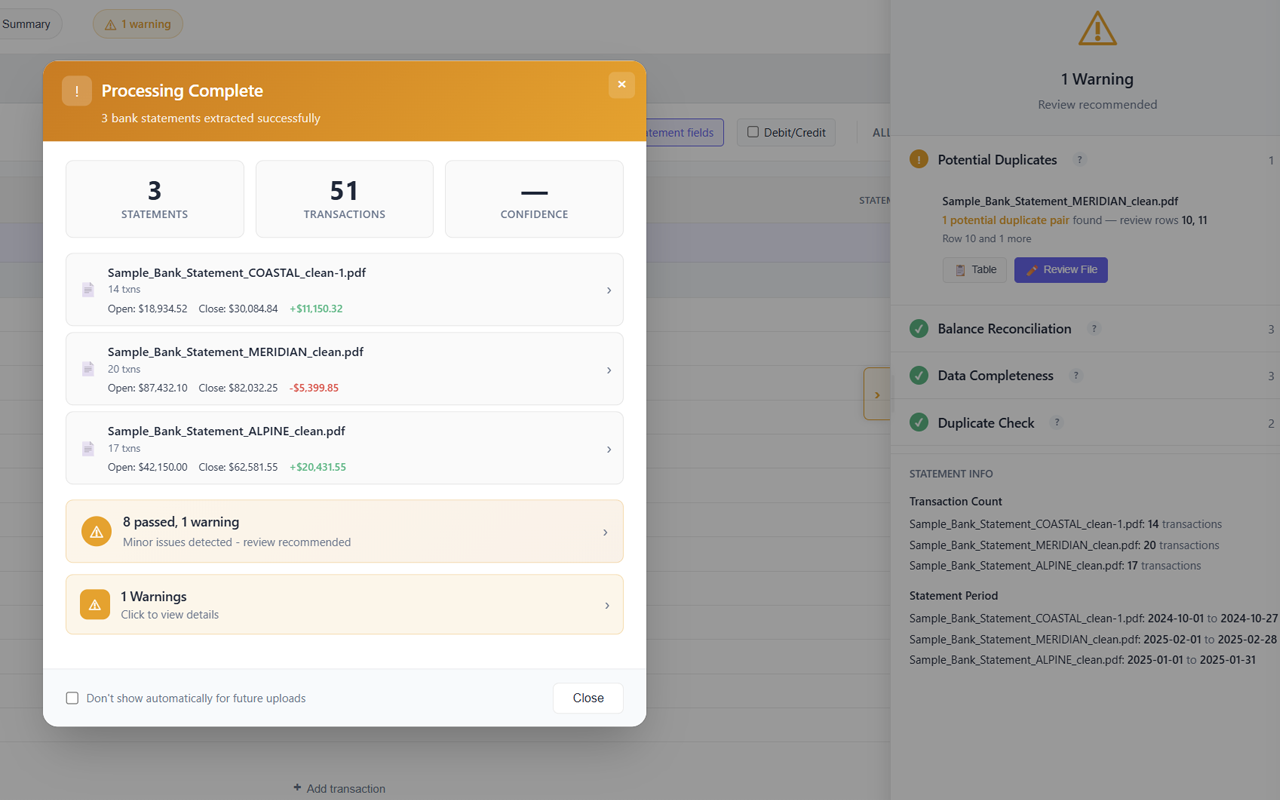
- If any transaction looks wrong (OCR sometimes misreads digits in faded scans), click any cell to edit and re-validate.
- Click Export and choose Excel, CSV, QBO, or JSON.
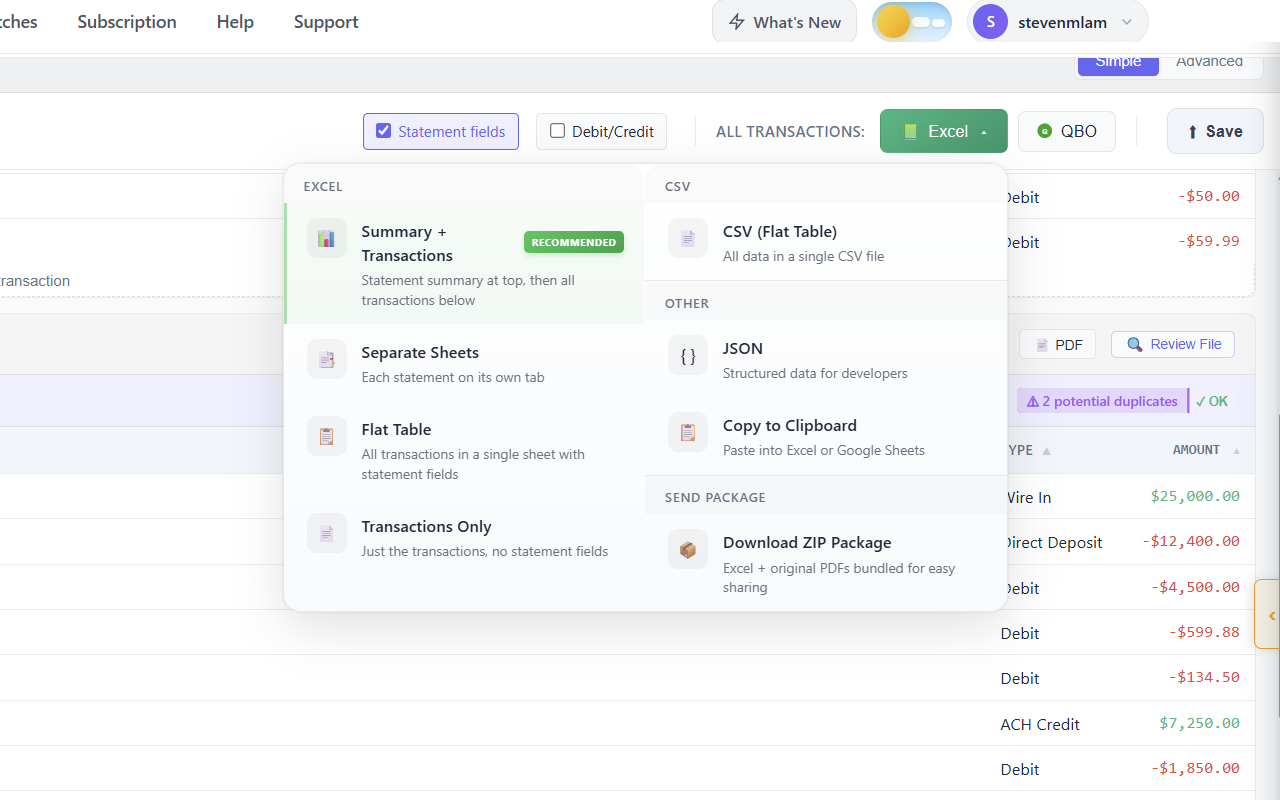
- Download the file. The output is the same as for digital-native PDFs because OCR happens transparently as part of the extraction pipeline.
Realistic time estimate for a 10-page scanned multi-statement project: 3-5 minutes total. Upload (15s), OCR + extraction (30-60s), review (2-3 min), export (10s). Compare to 2-4 hours for the manual transcription path or 30-60 minutes for the Acrobat Pro OCR + Export + manual cleanup path.
Other dedicated tools in the same category
SendItSheets isn't the only option. Other self-serve tools targeting bookkeepers and small accounting firms include DocuClipper (more mature feature set, $39+/month, claims 99.9% accuracy on scanned documents), Lido (similar OCR capability, slightly different pricing), and ConvertBankStatement (focuses on PDF-to-Excel including scanned input). All include OCR; the differences are in pricing, accuracy claims, and workflow.
When to use dedicated extraction tools
- Volume work (5+ scanned statements per month)
- Client engagements where errors have downstream cost
- Multi-account statements (generic methods don't handle splitting)
- You need balance validation and OCR error detection
- You handle scanned, photographed, AND digital PDFs in the same workflow
When dedicated tools may be overkill
- One-off conversion of your own personal statement
- You already have Adobe Acrobat Pro and don't process volume
- The subscription cost doesn't justify the time savings for your volume
Which method should I use?
The right method depends on volume, accuracy needs, and what software you already have access to.
| Your situation | Recommended method | Why |
|---|---|---|
| One personal statement, fewer than 30 transactions | Method 1: Manual transcription | No software needed; verifiable manually; not worth setup time for one document |
| One personal statement, 50+ transactions, low privacy concern | Method 2: Free online OCR | OCR helps; manual cleanup acceptable for one-off; privacy acceptable for non-sensitive data |
| You have Adobe Acrobat Pro, processing 1-3 scanned statements per month | Method 3: Acrobat Pro OCR + Export | Already paid for; reliable OCR; manual cleanup acceptable at low volume |
| Bookkeeper handling 5+ scanned client statements per month | Method 5: Dedicated extraction tool | OCR + extraction in one step; balance validation; subscription cost justified by volume |
| Year-end catch-up with 12-24 months of scanned statements | Method 5: Dedicated extraction tool with batch processing | Volume makes generic methods impractical; balance validation prevents reconciliation errors |
| Multi-account statements (checking + savings + credit card on one PDF, scanned) | Method 5: Dedicated extraction tool | Generic methods merge accounts; dedicated tools split each account independently after OCR |
| Smartphone photos of paper statements | Method 5: Dedicated extraction tool | Most generic OCR tools require flat scans; dedicated tools handle skew, shadows, and rotation |
| Highly faded, low-quality scans | Method 3 (with manual review) or Method 5 | OCR accuracy drops on poor scans; balance validation catches errors that visual review misses |
The crossover point where a dedicated tool subscription becomes worthwhile is roughly 5+ scanned statements per month, assuming the alternative methods take 30-90 minutes each including OCR errors and cleanup.
Frequently asked questions
Related guides
- Bank statement to Excel converter - the comprehensive bank statement extraction tool with OCR, validation, and batch processing
- Multi-account bank statement extraction - methods for splitting checking, savings, and credit card sections from a single PDF (scanned or digital)
- PDF bank statement to QuickBooks workflow - 4 methods compared with QuickBooks-side import steps
- Bookkeeping cleanup for bank statements - workflow for processing many historical statements during catch-up engagements
Convert scanned bank statements with OCR built in
SendItSheets handles scanned PDFs, JPG, PNG, and smartphone photos. OCR runs automatically; balance validation catches errors. Free 14-day trial with 30 pages, paid plans from $20/mo. No demo required.
See the SendItSheets bank statement tool →