
Receipt to Google Sheets: Get Receipt Data Into Your Sheet in Seconds
To get receipts into Google Sheets, upload your receipt PDFs or photos to SendItSheets, extract merchant, date, total, tax, and line items into a clean CSV, then import the CSV into Google Sheets via File > Import. Works with phone photos and scanned PDFs. No add-on, no automation setup, no Google account connection. Free for the first 30 pages during your 14-day trial.
- Direct CSV import - no add-on or automation tool needed
- Works with phone photos, scanned PDFs, and digital receipts
- Batch up to 50 receipts in a single CSV
- No connection to your Google account required
How to convert receipts to a Google Sheet
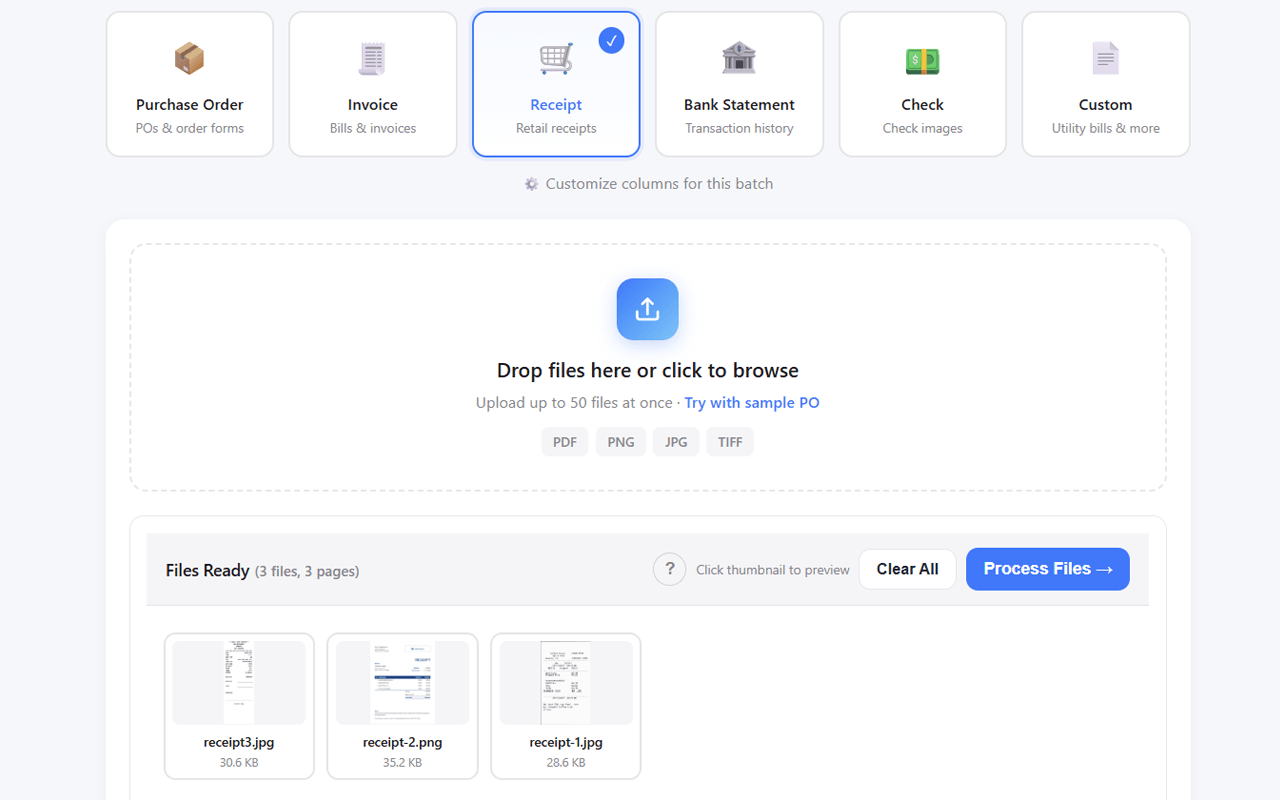
Upload Your Receipt
Drop a single receipt or batch up to 50 at once. Phone photos, scanned PDFs, and digital receipts all work.
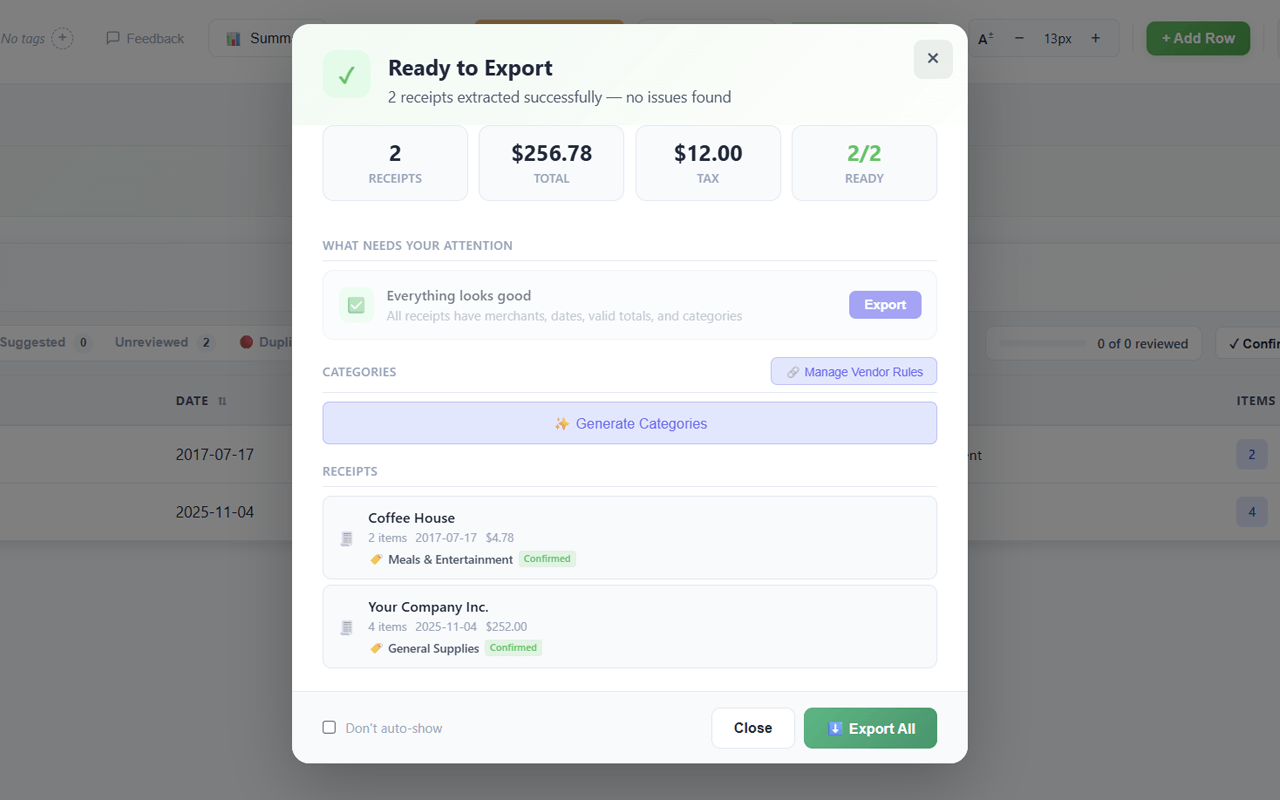
Receipt Data Extracted
Merchant, date, total, tax, payment method, and line items are pulled into a structured table in seconds.
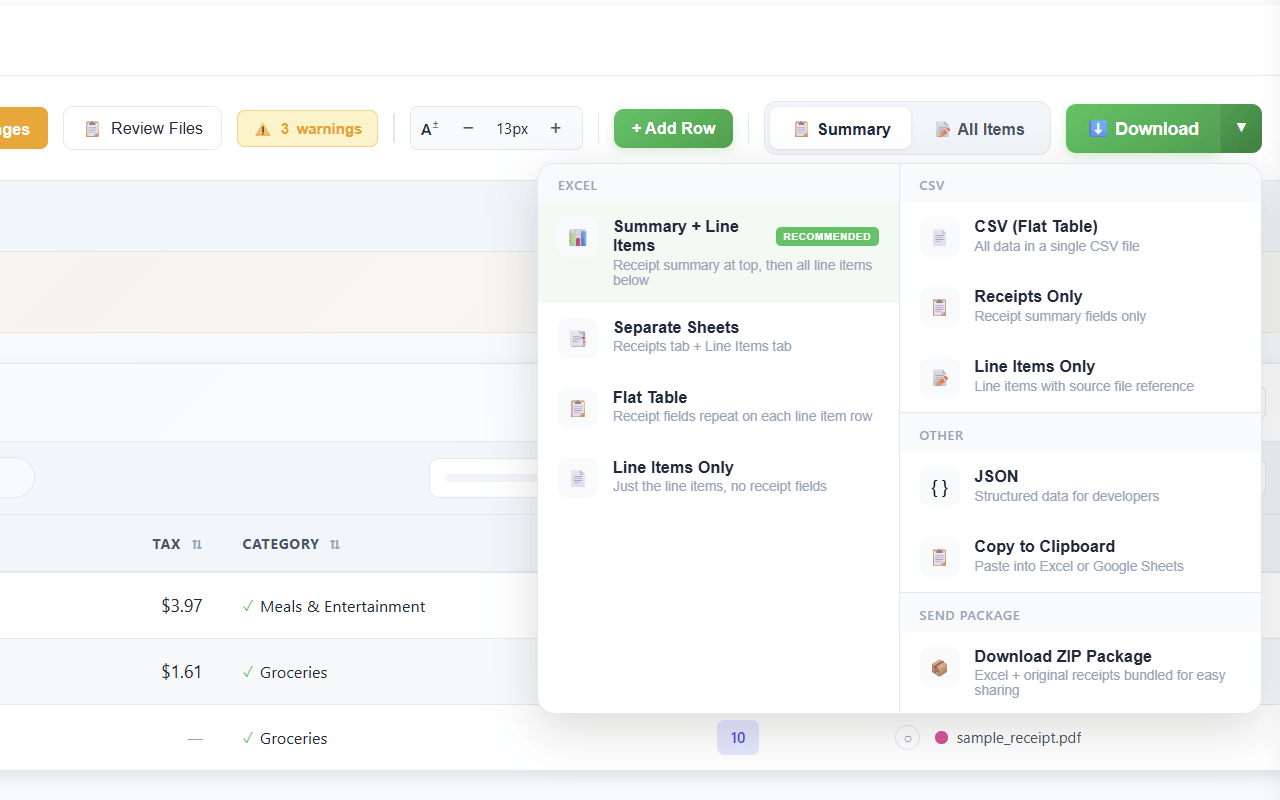
Download a CSV File
Choose the flat table CSV format - one row per receipt with consistent columns. This is the format Google Sheets imports cleanly.
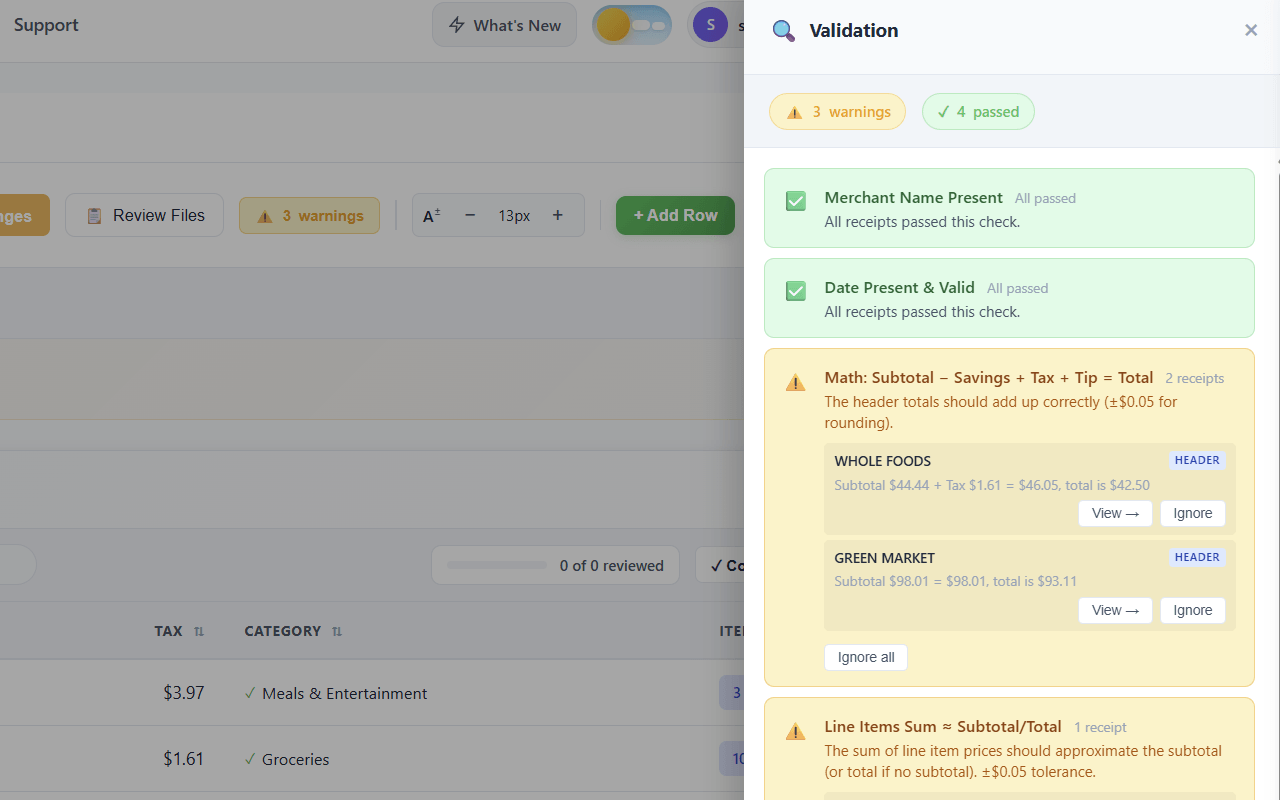
Import Into Google Sheets
Open Google Sheets, click File > Import, drop in the CSV. The receipt fields land in proper columns, ready for SUMIF formulas, pivot tables, or your monthly review.
SendItSheets works with most common receipt formats - retail, grocery, restaurant, hotel, gas station, rideshare, phone photos, scanned PDFs, and digital PDFs. See the full list of supported receipt types on the receipt extraction page.
Scan receipts straight into Google Sheets
You don't need a dedicated receipt scanner or a desktop scanning app to get receipts into Google Sheets. If you can take a photo, you can scan a receipt. Snap the receipt with your phone, drop the image into SendItSheets, and the data comes back as a CSV that imports straight into your sheet — merchant, date, total, and tax in clean columns.
It works with whatever you have on hand:
- Phone photos — a quick snapshot of a paper receipt, even at an angle or in dim light
- Thermal receipts — the faded register slips from gas stations, restaurants, and stores
- Scanned PDFs — anything you've run through a flatbed or document scanner
- Screenshots — emailed and digital receipts captured from your screen
Behind the scan is receipt OCR tuned specifically for receipts rather than generic document text, so it reads crumpled, curled, and low-contrast thermal paper that trips up general scanner apps. See how the receipt OCR handles photographed and scanned receipts, then come back here to drop the result into your sheet.
The reason to scan straight to Google Sheets instead of a closed app: your data stays in a spreadsheet you own and can share. No scanner-app subscription, no export wall, no account to connect. Scan, import via File > Import, done.
Why Google Sheets is Enough for Receipt Tracking
Most receipt tools push you toward QuickBooks or full accounting software. For freelancers, solo businesses, and bookkeepers sharing with clients, a clean Google Sheet does everything you actually need.
- Free, accessible from any device, easy to share with your accountant
- Familiar formula syntax - SUMIF for category totals, pivot tables for monthly summaries
- Native CSV import via File > Import - no add-on, no Make/Zapier scenario, no n8n workflow
- Works on Free, Standard, and Plus Workspace plans
- Easy to back up via Google Drive and version history
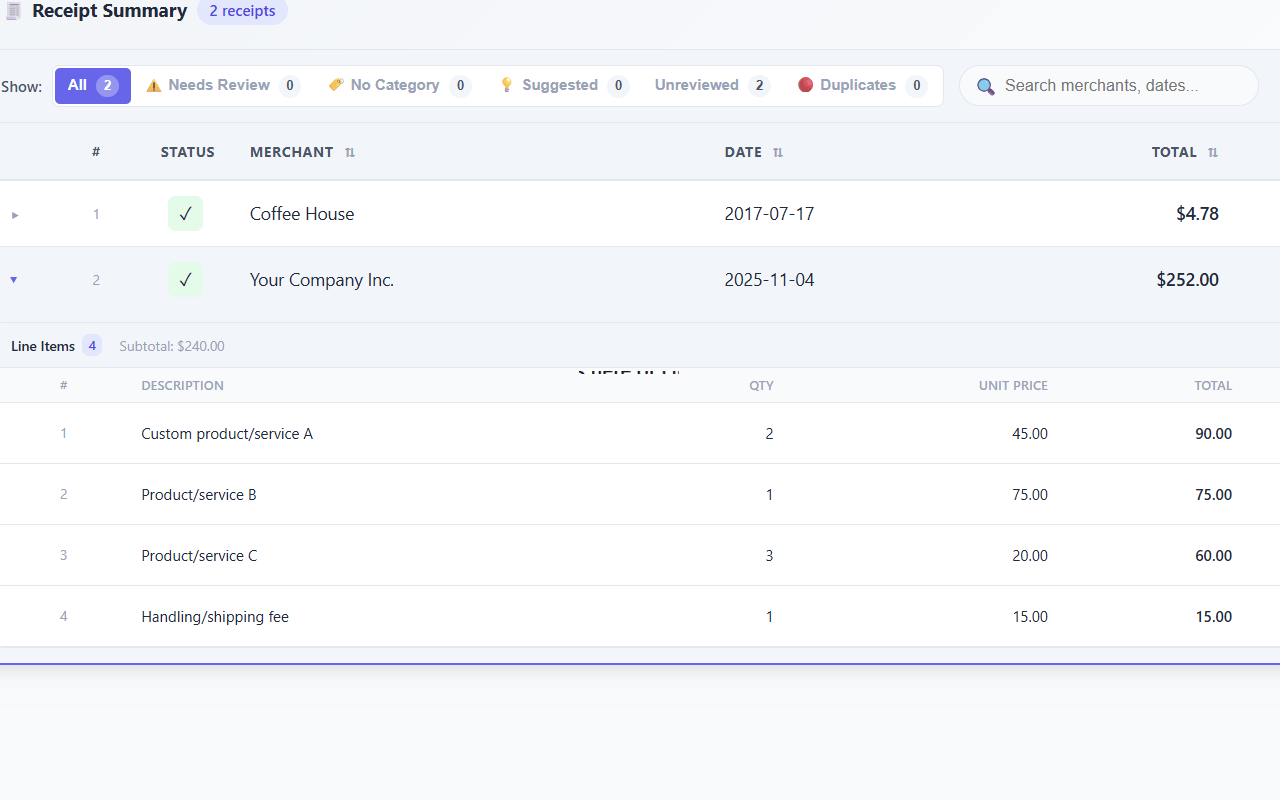
Real-world receipts aren't pristine - phone photos can be blurry, thermal paper fades, scans get skewed. See what SendItSheets handles well and where extraction quality drops on the receipt extraction page.
Who uses receipt to google sheets?
Freelancers
Track expenses for tax deductions without paying for QuickBooks. Drop receipts in throughout the year, export to a sheet at tax time.
Solo Business Owners
Run a tight business without dedicated accounting software. A well-organized Google Sheet covers most solo operations through year-end.
Bookkeeper-Client Workflows
Share a Google Sheet with your accountant. They review, comment, and reconcile in the same sheet without logging into a third-party tool.
What are the alternatives?
Three ways to get receipts into Google Sheets:
Manual entry
Pros: Free, no tools needed
Cons: 2-3 minutes per receipt, error-prone, doesn't scale past a handful of receipts
Automation tools (Zapier, Make, n8n + Mindee/Klippa)
Pros: Fully automated email-to-sheet pipeline once configured
Cons: Hours to set up the workflow, monthly fees stack up, breaks when any node updates
SendItSheets - direct upload to CSV to Sheets
Pros: 60 seconds end-to-end, no automation to maintain, works with PDFs and phone photos
Cons: Free for 30 pages during a 14-day trial, paid plan needed for higher volume
Manual receipt entry takes 2-3 minutes per receipt. SendItSheets takes about 6 seconds. See the full time-savings comparison on the receipt extraction page.
Google Sheets is one of the most underrated accounting tools for solo businesses and freelancers. Most receipt tools push toward QuickBooks because that's where their integrations live. For users who don't need full accounting software, a clean Google Sheet handles monthly bookkeeping and tax preparation without the setup overhead.
The workflow is straightforward. Upload your receipts to SendItSheets. Get a CSV with merchant, date, total, tax, and category columns. Import the CSV into Google Sheets via File > Import. The data lands in proper columns ready for SUMIF formulas, pivot tables by category, and monthly summary sheets. The whole thing takes about 60 seconds for a single receipt and roughly 2 minutes for a batch of 50.
For freelancers, this is enough infrastructure for tax season. For solo business owners, this handles month-end review without QuickBooks. For accountants and bookkeepers, a shared Google Sheet means clients update throughout the year and accountants audit at year-end without anyone logging into a third-party tool.
Some Google Sheets formulas that work well with extracted receipt data: =SUMIF(D:D,"meals",F:F) totals all meal expenses, =FILTER(A:G, MONTH(B:B)=3) shows just March receipts, and =QUERY(A:G, "select D, sum(F) group by D") summarizes spending by category. The structured CSV from SendItSheets uses ISO date format and standard column headers, so these formulas work without column reformatting.
Security note worth flagging: SendItSheets does not connect to your Google account. The CSV download runs through your browser. There is no OAuth permission grant, no third-party access to your Google Drive, no continuous data sync. If you ever stop using SendItSheets, there is nothing to disconnect or revoke - your Google data was never connected to begin with.
Related receipt resources
- Receipt to Excel converter - the comprehensive receipt extraction guide
- Receipt OCR - how scanned and photographed receipts are read before they reach your sheet
- Receipt to CSV converter - for users who need automation pipelines or non-Google workflows
- Receipt to QuickBooks workflow - for users who outgrow Sheets and adopt QuickBooks
Receipt to Google Sheets: Frequently Asked Questions
Get Your Receipts Into Google Sheets - Free
Upload your receipts and get a Sheets-ready CSV in seconds. Batch up to 50 at once. Start with 30 free pages over 14 days. No credit card required.
Try It Free