
Receipt to QuickBooks: Import Receipts into QBO Without Manual Entry
To get receipts into QuickBooks Online, upload your receipt PDFs or photos to SendItSheets, batch up to 50 at once. The merchant, date, total, tax, and payment method are extracted into a flat table CSV that imports directly into QuickBooks. No QuickBooks integration setup, no manual typing, no per-receipt processing. Free for the first 30 pages during your 14-day trial.
- QuickBooks Online compatible CSV export
- Batch up to 50 receipts in one CSV file
- No QuickBooks API integration to set up
- Works with QuickBooks Desktop too
| Merchant | Date | Total | Tax |
|---|---|---|---|
| Office Depot | 12/30/2024 | $90.15 | $6.68 |
| Starbucks | 12/29/2024 | $7.45 | $0.58 |
What Maps to QuickBooks
SendItSheets reads your receipt and pulls the following fields into structured spreadsheet columns. Results depend on what information is present and legible on each receipt.
Merchant / Store Name
The business name and location, as printed on the receipt header.
Transaction Date
Date and time of the purchase, extracted from the receipt timestamp.
Total, Subtotal & Tax
Grand total, pre-tax subtotal, and tax amount parsed as separate fields.
Line Items
Individual items with names, quantities, and prices, when legible and itemized on the receipt.
Payment Method
Card type and last four digits, when printed on the receipt.
Tip / Gratuity
Tip amount extracted separately from restaurant and service receipts, when present.
Receipt Number
Transaction ID, receipt number, or reference code for record-keeping.
Category / Description
Merchant category or purchase description, where available on the receipt.
Store Address
The physical address of the merchant, when printed on the receipt.
SendItSheets works with most common receipt formats - retail, grocery, restaurant, hotel, gas station, rideshare, phone photos, scanned PDFs, and digital PDFs. See the full list of supported receipt types on the receipt extraction page.
How to Import Receipts into QuickBooks Online
From receipt to spreadsheet in four steps. No manual data entry required.
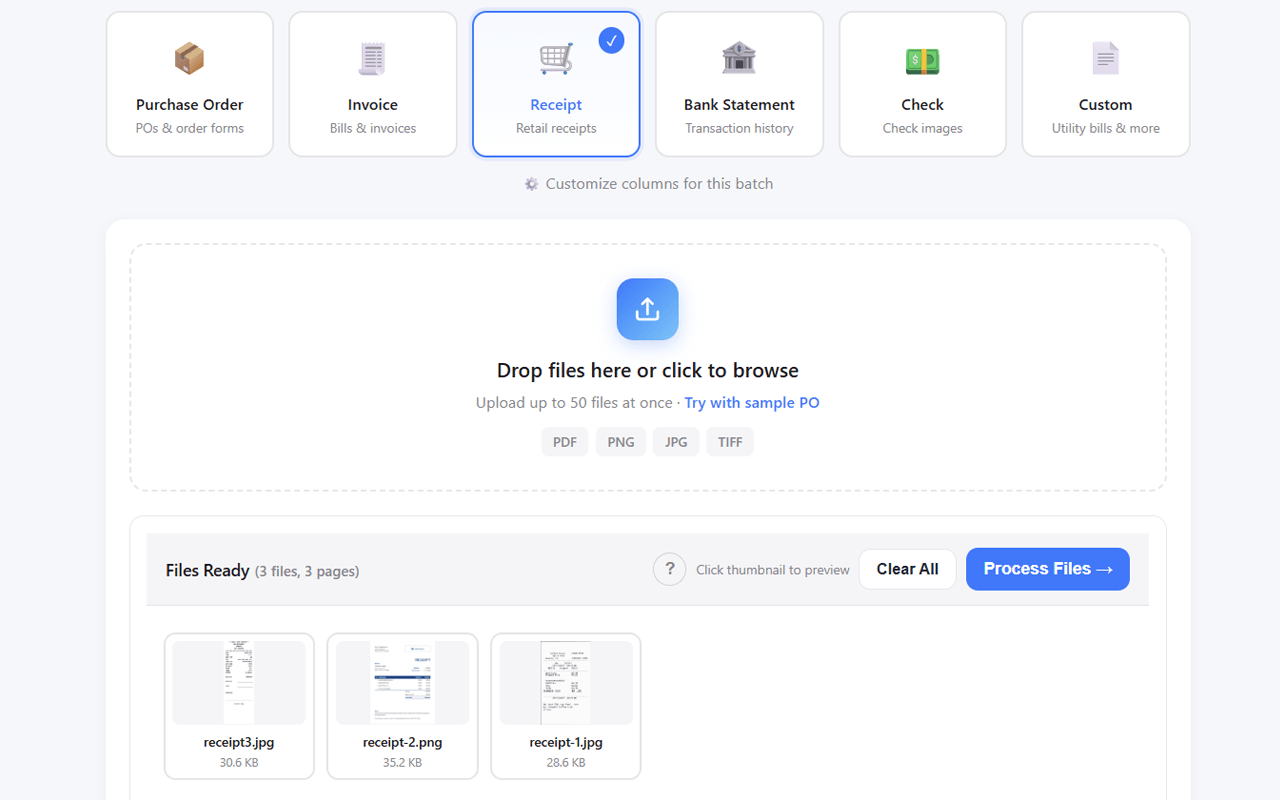
Upload Your Receipts
Drag a single receipt or batch up to 50 at once. Phone photos, scanned PDFs, and digital receipts all work.
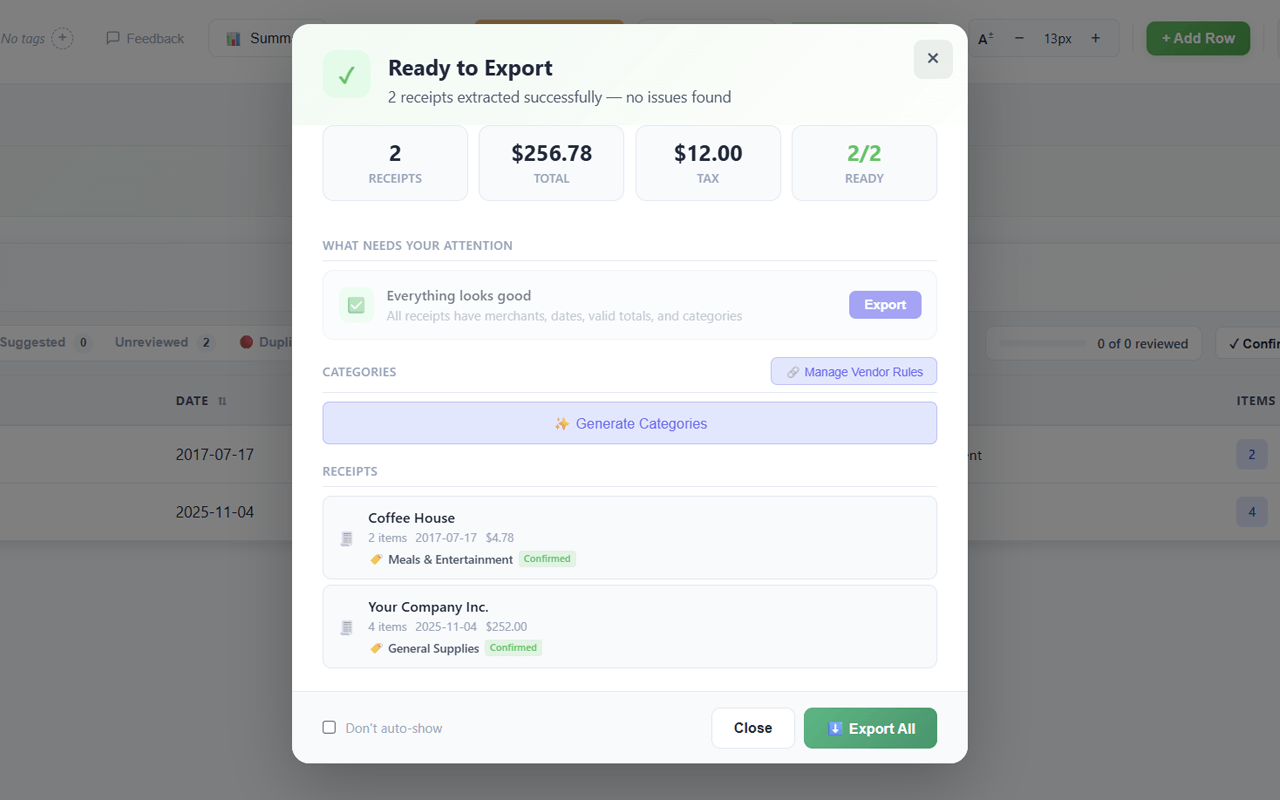
Receipt Data Extracted Automatically
Merchant, date, total, tax, and payment method are read in seconds. Categories can be assigned for QuickBooks chart of accounts mapping.
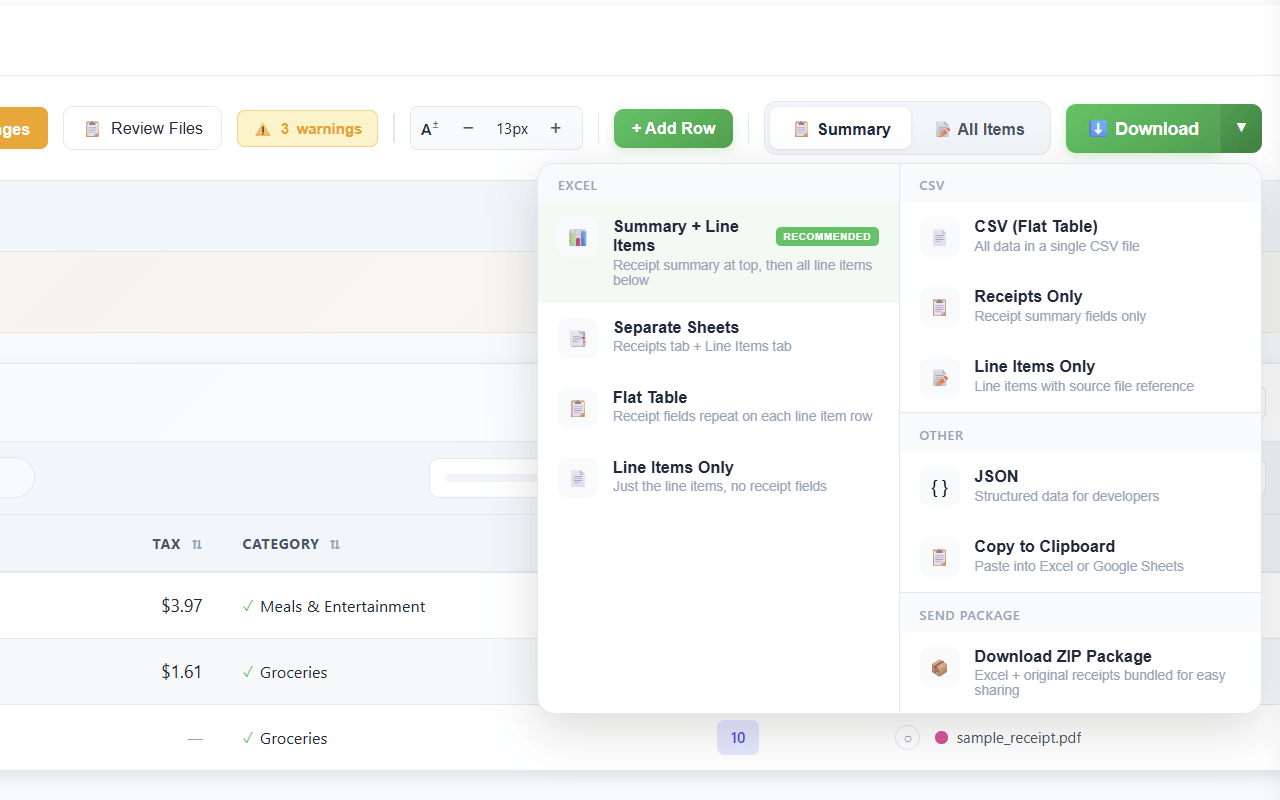
Export QuickBooks-Ready CSV
Choose the flat table CSV format - one row per receipt with merchant, date, amount, and tax. The structure matches what QuickBooks Online expects.
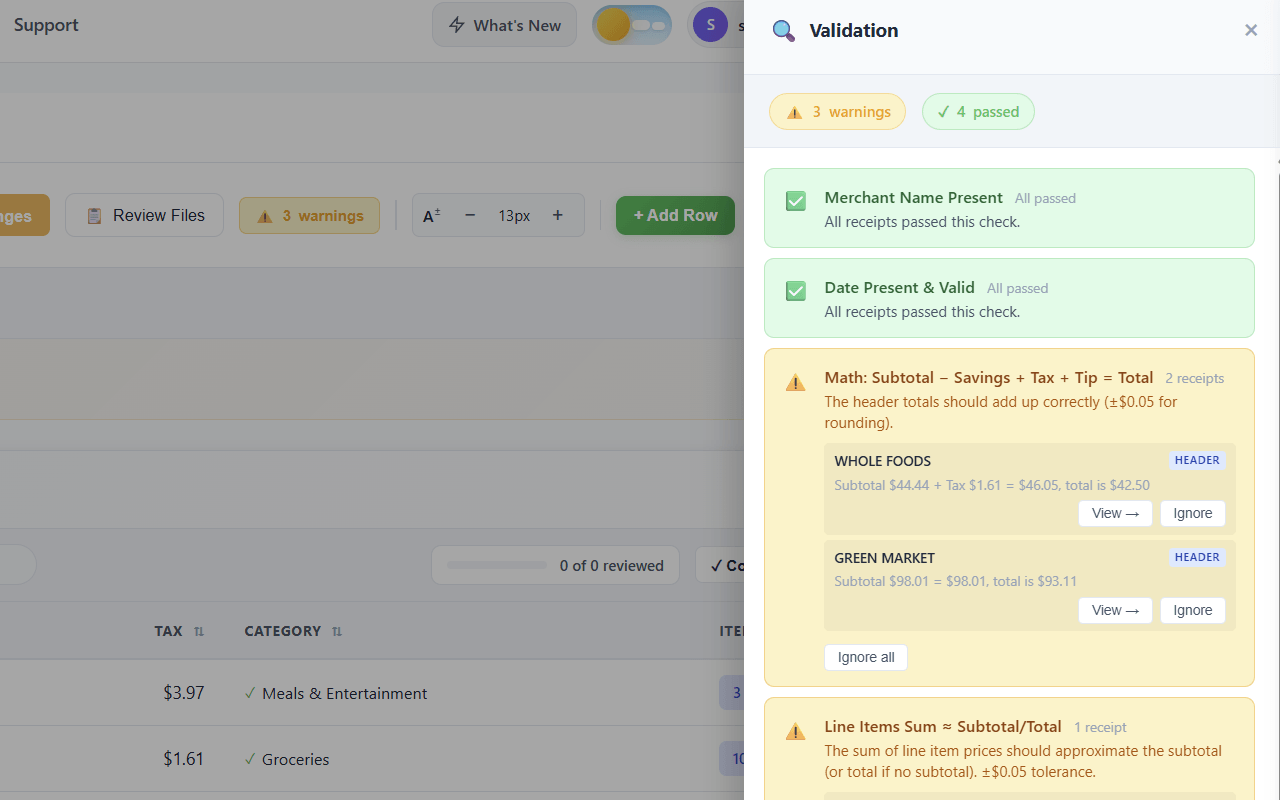
Import into QuickBooks Online
In QuickBooks Online, go to the import or banking screen, upload your CSV, and map the columns to QuickBooks fields. The receipts appear as transactions ready for review.
The Bookkeeper Workflow That Saves Hours Per Month
Most QuickBooks users handle receipts one at a time - either typing them into QBO directly, or scanning them through QuickBooks' built-in receipt capture which still requires per-receipt review. SendItSheets is built for batch.
- Upload 50 receipts in a single batch instead of one at a time
- Review all extracted data in one unified table before exporting
- Validation flags any receipts with math errors or missing data before they hit QuickBooks
- Export as a flat table CSV ready for QuickBooks Online or Desktop import
- No QuickBooks API integration required - just CSV upload through QuickBooks' standard import flow
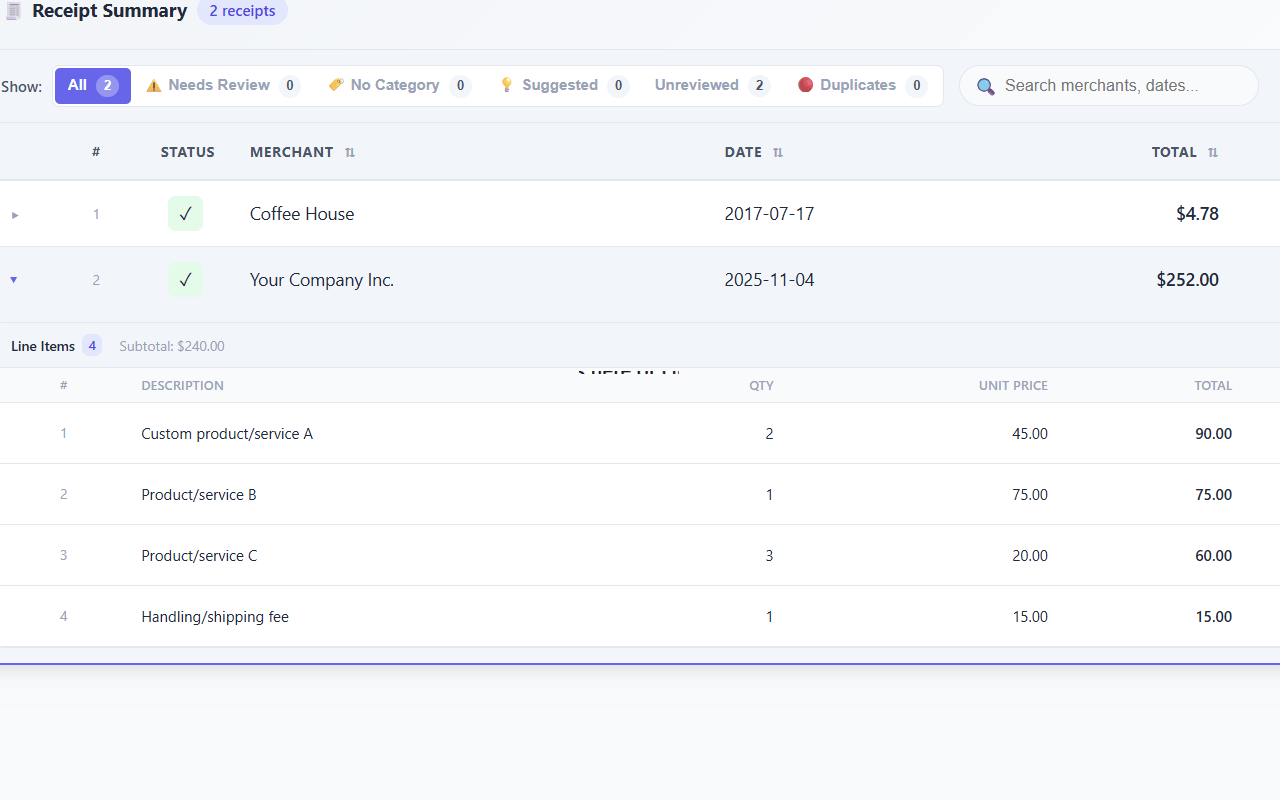
Real-world receipts aren't pristine - phone photos can be blurry, thermal paper fades, scans get skewed. See what SendItSheets handles well and where extraction quality drops on the receipt extraction page.
Which CSV format works with QuickBooks?
Choose the format that fits your workflow. Both are available for every extraction.
Excel (.xlsx)
Best for reviewing, formatting, and working with data interactively. Supports formulas, conditional formatting, and multiple sheets.
CSV
A lightweight plain-text format for importing into other systems. Compatible with virtually all software that reads tabular data.
Why import receipts into QuickBooks instead of typing them?
From freelancers to finance teams, these are the most common reasons people use receipt-to-Excel tools.
Expense Tracking
Convert a month of business receipts into one organized spreadsheet. Filter by category, date, or vendor.
Bookkeeping
Process stacks of client receipts quickly. Export to CSV for direct import into QuickBooks, Xero, or FreshBooks.
Tax Preparation
Organize deductible expenses before tax season. Having receipts in a spreadsheet makes categorization faster.
Reimbursement
Build clean expense reports for employer reimbursement. Attach the spreadsheet alongside original receipt images.
Travel Expenses
Meals, hotels, rideshares, and gas. Consolidate all travel receipts from a trip into one spreadsheet.
Small Business
Track business purchases without manual data entry. Maintain records for accounting and monthly expense reviews.
Manual receipt entry into QuickBooks takes 2-3 minutes per receipt. SendItSheets extraction takes about 6 seconds per receipt and the CSV import takes under a minute total. See the full time-savings comparison on the receipt extraction page.
How to import receipts into QuickBooks Online
You can convert one receipt with no signup at all - drop a file into the uploader on this page and the extracted data appears in seconds. For batch processing, a free SendItSheets account takes about 30 seconds: just an email and password, no credit card. There's no QuickBooks API integration to authorize and no chart of accounts to configure before your first extraction.
Once signed in, select "Receipt" as the document type and upload your files. You can process individual receipts or batch up to 50 at once. After extraction, the data lands in a unified table where you can review each receipt's merchant, date, total, tax, and payment method, edit any field, and assign categories that map to your QuickBooks chart of accounts.
When the batch looks good, export as a flat table CSV. Open QuickBooks Online, navigate to the import or banking screen, and upload the CSV. QuickBooks Online's CSV import walks you through column mapping - match the SendItSheets columns (merchant, date, amount, tax) to the corresponding QuickBooks fields and review the imported transactions.
How this differs from QuickBooks Online's built-in receipt scanner
QuickBooks Online includes a built-in receipt capture feature that lets you photograph or upload receipts one at a time. It works fine for occasional single receipts but gets slow when you have a month's worth of expenses to process. Each receipt requires its own upload, review, and confirmation step, and there's no way to see the whole batch in one view before posting.
SendItSheets is built for the batch case. Upload 50 receipts in one go, review them all in a unified table, fix any extraction issues, and export a CSV that imports as one transaction set in QuickBooks. Use SendItSheets for batch processing, use QuickBooks built-in for the occasional single receipt - they complement each other.
Why CSV import beats manual entry for QuickBooks
Manual receipt entry into QuickBooks Online takes 2-3 minutes per receipt: type the merchant, click the date picker, enter the amount, select the account, save. For 50 receipts that's about 2 hours of focused work. CSV import via SendItSheets takes about 5 minutes total: 30 seconds to upload to SendItSheets, a couple of minutes to review and fix any extraction issues, then under a minute to upload the CSV to QuickBooks and confirm the import.
The other advantage is consistency. When you type 50 receipts manually, small errors creep in - a typo in the merchant name, a misread date, a tax field skipped. CSV import has zero typing involved, so the errors that would normally happen at the keyboard simply don't occur. Validation in SendItSheets catches extraction errors before they hit QuickBooks.
Does this work with QuickBooks Desktop?
Yes. QuickBooks Desktop accepts CSV imports through its banking import feature. The same SendItSheets CSV that imports into QuickBooks Online works for QuickBooks Desktop with similar column mapping during import. The general workflow is identical - upload to SendItSheets, extract, export CSV, import into QuickBooks - just with QuickBooks Desktop's import dialog instead of QuickBooks Online's.
How is your receipt data secured?
Receipts can contain sensitive information like partial card numbers and purchase details. SendItSheets is designed with that in mind:
- Documents are transmitted and stored using encryption.
- Your receipts stay in your account until you choose to delete them.
- You are in control: delete any file whenever you want.
- No third-party connection between SendItSheets and your QuickBooks account - the CSV upload runs through your browser, not through any API or OAuth permission grant.
Related receipt resources
- Receipt to Excel converter - the general receipt extraction page with the full feature breakdown
- Receipt to CSV converter - the technical details on CSV export formats and structures
- Receipt to Google Sheets - for clients using Google Sheets instead of QuickBooks
- Bookkeeping cleanup workflow - for bookkeepers processing client receipt backlogs into QuickBooks
Receipt to QuickBooks: Frequently Asked Questions
Stop Typing Receipts Into QuickBooks One at a Time
Upload your receipts and get a QuickBooks-ready CSV in seconds. Batch up to 50 at once. Start with 30 free pages over 14 days. No credit card required.
Try It Free