
Receipt OCR: Turn Photos of Receipts into Structured Data
Receipt OCR reads the printed text on a scanned or photographed receipt and turns it into structured fields - merchant, date, subtotal, tax, tip, total, payment method, and line items. With SendItSheets you snap a phone photo, drop a thermal receipt, or upload a scanned PDF, and the OCR engine straightens, isolates, and reads it for you. Uncertain values are flagged for a quick review. The first 30 pages are free during your 14-day trial.
- Reads phone photos, scans, HEIC, and PDFs - no format conversion
- Built for thermal, faded, and lightly crumpled receipts
- Detects multiple receipts in a single image
- Low-confidence fields are flagged, not silently guessed
What receipt OCR actually does
OCR stands for optical character recognition - software that looks at an image of text and works out what the characters are. A receipt is a particularly awkward thing to read: the print is narrow, the paper is glossy or curled, the layout differs at every merchant, and the most important numbers are surrounded by a dozen other numbers that look just like them.
Plain OCR will hand you a block of recognized text. That is only half the job. SendItSheets is receipt-aware OCR: after it reads the characters it figures out the structure - which line is the merchant name, which date is the transaction date, which of the numbers is the subtotal versus the tax versus the grand total, and which rows are individual line items. The output is a clean record, not a transcript you still have to interpret.
Before any reading happens, the image gets cleaned up. A photo taken at a slight angle is deskewed so the lines run straight. The receipt is separated from the table, hand, or counter behind it. Faint thermal print gets its contrast boosted. Those steps are why a quick phone snapshot - not a perfectly aligned flatbed scan - is usually enough.
What the OCR reads off your receipt
Every scan is mapped to the same named fields, so two receipts from different stores come out in the same shape.
Merchant
The store or vendor name, lifted from the header even when it sits above a logo or address block.
Date & Time
The transaction date, normalized to a consistent format regardless of how the register printed it.
Total, Subtotal & Tax
The amounts told apart from each other - so the total never gets confused with the subtotal or the change due.
Line Items
Individual products or services with quantity, unit price, and line total when the receipt lists them.
Payment Method
Card, cash, or wallet, plus the last four digits when the receipt prints them.
Tip
Handwritten or printed gratuity on restaurant and service receipts, read separately from the total.
Scan it however you have it
You do not need a special scanner app or a clean original. The OCR is built around the messy reality of how receipts actually reach you - in your camera roll, in a pile on a desk, or buried in a scanner’s output folder.
Anything legible to your own eye is usually legible to the OCR. The fainter or more distorted the image, the more fields get flagged for a quick confirmation.
How to scan a receipt and get usable data
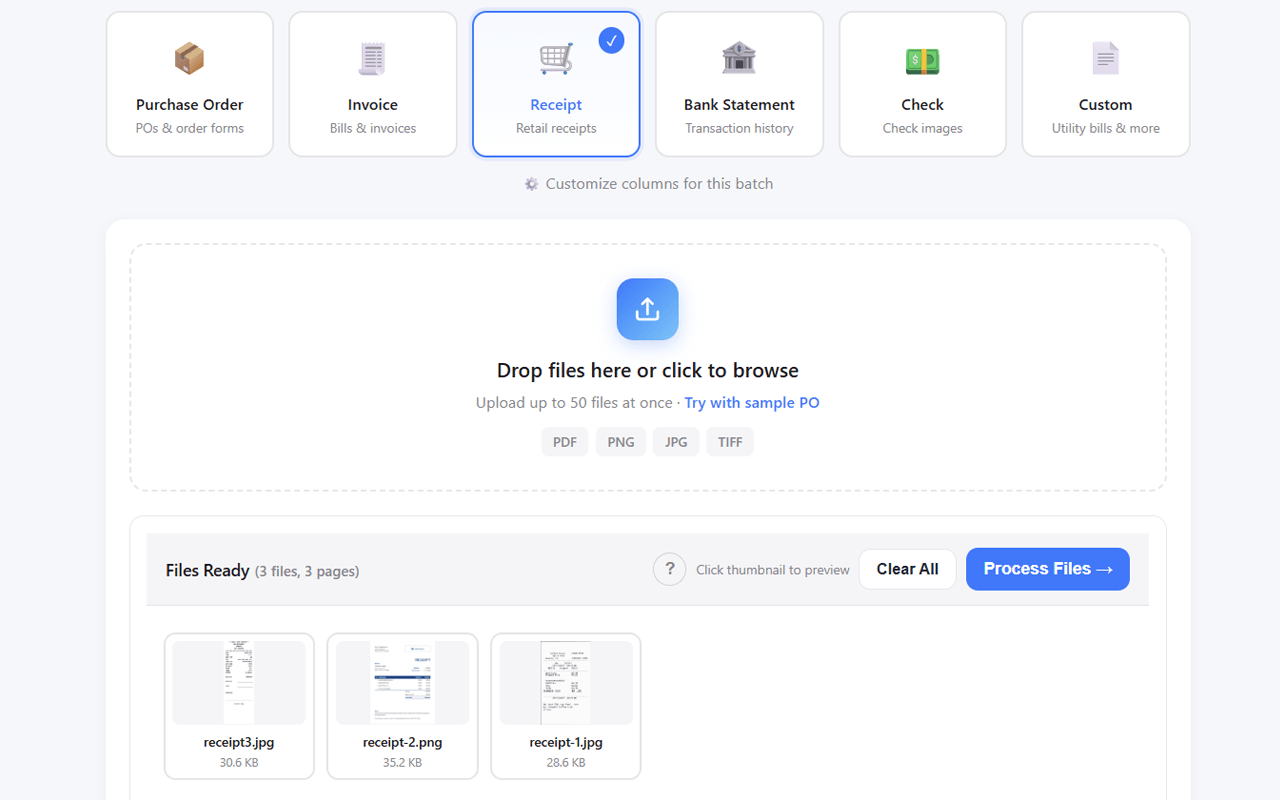
Photograph or scan it
Snap a phone photo, run it through a scanner, or grab the PDF. Lay the receipt flat, fit the whole thing in frame, and use even light for the cleanest read.
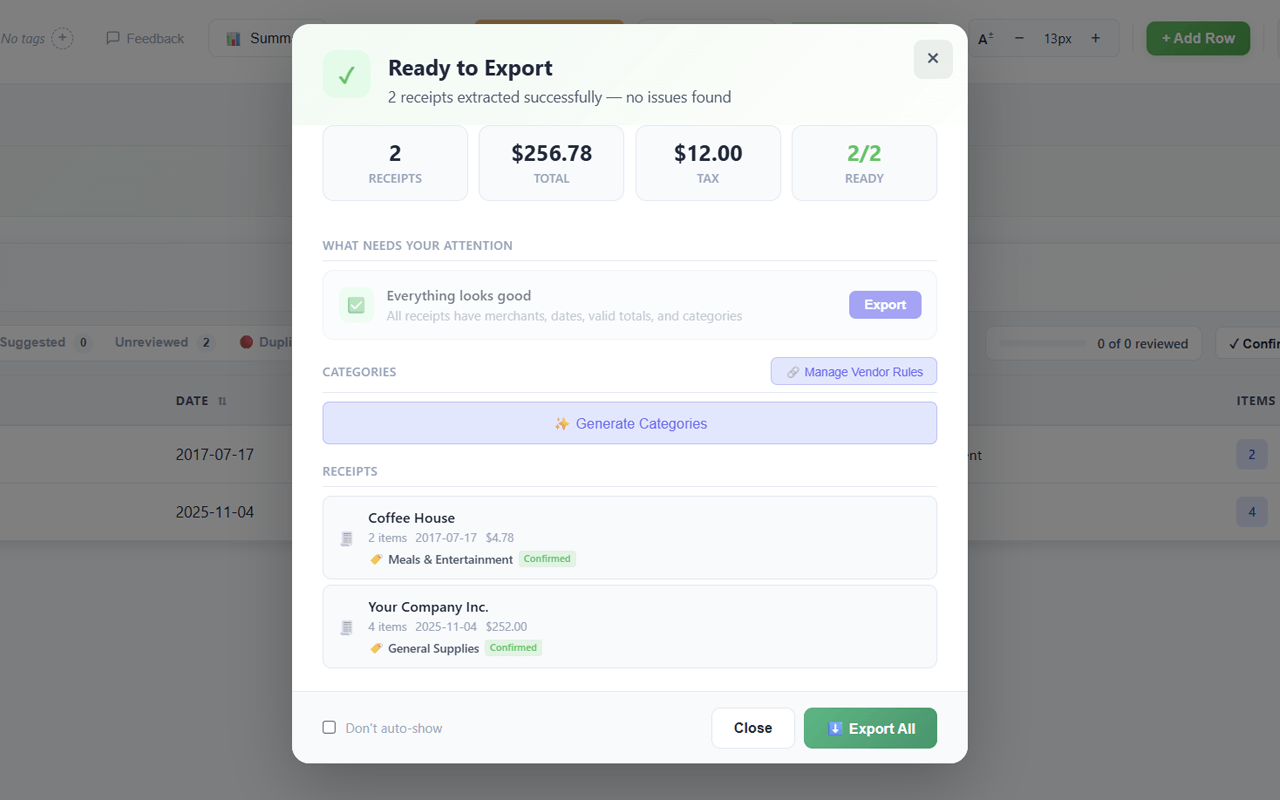
OCR reads the image
The engine deskews the photo, isolates the receipt, boosts faint print, and recognizes the text - then maps it to merchant, date, totals, tax, and line items.
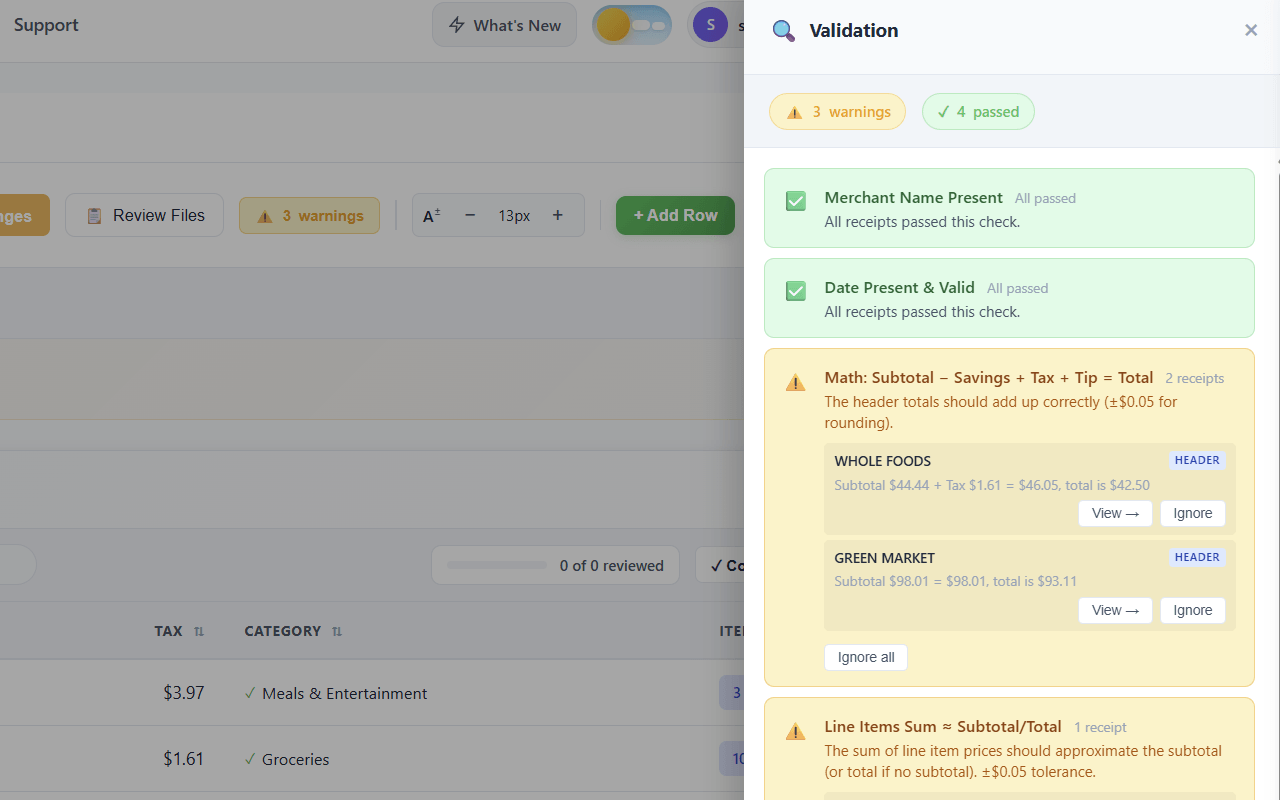
Confirm the flagged fields
Uncertain reads are highlighted. The receipt image sits next to the extracted fields, so you glance at the original and confirm or fix a value in a second.
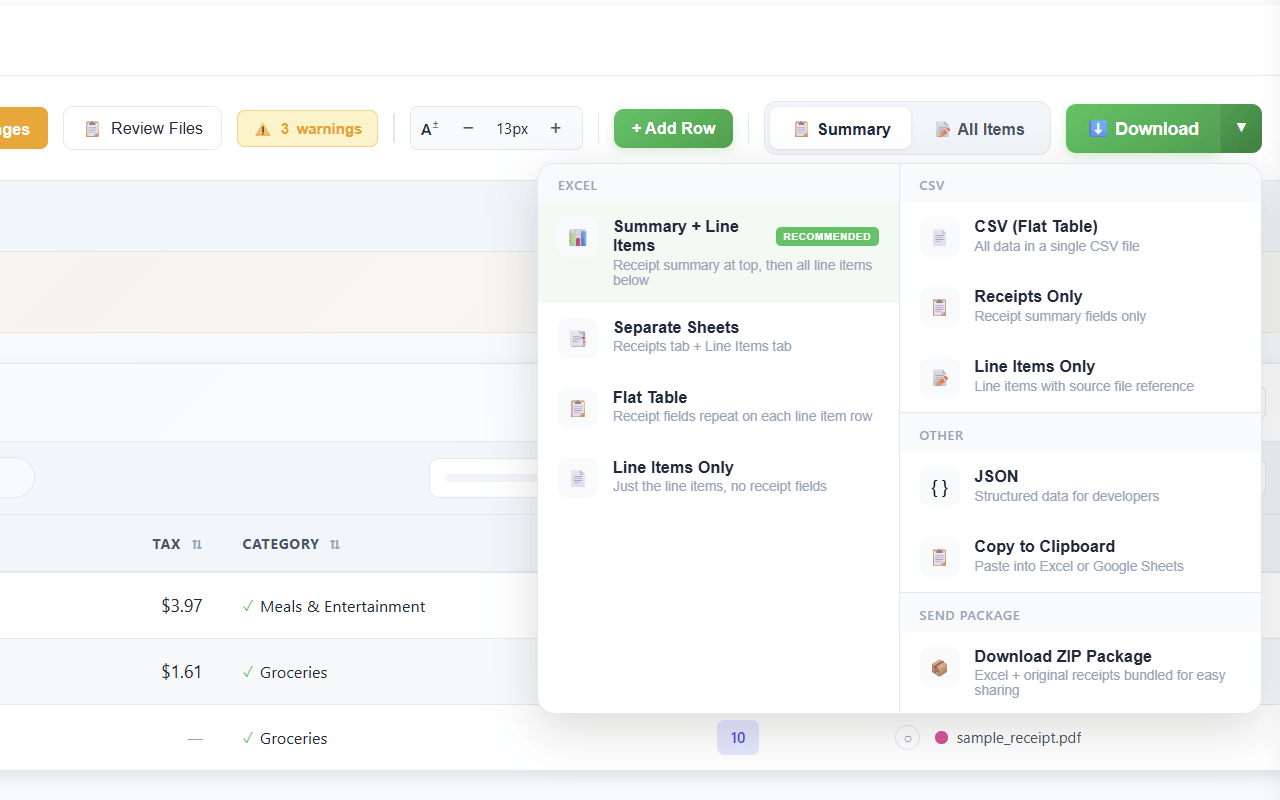
Export the structured data
Send the result to wherever it lives. Excel, CSV, or Google Sheets are one click away.
How the OCR handles its own uncertainty
No OCR is perfect on real receipts. What matters is whether the tool tells you where it might be wrong. SendItSheets scores every field and surfaces the shaky ones.
Read and trusted
Crisp print, clear totals, a flat image. These fields are extracted and left alone - merchant, date, and total on a clean receipt rarely need a second look.
Highlighted, not hidden
A smudged digit, a date the engine read two ways, an ambiguous decimal. These get marked so you confirm them against the image instead of trusting a guess.
Honest about limits
A badly balled-up or near-blank thermal receipt may lose a field or two. The tool tells you which - so you re-shoot it flat or fill that one value in by hand.
📸 One tip that beats every setting
The single biggest accuracy boost is a flat receipt in even light with the whole receipt in frame. Smooth out the wrinkles, kill the harsh shadow, and most thermal and faded receipts read cleanly on the first try.
What scans well, and what fights back
✅ Reads reliably
- Phone photos taken at a slight angle - the image is straightened automatically
- Thermal receipts with normal fading from a wallet or glovebox
- Long grocery and pharmacy receipts with dozens of line items
- Scanned PDFs from a flatbed or document scanner
- Two or three receipts photographed together on a desk
- Receipts with logos, QR codes, and survey footers around the data
⚠️ Needs a better shot
- Heavily crumpled receipts where folds hide whole lines of text
- Thermal paper so faded the numbers are barely visible to the eye
- Photos with a hard shadow or glare falling across the totals
- Receipts shot from far away so the print is small and soft
- Handwritten receipts - print reads far better than cursive
- Torn receipts missing the section with the merchant or total
You see the receipt while you check the data
The weak point of every OCR tool is the moment you have to trust it. SendItSheets puts the original receipt image right next to the extracted fields, so verifying a scan takes a glance, not a hunt through a separate folder.
- The receipt image and the structured fields sit side by side
- Low-confidence values are visually flagged so your eye goes straight to them
- Correct a misread total or date in place before anything is exported
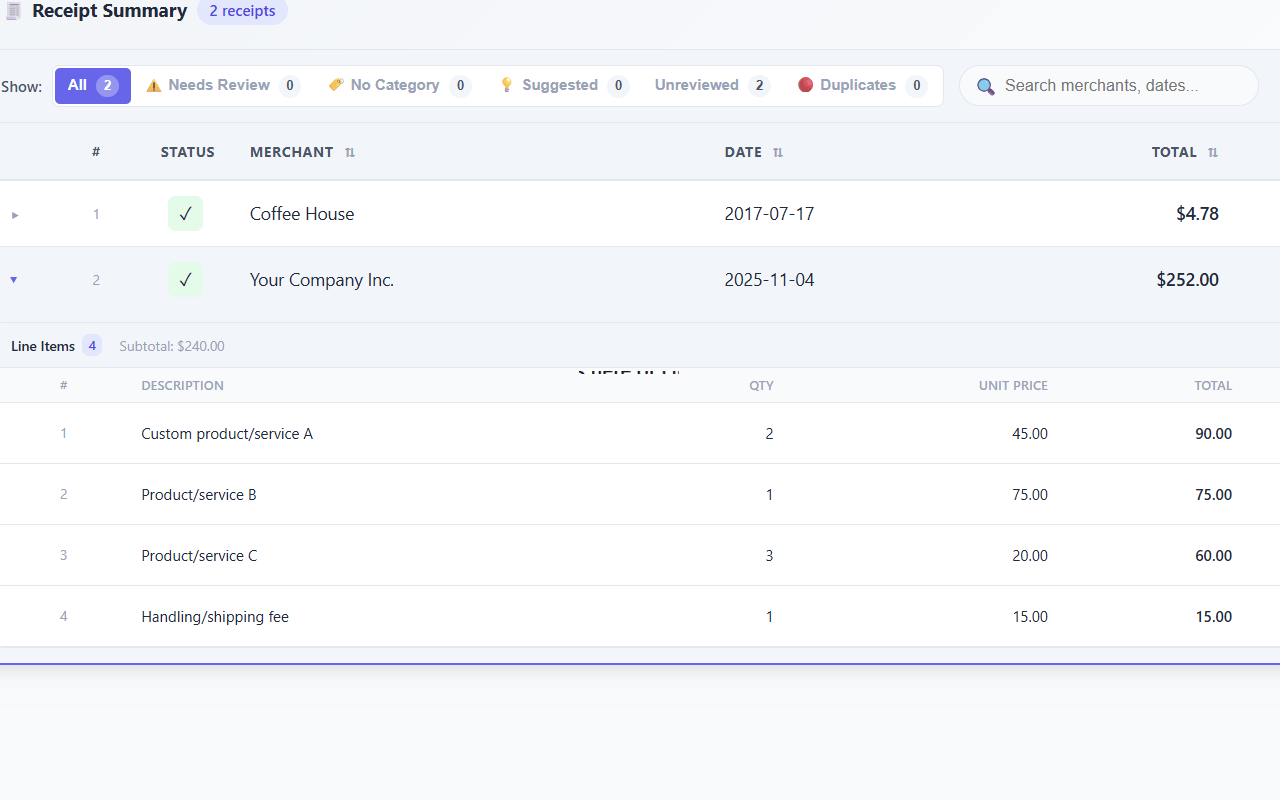
- Batch view shows every scanned receipt in one table for a fast pass
- Nothing is “auto-approved” behind your back
Receipt OCR vs typing vs a generic scanner app
| Type it in by hand | Generic OCR / scanner app | SendItSheets receipt OCR | |
|---|---|---|---|
| Speed per receipt | 2-3 minutes | Fast scan, slow cleanup | ~6 seconds |
| Output | Whatever you type | Raw text you must parse | Named fields, ready to use |
| Knows tax vs total | If you read carefully | No - just characters | Yes, receipt-aware |
| Flags uncertain reads | No | No | Yes, per field |
| Handles faded thermal | If you can read it | Hit or miss | Contrast-boosted |
| Batch of 50 at once | Tedious | One at a time | Single upload |
The phone-in-hand capture workflow
For most people the scanner is a phone, and the moment to capture a receipt is the moment it lands in your hand - at the register, in the car, at the table. A clean mobile capture habit removes the shoebox problem entirely.
A few things make phone capture read better:
- Lay it flat. A receipt held loose in the air curls and shadows itself. A flat surface gives the OCR straight lines to follow.
- Fill the frame. Get close enough that the receipt nearly fills the photo, with a small margin all around. Tiny print shot from a distance is the most common cause of a soft read.
- Watch the glare. Glossy thermal paper bounces overhead light. Tilt the phone or the receipt a touch to move the bright spot off the totals.
- One shot is fine. You do not need a scanning app with edge detection - a normal photo works, and SendItSheets handles the cropping and straightening.
Snap the photo when you get the receipt, then process a batch later. You can upload straight from your camera roll, including HEIC images from an iPhone, without converting anything first.
Who relies on receipt OCR
People who travel
Snap every receipt the moment it appears - cabs, meals, hotels - and let the OCR rebuild the expense report from your camera roll when you land.
Bookkeepers with backlogs
Scan a client’s shoebox of months-old thermal receipts in one batch instead of keying each one by hand.
Trades & field crews
Photograph material and fuel receipts on site. No app to learn - just the camera and a flat surface on the truck.
Curious which specific receipt formats SendItSheets recognizes - retail, grocery, restaurant, hotel, gas, rideshare, and more? See the full list of supported receipt types on the main receipt extraction page.
Why receipt-specific OCR beats general OCR
If you have ever run a receipt through a general document scanner, you have seen the result: a faithful but useless wall of text. The app read the characters perfectly and understood nothing. It cannot tell you that “SUBTOTAL 42.10” and “TOTAL 45.67” mean different things, or that the line reading “VISA ****1234” is the payment method and not a product.
Receipt OCR closes that gap by knowing what a receipt is. It expects a merchant header, a list of items, a subtotal, a tax line, and a total near the bottom. It uses that structure to resolve ambiguity - when two numbers could be the total, the one in the total’s usual position with the right relationship to the subtotal and tax wins. That domain knowledge is the difference between data you can drop into a spreadsheet and text you have to read line by line.
It also means the OCR can be honest. Because it knows a receipt should have a total, it can flag a receipt where it could not find one with confidence, rather than handing you a blank field and hoping you notice. That is the part generic OCR cannot do, because generic OCR does not know what it is looking at.
What happens after the scan
Reading the receipt is the hard part. Once the data is structured, getting it into a spreadsheet is trivial, and SendItSheets exports to whatever format you keep your records in:
- Receipt to Excel - the full extraction guide and the unified batch table for review and analysis in a workbook.
- Receipt to CSV - a plain-text file for accounting imports, Zapier and Make pipelines, or any tool that reads CSV.
- Receipt to Google Sheets - import the scanned data straight into a sheet via File > Import.
- Receipt to QuickBooks - the specific path for getting scanned receipts into QuickBooks Online.
- Bookkeeping cleanup with receipts - the workflow for scanning a large backlog of receipts in a catch-up project.
The takeaway: spend your effort on a good scan, and the export takes care of itself.
Is my receipt photo private?
Receipt images can hold partial card numbers and a record of what you bought. Uploads are encrypted in transit and at rest and stay private to your account, and you can delete any file whenever you want. Only you can see what you upload.
Related receipt resources
- Receipt to Excel converter - the comprehensive extraction guide and the export most scanners end at
- Receipt to CSV converter - for automation pipelines and accounting imports
- Receipt to Google Sheets - drop the scanned data straight into a sheet
- Receipt to QuickBooks workflow - the path for QuickBooks Online users
- Bookkeeping cleanup workflow - scan and clear a backlog of receipts in a catch-up project
Receipt OCR: Frequently Asked Questions
Scan a Receipt and See the OCR Work
Snap a photo or drop a scan and watch the merchant, date, and total come out as clean fields. Batch up to 50 at once. Start with 30 free pages over 14 days. No credit card required.
Scan My Receipts Free