
Receipt to CSV: Extract Receipt Data into a Clean CSV File
To convert a receipt to CSV, upload a receipt PDF or photo to SendItSheets. Merchant, date, total, tax, payment method, and line items are extracted into a clean CSV file ready for Zapier, Make.com, FreshBooks, Wave, Google Sheets, or any tool that accepts CSV. Choose flat table, line items only, or summary plus line items. Free for the first 30 pages during your 14-day trial.
- Multiple CSV structures - flat, line items, or both
- Imports cleanly into FreshBooks, Wave, Google Sheets
- Works with Zapier, Make.com, n8n automation
- Batch up to 50 receipts in a single CSV
| Merchant | Date | Total | Tax |
|---|---|---|---|
| Office Depot | 12/30/2024 | $90.15 | $6.68 |
| Starbucks | 12/29/2024 | $7.45 | $0.58 |
What Data Goes Into the CSV?
SendItSheets reads your receipt and pulls the following fields into structured spreadsheet columns. Results depend on what information is present and legible on each receipt.
Merchant / Store Name
The business name and location, as printed on the receipt header.
Transaction Date
Date and time of the purchase, extracted from the receipt timestamp.
Total, Subtotal & Tax
Grand total, pre-tax subtotal, and tax amount parsed as separate fields.
Line Items
Individual items with names, quantities, and prices, when legible and itemized on the receipt.
Payment Method
Card type and last four digits, when printed on the receipt.
Tip / Gratuity
Tip amount extracted separately from restaurant and service receipts, when present.
Receipt Number
Transaction ID, receipt number, or reference code for record-keeping.
Category / Description
Merchant category or purchase description, where available on the receipt.
Store Address
The physical address of the merchant, when printed on the receipt.
SendItSheets works with most common receipt formats - retail, grocery, restaurant, hotel, gas station, rideshare, phone photos, scanned PDFs, and digital PDFs. See the full list of supported receipt types on the receipt extraction page.
How to Convert Receipts to CSV
From receipt to spreadsheet in four steps. No manual data entry required.
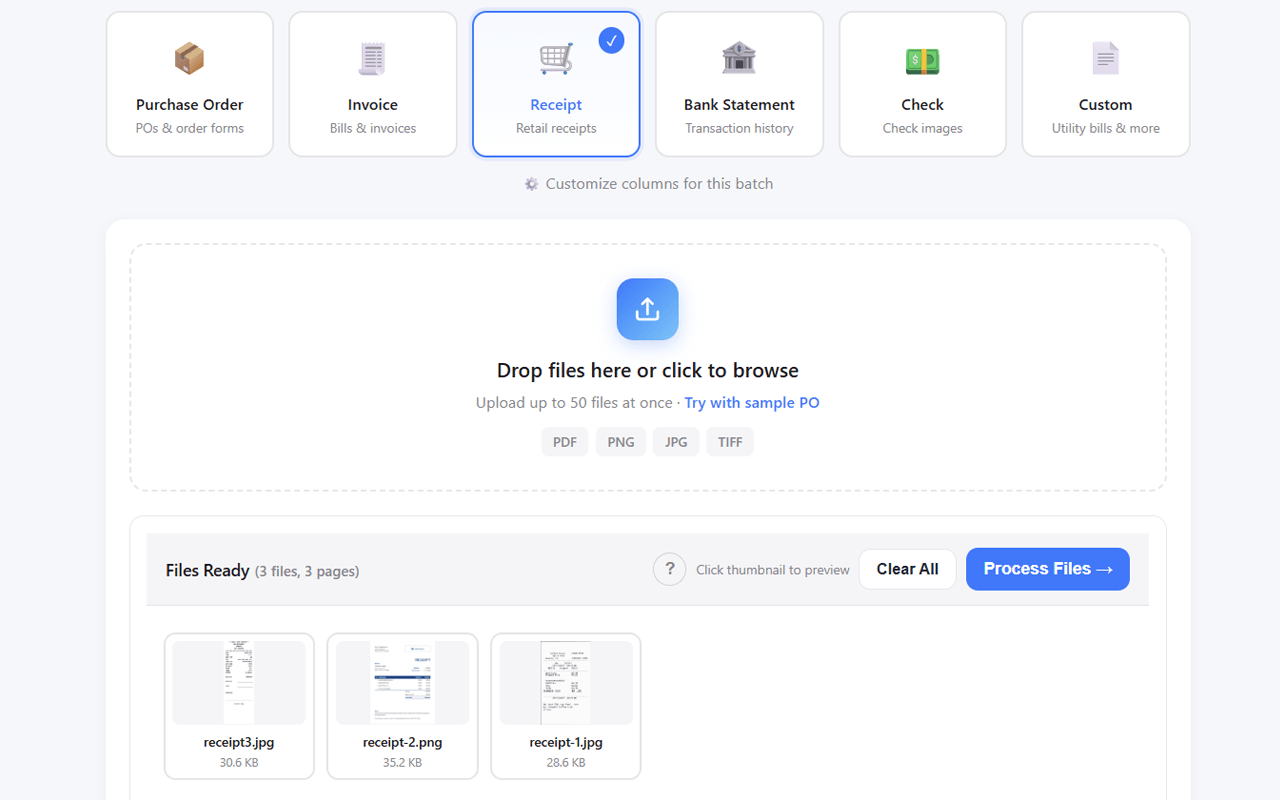
Upload Your Receipt
Drop a single receipt PDF or image, or drag in a batch of up to 50 at once. Works with phone photos, scanned receipts, and digital PDFs.
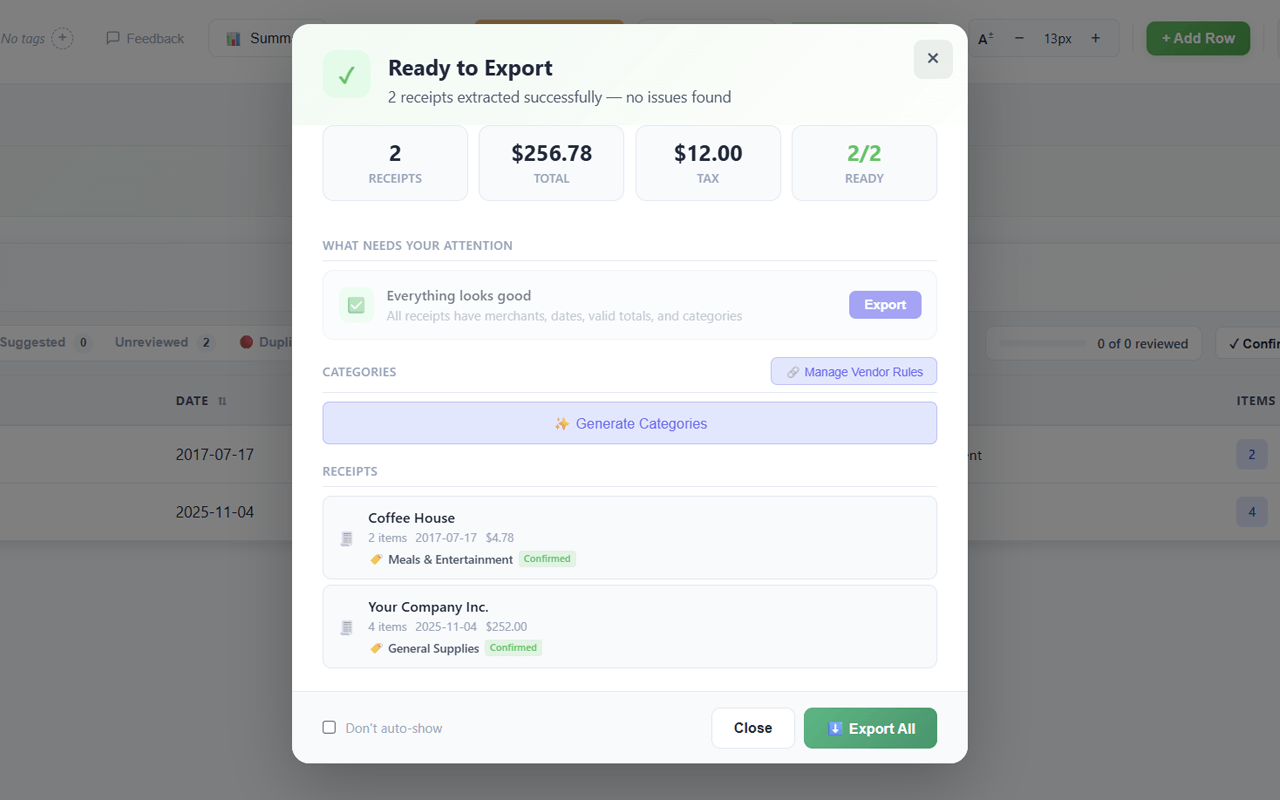
Receipt Data Extracted Automatically
Merchant, date, total, tax, tip, payment method, and line items are read and structured into rows in seconds.
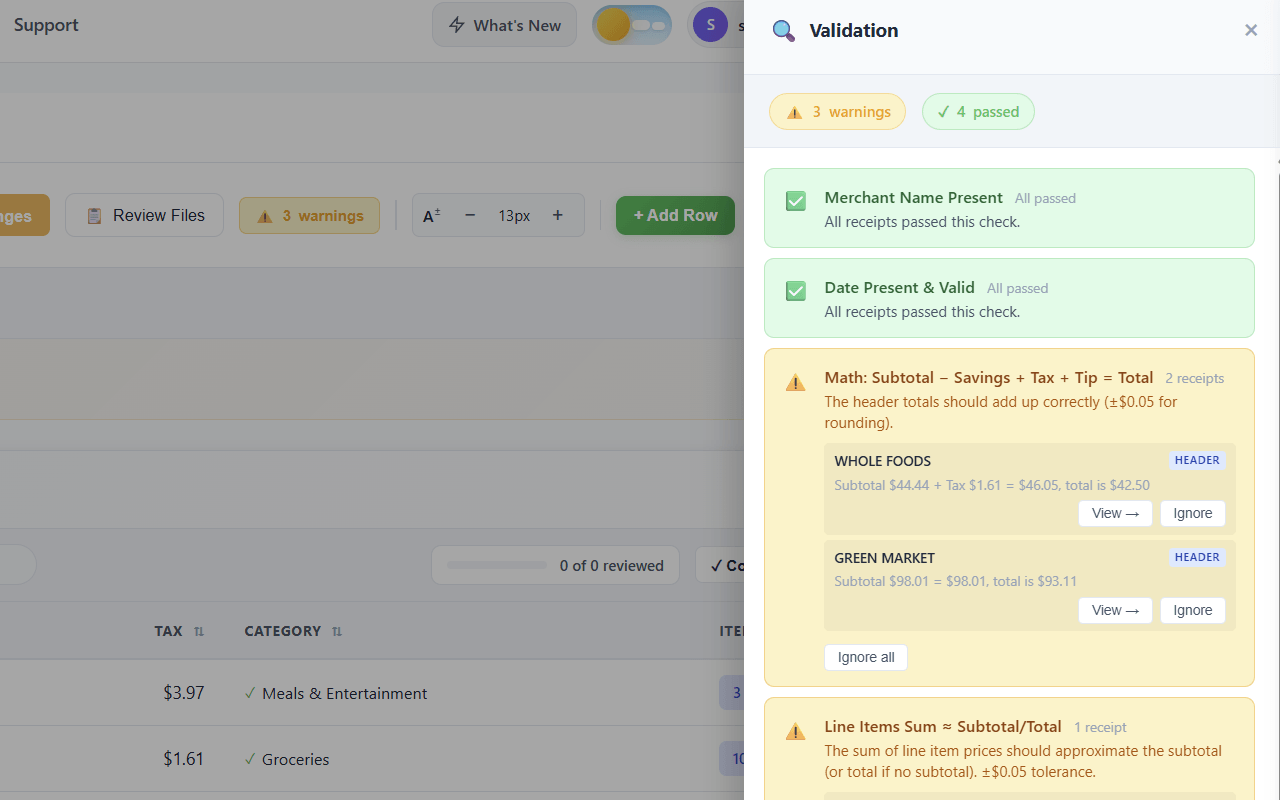
Validation Before Your Pipeline
Automated checks confirm merchant present, date valid, math reconciled, and line items summed before you export. Bad data never reaches your accounting tool or automation.
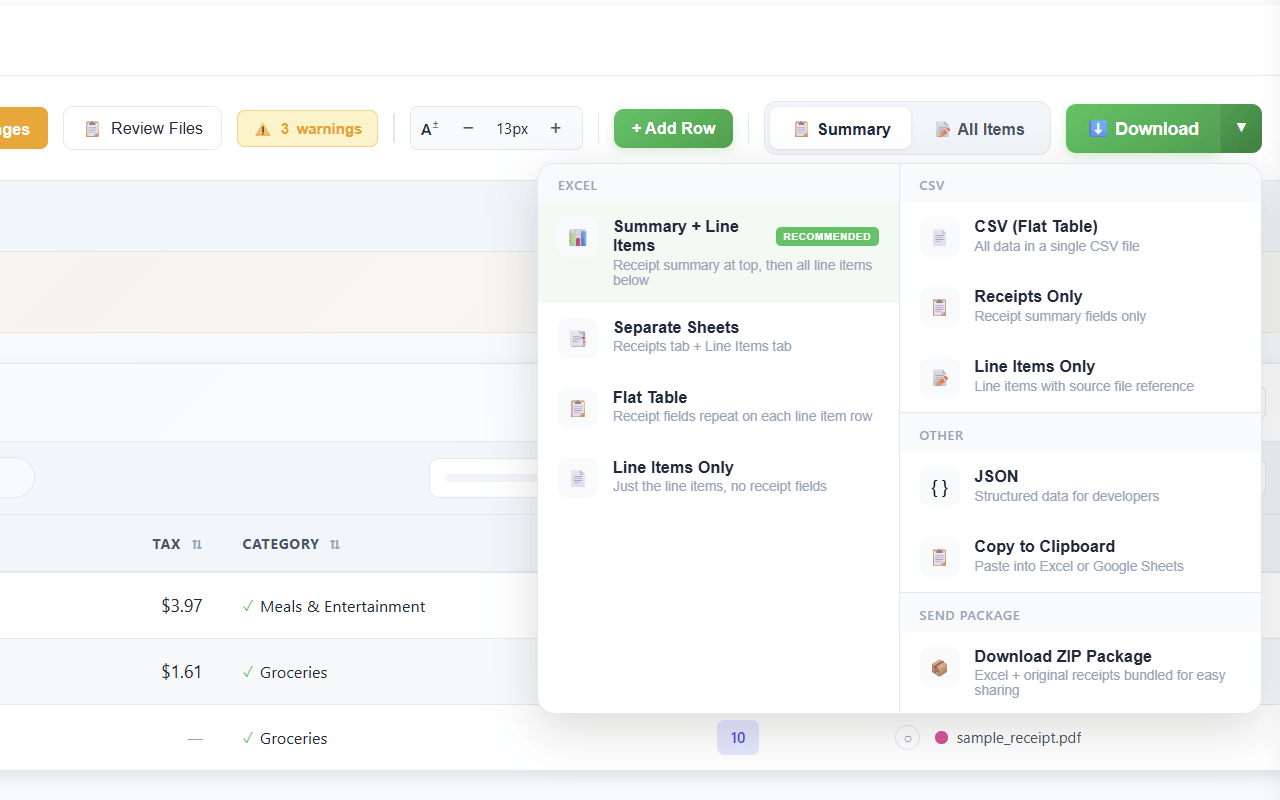
Pick Your CSV Format and Download
Choose a flat table CSV (one row per receipt), line items only CSV (granular per-item analysis), or summary plus line items CSV (both views combined). Download and import directly into your tool of choice.
Pick the CSV Format That Fits Your Pipeline
Most receipt converters give you one CSV format and hope it works. SendItSheets exports multiple CSV structures so the file imports cleanly into whatever tool comes next.
- Flat table CSV - one row per receipt with merchant, date, total, tax. Best for accounting summaries.
- Line items only CSV - one row per item with category, quantity, price. Best for granular spend analysis.
- Summary plus line items CSV - both views stacked in one file. Best for full reconciliation.
- JSON export - structured data for API and developer workflows.
- Copy to clipboard - paste directly into Google Sheets or Excel without downloading.
Real-world receipts aren't pristine - phone photos can be blurry, thermal paper fades, scans get skewed. See what SendItSheets handles well and where extraction quality drops on the receipt extraction page.
When CSV beats Excel for receipts
SendItSheets exports both formats. Here's when CSV is the better choice.
CSV — for pipelines and imports
A lightweight plain-text format that imports cleanly into virtually any tool that reads tabular data. No formatting overhead, no Excel dependency, no version mismatches.
Excel — for review and analysis
Better when you want to review, format, or work with the data interactively. Supports formulas, conditional formatting, and multiple sheets.
Why convert receipts to CSV?
CSV is the right format when your receipt data needs to flow somewhere else - automation tools, accounting software, databases, or scripts.
Automation Pipelines
Feed receipt data into Zapier, Make.com, n8n, or custom scripts. CSV is the standard interchange format for automation tools.
Accounting Software Imports
Import receipts directly into FreshBooks, Wave, or older QuickBooks Desktop. Most accounting tools accept CSV out of the box.
Google Sheets Analysis
Drag a CSV into Google Sheets and get instant pivot tables, SUMIF by category, and shared analysis with your accountant.
Database Ingestion
Bulk-load receipt data into Postgres, MySQL, or any SQL database. CSV is the universal format for batch inserts.
Bookkeeping Workflows
Process stacks of client receipts and import them into client accounting systems with column mapping. No manual data entry.
Custom Scripts and Tools
Plug receipt data into Python pandas, R, or any language with a CSV parser. JSON export is also available for API-driven workflows.
Manual receipt entry takes 2-3 minutes per receipt. SendItSheets takes about 6 seconds. See the full time-savings comparison on the receipt extraction page.
How to convert receipts to CSV with SendItSheets
You can convert one receipt to CSV with no signup at all - drop a file into the uploader on this page, wait a few seconds, and download the CSV. For batch processing or ongoing use, a free account takes about 30 seconds: email and password, no credit card. There's no integration to configure, no chart of accounts to map, and no categories to train before your first export.
Once you have your data extracted, picking the right CSV format depends on what's downstream. If you're feeding the file into accounting software, the flat table format (one row per receipt) usually maps cleanly. If you're analyzing spending patterns or categorizing line items, the line items only format gives you the per-item detail. If you're reconciling against bank statements, the summary plus line items format keeps both views together.
What goes into the receipt CSV
The standard receipt CSV from SendItSheets includes these columns: merchant name, transaction date (ISO 8601), subtotal, tax, tip, total, payment method, and category. Line item exports add columns for item description, quantity, unit price, and line total. Dates use ISO format so they sort correctly in spreadsheets and parse cleanly in scripts. Currency values are decimals, not formatted strings, so they import as numbers in any tool.
You can customize column selection before export - hide columns you don't need, or include extension fields like receipt number, transaction ID, or notes. The CSV uses standard comma delimiters and double-quote escaping, which makes it compatible with any tool that follows RFC 4180.
Where the receipt CSV imports cleanly
Accounting platforms. FreshBooks accepts CSV imports for expenses, and Wave Accounting has CSV import for transactions and receipts. Older versions of QuickBooks Desktop accept CSV imports natively, while QuickBooks Online has CSV import flows for transactions and bank feeds. Xero supports CSV imports for bank statements and receipts.
Spreadsheet apps. Google Sheets imports CSV directly through File > Import. Excel handles CSV via Open or Power Query for repeated imports. Numbers and LibreOffice Calc both accept CSV without conversion.
Automation tools. Zapier, Make.com, n8n, Pipedream, and most other automation platforms accept CSV file inputs as triggers or feed data. The structured columns make it easy to map receipt fields to actions in downstream apps - creating tasks in project management tools, sending notifications when totals exceed thresholds, or routing receipts by category.
Databases and scripts. Postgres, MySQL, and SQLite all have CSV import commands. Python pandas, R, Julia, and any language with a CSV parser can read the file directly. For developer-focused workflows, JSON export is also available.
How is your receipt data secured?
Receipts can contain sensitive information like partial card numbers and purchase details. SendItSheets is designed with that in mind:
- Documents are transmitted and stored using encryption.
- Your receipts stay in your account until you choose to delete them.
- You are in control: delete any file whenever you want.
- Only you can access your uploaded receipts.
Related receipt resources
- Receipt to Excel converter - the Excel-focused version with the unified batch table for review and analysis
- Receipt to QuickBooks workflow - the specific path for QuickBooks Online users
- Receipt to Google Sheets - for users who prefer Google Sheets over Excel or QuickBooks
- Bookkeeping cleanup workflow - for bookkeepers processing months of backlogged receipts in catch-up projects
- Receipt OCR explained - how scanned and photographed receipts are processed
Receipt to CSV: Frequently Asked Questions
Get Receipt Data Into a Clean CSV in Seconds
Upload your receipts and download a CSV ready for FreshBooks, Wave, Zapier, Google Sheets, or your own scripts. Start with 30 free pages over 14 days. No credit card required.
Convert My Receipts Free